Calculations in a Table
Spreadsheets are widely used for a variety of calculations. A formula can be written in a table cell that refers to other cells in the same row using the column names.
Formulas in tables are also automatic in the sense that when new data is added to the end of a table, the formula is automatically copied to the new row.
The Objective
A new column (“Total”) has been added to the table to calculate the total sales for each row. Model:
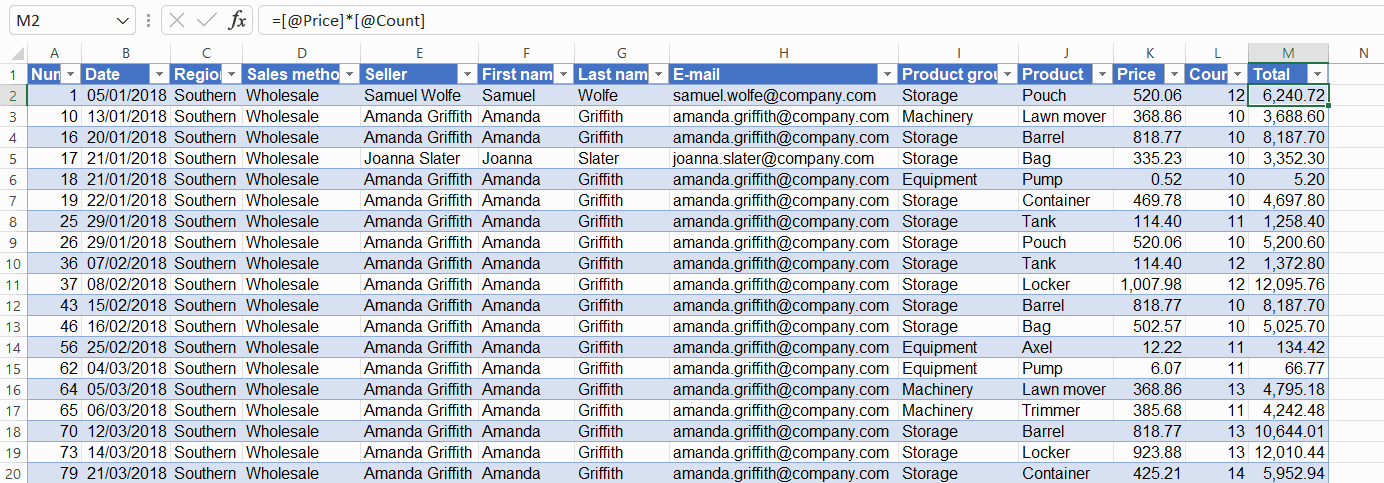
Task: Add a column called ”Total” to the table
First, a new column called “Total” is added to the table. Set the width of the cell. Model:
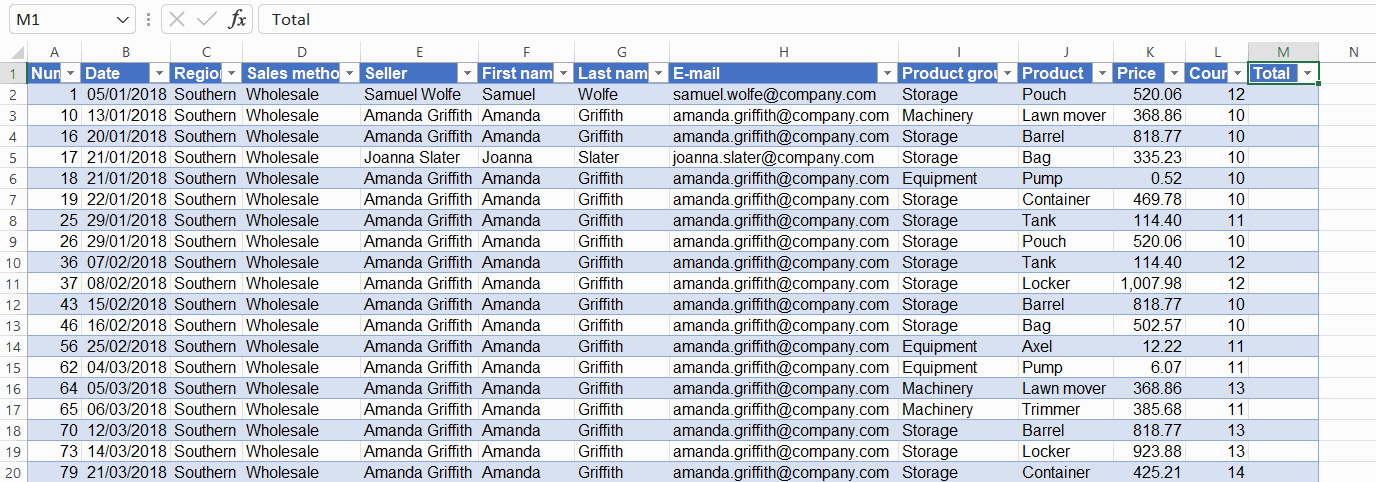
Task: Add a formula to calculate the total sales for each row
Add a formula to calculate the total sales for each row. The joint sale is Price × Count, so the formula is [@Price]*[@Count]. Model:
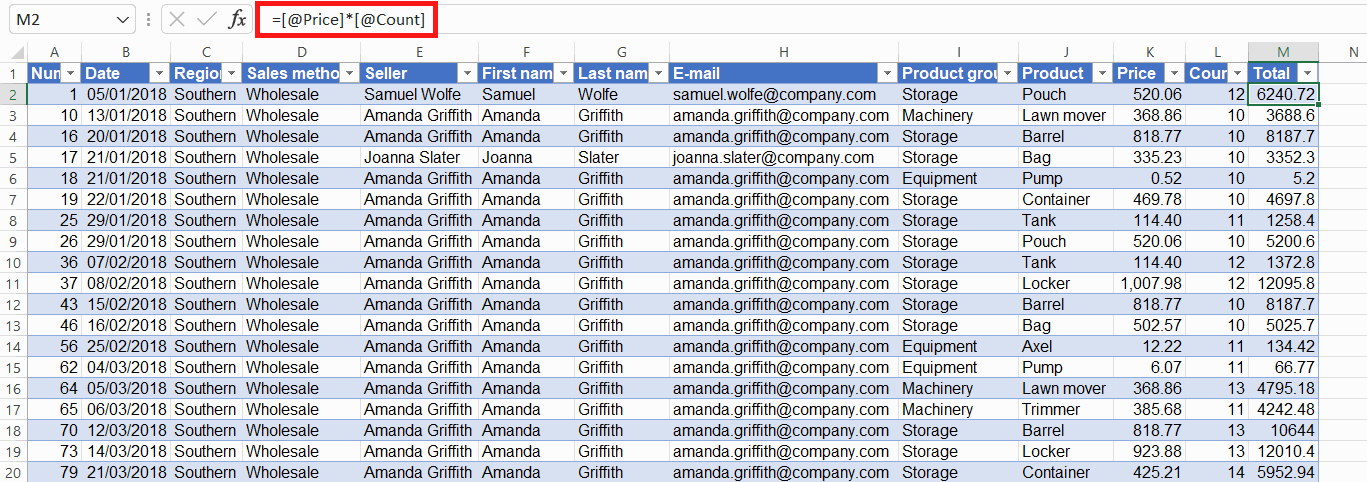
Task: Format the Yhteensä column using number formatting
Please format the Total column to use number formatting. Remember that now you have to select the entire column of the table when formatting. As a reminder: the shortcut for the Number formatting is Shift+Ctrl+1.
With a few clicks of a button, we have added email addresses to the table for each row and calculated the derivative values. Excel is a powerful tool in the right hands.
Shall we move on?