Preview — Office Skills Accelerator course materials (EN). Not production.
Page 3 / 20
Flash Fill
In addition to the moving and editing discussed on the previous page, another key task in big data is data entry. For example, suppose you want to enter email addresses of the form [email protected] for each row of our data. It can easily take hours to do this manually. Fortunately, Excel has a tool for this too: flash fill.
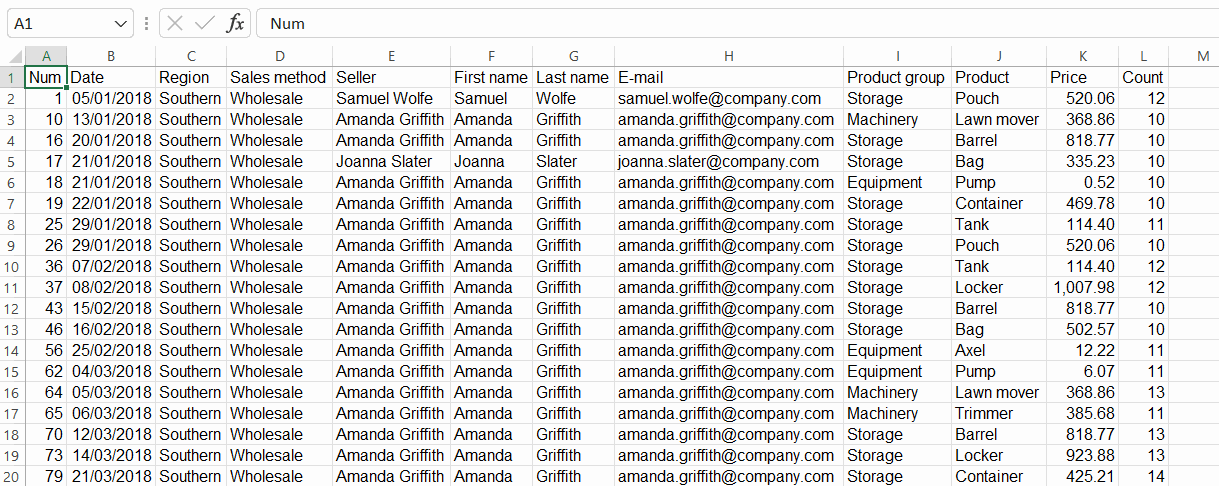
We will now practice the two basic features of a quick completion: sharing data and combining data. We start by splitting the seller's name into a separate first name and last name. We then combine the names for the email address.
The Objective
In the Sales the contents of the columns First name, Last name and Email have been automatically created in the spreadsheet.
In the Email column, some special letters have been replaced with the appropriate characters: ä → a, ö → o, å → a. In email addresses, any formatting as hyperlink has been removed.
Model:
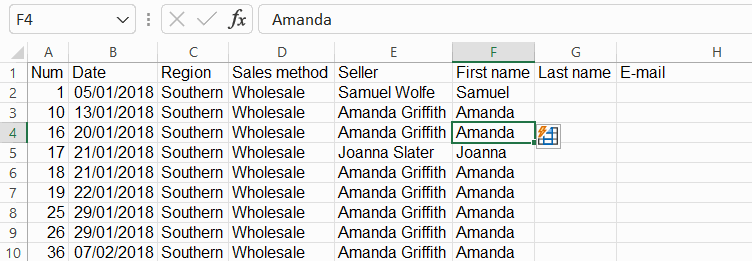
Task: In the First name column, fill in the content
Fill the First name column according to the Seller column. We use an automatic flash fill for this operation. In the next task we will do the same using the command on the selection bar.
Model:
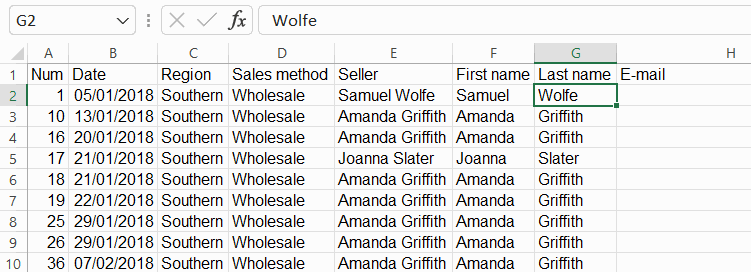
Task: Fill in the content in the Last name column
Make a similar flash addition to the Last name column. In this case, you can make the addition using the selection ribbon.
Model:
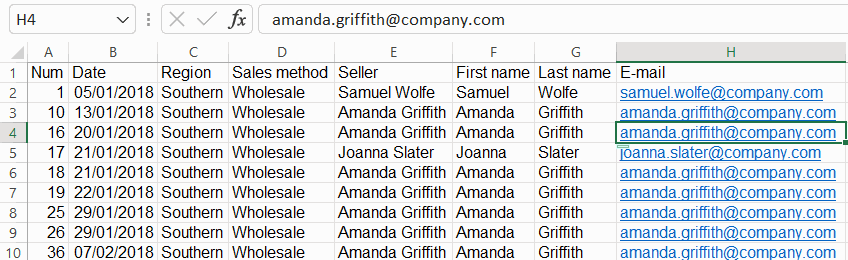
Task: In the Email column, fill in the content
The next step is to add the email addresses. The addition works in the same way as for first names and surnames: First add the first address and then use Flash Fill action.
Model:
Task: Replace special letters in the email addresses
The standard email addresses have been formed by replacing the letters ä, ö and å in the names with the corresponding basic Latin letters a, o and a.
Select all email addresses and replace each character one by one.