Updating a Pivot Table
It is important to understand that the pivot table does not update automatically when data in its source area is changed or added.
The pivot table has formulas that refer to very many cells. If the data were to update in the pivot table all the time, it would be too cumbersome for some computers, maybe even most. That's why Excel and pivot tables are designed not to update automatically.

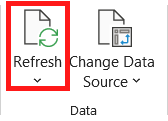 | The pivot table must be refreshed using the **Refresh** button in the **Data** group on the **PivotTable Analyze** tab. If multiple pivot tables have been created from a table, all pivot tables will be updated at once. |
The Objective
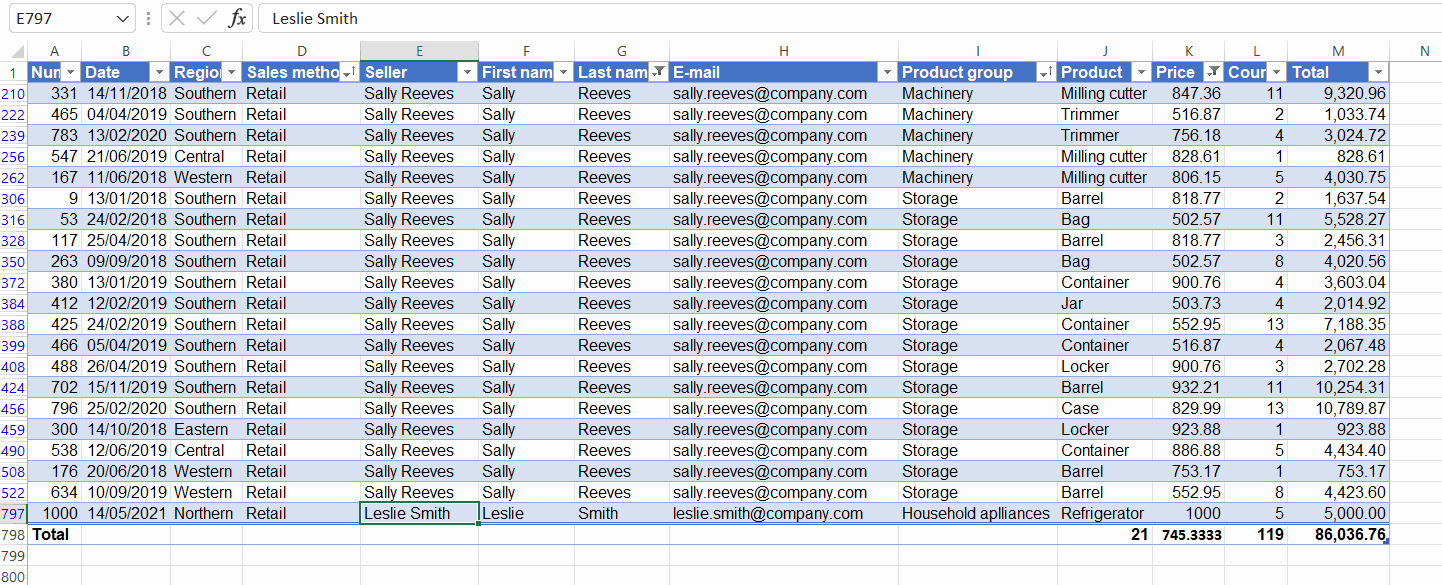
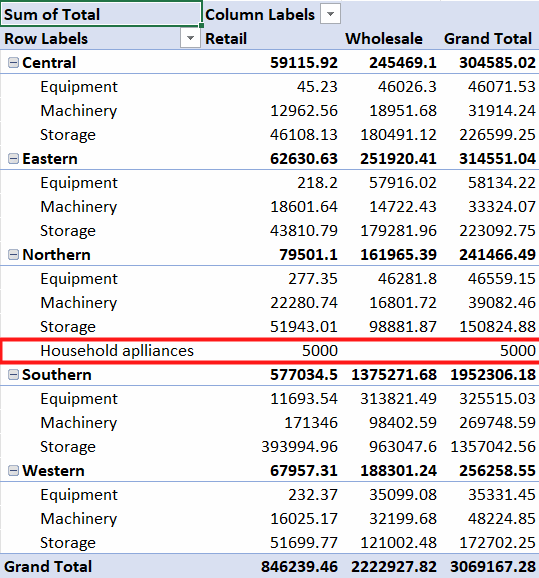
A new row has been added to the table, and its information is reflected in the updated pivot table.
Table:
Pivot table:
Task: Add data into the source table
-
Go to the Sales table and disable Total Row.
-
At the end of the Sales table, add a new sales row where you enter yourself as the seller, Household appliances as the product category, Refrigerator as the product, 5 as the count and 1000 as the price. In the Date column, enter today's date. Other fields can be set as you wish.
-
Enable Total Row.
Task: Explore the pivot table
Explore now the pivot table on the sheet Sales by region. You will notice that this new addition has not been updated in the pivot table.
Task: Update the pivot table
Update the pivot table. You will now notice, that a new row has been added to the pivot table.
Info: Updating if the data source is not a table
If you have used a table, such as Sales, as a data source, the definition of the data source range will be updated automatically.
If you have not used a table as a data source, you will also need to change the area from which the data is retrieved, if the size of the area has changed. The range is changed using the Change Data Source button in the Data group on the**PivotTable Analyze** tab. If you have several pivot tables, you may need to make a change to each one.
For this reason, it is always a good idea to use a table as a source of information.
Now you have got started with pivot tables and you know how to edit and add data to them. Next, let's see how we can customize the look of the pivot tables. Are you ready?