Footnotes
Sometimes you want to expand on something for the reader, but you don't want to interrupt the text itself and its train of thought. You may want to add a reference or other technical information to the text. In this case, a good way to structure the text is with a footnote. A small number will appear in the text in a place of your choice, and the reference text itself will appear separately at the bottom of the page.
Alternatively, the texts can also be placed at the end of the whole document, in which case we refer to endnotes.
Footnotes are common in factual texts and various technical texts. You may have seen these ways used in textbooks, for example. Its popularity is probably due to the reader-friendliness of the footnotes. In Word, creating a footnote is very straightforward, so it's a good method to be familiar with.
Objective
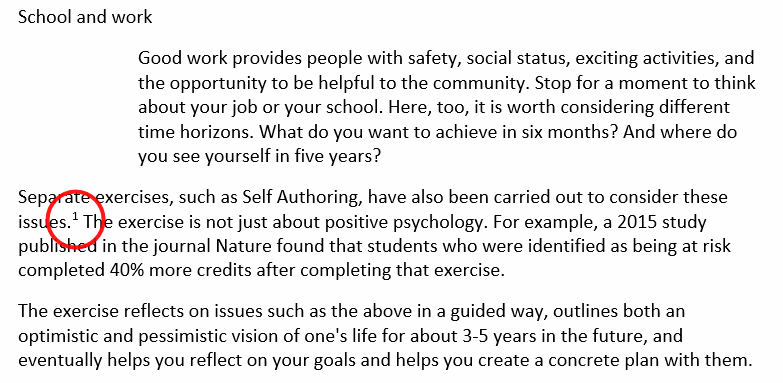
A footnote has been added to the text as shown in the model. There is a reference in the text:
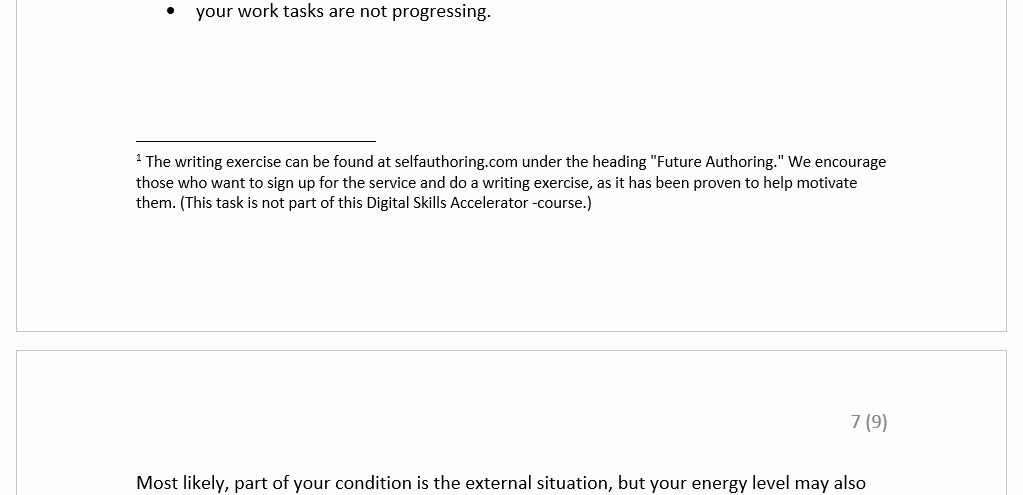
And the footnote is at the bottom of the page:
Task: Add a footnote
After “Self Authoring”, add the text below as a footnote:
Model:
Question: My footnote goes on for several pages. What on earth?
Don’t worry. This is not a mistake and you may not be able to influence the matter directly. Word itself determines how footnotes are displayed.
Then why is there a footnote on several pages?
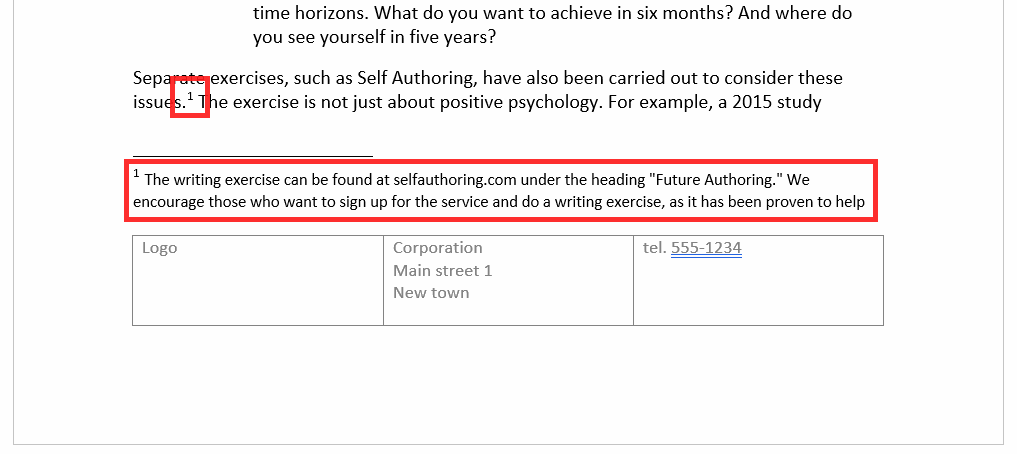
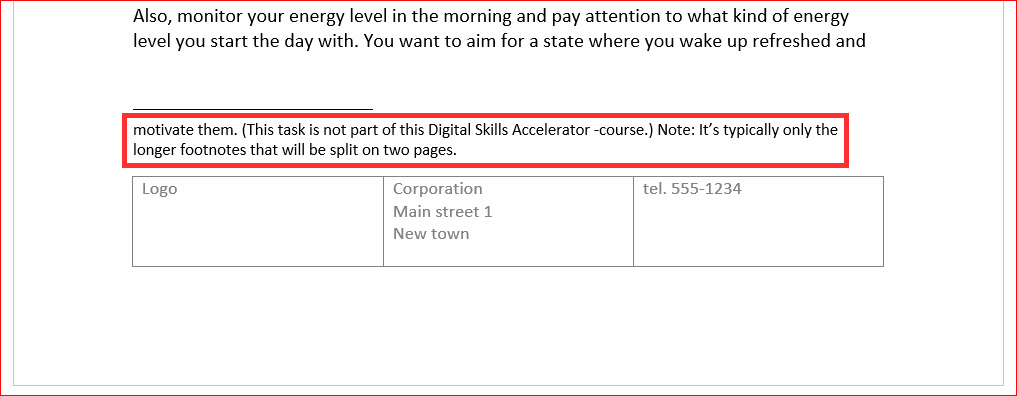
This is because the actual reference is so close to the bottom of the page that if the entire footnote text were on the page, the reference itself would move to the next page. In this case, Word has no way of keeping the reference and the entire reference text on the same page. Word solves this by splitting the footnote into several pages. In this case, the footnote text starts on the same page as the reference.
Example
Here is an example of what a footnote spread over several pages looks like.
First page:
Second page:
Question: Why is the background of my footnote blue?
Your footnote might look like this:

The point is that you have attached it to the document in such a way that you have preserved its formatting. For example, you may have used the Ctrl+V key combination.
Then how do I remove the blue background?
The easiest way to remove the background is to use the Clear All Formatting tool.
First paint the text of the footnote.

Then click on the Clear All Formatting button in the Font group on the Home tab.
Now your footnote should follow the template.
Info: Adding an endnote
An endnote is added in the same way as a footnote: using the Insert Endnote button in the Footnotes group on the References tab.
An endnote differs from a footnote in that it is numbered in Roman numerals and placed at the end of the document.
Info: Settings for footnotes and endnotes

Clicking on the arrow in the bottom right corner of the Footnotes group on the References tab will open a window where you can change the settings of the references.
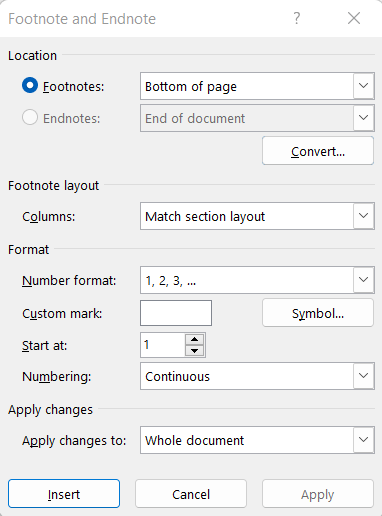
You can change the settings either before or after adding the references. Here you can change, for example, the number formats and the position of references.
Are you ready to move on?