Navigating in a Long Document and Arranging its Parts
The newly introduced headings also allow easier navigation in the document and certain editing functions.
We will now look at the Navigation pane and the Outline view and use them to organize the parts of the document.
The Objective
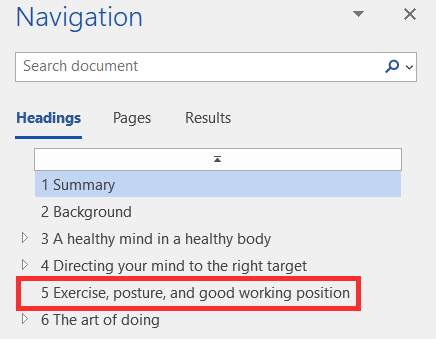
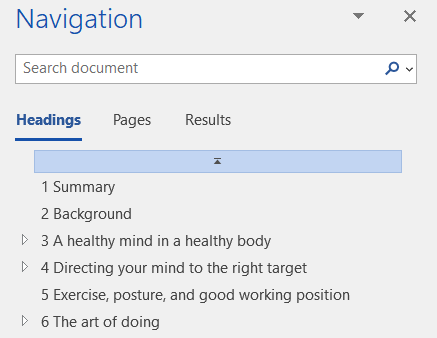 | The part *Exercise, posture and a good working position* has been moved to be the fifth part of the document, after the part *Directing your mind on the right target* and before the part on *The art of Doing*. |
Task: Open the Navigation pane
When you use heading styles in a document, you can take advantage of Word's various content views to make it easier to navigate and work in the document. Without the introduction of heading styles, these functions cannot be performed.
In particular, the Navigation pane makes it easy to move from one heading to another in the document and to rearrange the document. The Navigation pane opens on the left side of the window and allows you to view the document either by heading or by page.
The Navigation pane is also useful for reading the document. It makes it easier to find different parts and serves as a good table of contents. Many people like it especially when documents are processed together on a larger screen and the document needs to be navigated together.
Mac: Transferring parts of a document
In the following task, you will be asked to move parts of a document using Navigation. Unfortunately, the Mac version of Navigation does not have this functionality.
Task: Move part of the document
Move the heading 4 Exercise, posture and a good working position and text before the part 6 The art of doing using the Navigation pane.
Info: The shortcut menu in the Navigation pane
By right-clicking on a heading, you can access a shortcut menu with functions you can use.
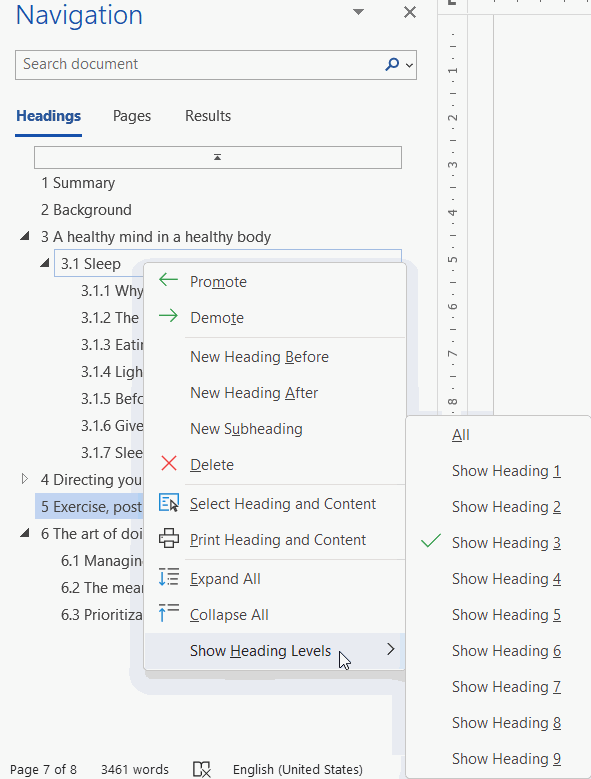 |
Promote/Demote: changes the level of the selected heading. New Heading Before / New Heading After: adds a new heading. New Subheading: adds a new subheading. Delete: deletes the selected heading and the content after it (up to the next heading). Select Heading and Content: paints the heading and the content after it, so that you can copy it elsewhere, for example. Print Heading and Content: prints only the selected heading and the content after it. For example, you can make a pdf file of the selected part. Expand All / Collapse All: if there are multiple heading levels, you can view only the top level or all levels. Show Heading Levels: hides Navigation levels lower than the selected level. |
Task: Explore the Outline view
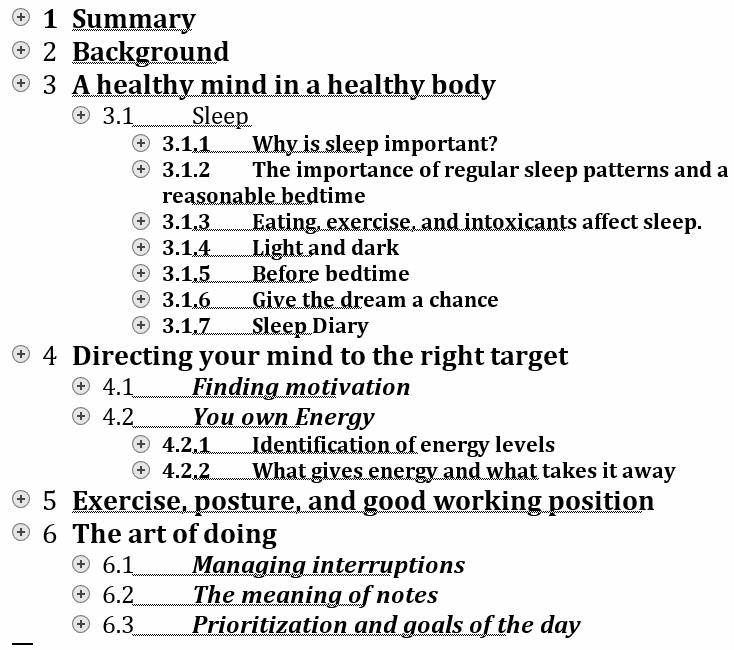
The basic view in Word, where the document is usually written, is called Print Layout. The layout of the document corresponds to its final layout. In addition, the document can also be viewed in other views. The Outline view displays only the text of the document. Outline view allows you to move, delete, copy and change text levels in the same way as in the Navigation pane.
The Outline view is useful when information is being pasted from another document. When pasting in the Outline view, the document formatting is better preserved than when pasting in the Print Layout view.
Similarly, when you are creating the content of a document by heading levels, it is easier to see the big picture in the Outline view.
Display level 3 in the Outline view. Finally, return to the Print Layout view by closing the Outline view. Model:
Are you ready to move forward?