Headings and Numbering Them
To make long documents easier to read and process, it is useful to know how to edit them in different ways. On this page, we start editing a long document. The document is entirely hand-written and does not use any of Word's more advanced features.
First, we will introduce heading styles in the document and format them neatly. In particular, we will add numbering to headings to make them easier to read.
Download the template file
In this chapter, you will edit one and the same long document. Download the editable document on remote learning skills *Teleworking_skills.docx. Copy the file to the desired location and open it. When Word asks you to confirm whether you want to edit a document downloaded from the web, answer yes.
Teleworking_skills.docxThe Objective
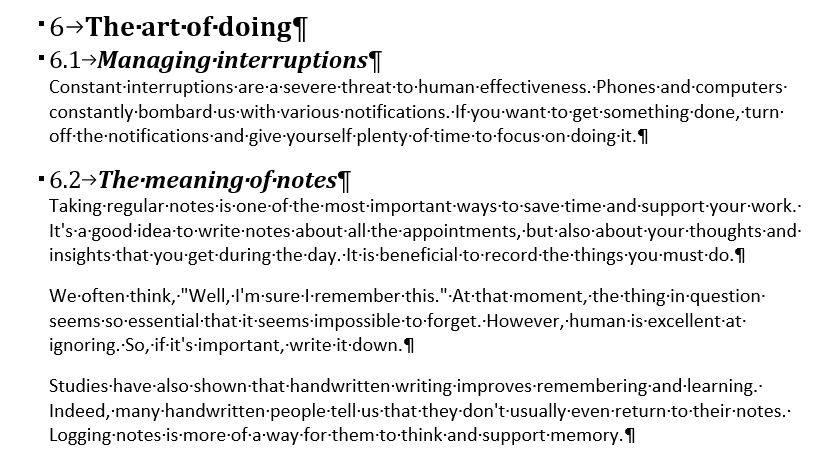
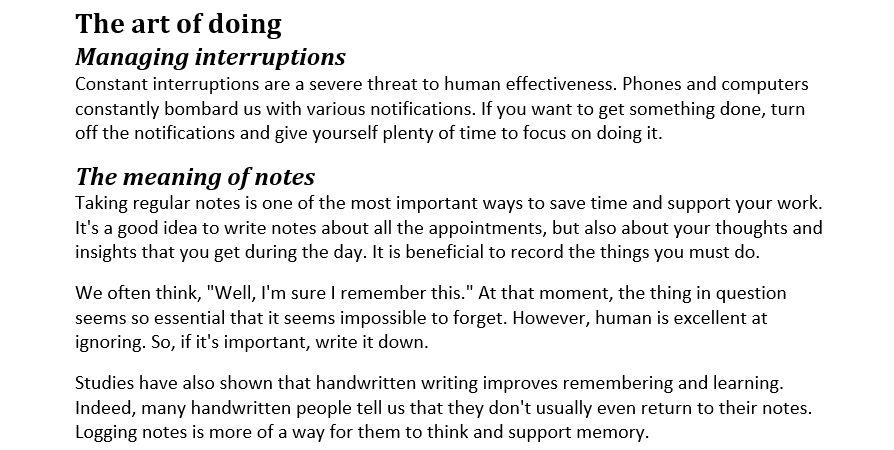
Heading styles have been introduced in the document. The heading styles have been formatted:
- The headings are set in a suitable font, different from the fonts used for the body text. The template uses the Cambria font.
- The font sizes of the headings are set in a meaningful way in relation to the body text. The model uses the styles Heading 1, Heading 2 and Heading 3 with point sizes 17, 15 and 13.
- The subject is clearly highlighted. In the template, all heading styles are in bold and in addition the Heading 2 style is in italics.
- The color of the headings is set. The color has been changed to black.
Info: Styles and why use them
Styles are predefined formatting settings that can be applied to text elements such as paragraphs, headings, titles, or lists. When you use them, they help you to maintain consistency in the appearance and structure of your documents by providing a unified set of formatting attributes, such as font type, font size, line spacing, indentation, and color.
Word styles are helpful for several reasons:
-
Consistency: Applying styles to a document ensures that formatting remains consistent throughout, resulting in a polished and professional appearance. This is particularly important in formal documents, such as reports, proposals, or academic papers.
-
Efficiency: Styles allow users to apply a set of formatting attributes with a single click, saving time and effort compared to manually adjusting each attribute individually.
-
Organization: Using styles for headings and subheadings makes it easier to create a well-structured document, as it visually differentiates between various levels of content. This improves readability and helps readers navigate the document more easily.
-
Accessibility: Applying styles to headings and subheadings can make documents more accessible to people using screen readers, as these devices can interpret the document's structure based on the styles used.
-
Easy updates: If you decide to change the appearance of a particular style, you only need to modify it in one place, and the changes will automatically be applied to all instances of that style throughout the document.
-
Table of contents: By using styles for headings and subheadings, you can quickly generate an automatic table of contents that reflects the structure of your document and updates dynamically as you add, remove, or modify content.
In short, Word styles are a powerful tool for creating well-formatted, consistent, and accessible documents, enabling users to work more efficiently and maintain a professional appearance.
Info: Usefulness of numbered headings
Numbered headings in Word can be useful in several ways, depending on the context and purpose of your document. Here are some benefits of using numbered headings:
-
Organizing and structuring your document: Numbered headings help you to break down your document into manageable sections and subsections. This makes it easier for readers to follow your ideas and for you to organize your thoughts.
-
Navigation and accessibility: Numbered headings create a clear hierarchy that can help readers to navigate your document. If you use the Navigation Pane or Table of Contents feature in Word, numbered headings make it easy to jump to a specific section.
-
Consistency and clarity: Numbered headings ensure that all sections of your document are labeled consistently, which can make it easier for readers to understand the structure and organization of your document.
-
Formatting and style: Numbered headings can also help you to create a professional and polished look for your document. You can customize the formatting of your numbered headings, such as font style, size, and color, to match your document's overall style.
Info: When to use numbered headings
In terms of when to use numbered headings, they are typically appropriate for longer documents such as reports, manuals, or theses. They may not be necessary for shorter documents such as memos or emails. However, if you want to create a clear structure for any document, numbered headings can still be helpful.
Task: Take heading styles into use
When working on long documents, it is a good idea to use predefined heading styles for text headings, so that you can easily add things like table of contents and cross-references. Word also has views that support the use of heading styles. These views make it easy to browse a long document and change the order of the document. There are also aesthetic benefits to using headline styles.
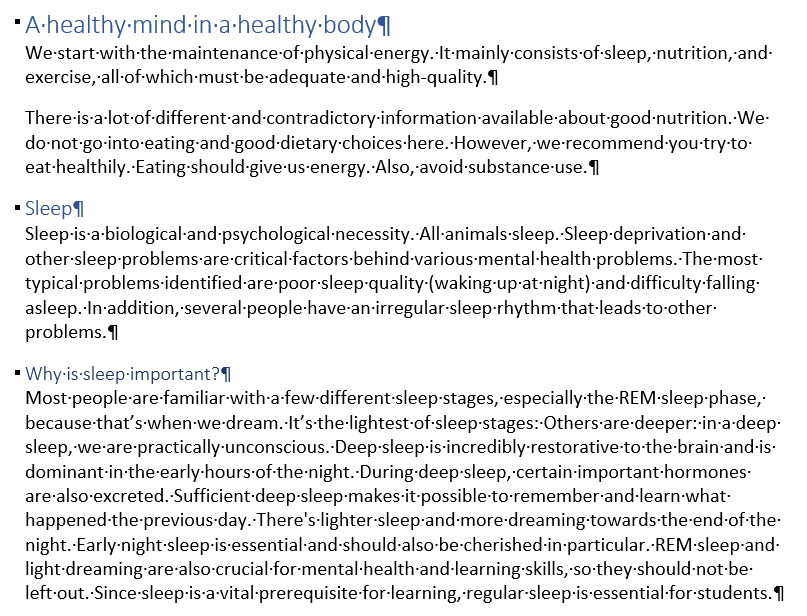
Add to the headings the Heading 1 style, to the subheadings the Heading 2 style and to the third level headings the Heading 3 style. Add these styles as they are added by default in Word.
Note that the first line of the document, the title of the document, is left as it is. We will format it separately on the cover page later.
Model:
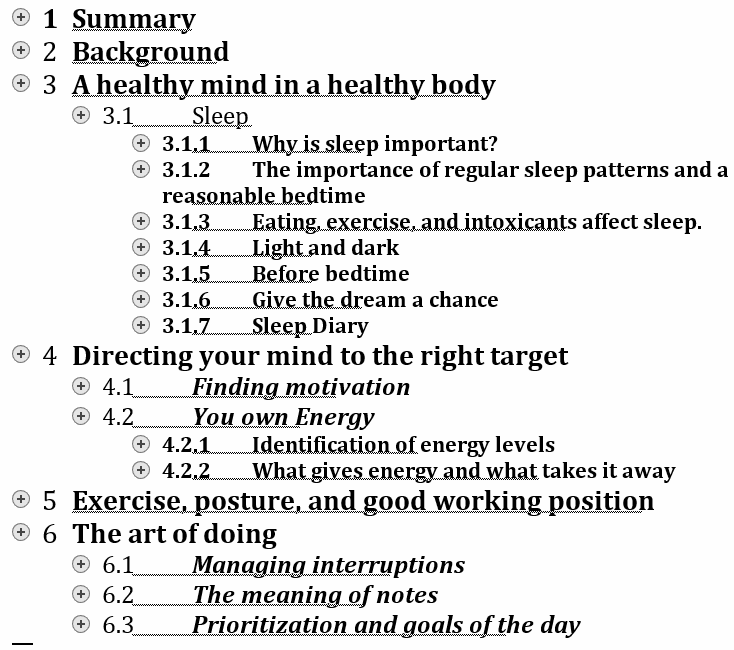
Word also has views that support the use of heading styles. These views make it easy to browse a long document and change the order of the document. The finished headings will look like the following in the structure view, which we will explore later:
See the tutorial on how to change the style for all texts formatted in the same way at once.
Continue to Navigating in a Long Document and Arranging its Parts.
Task: Edit fonts for heading styles
One of the most important features of heading styles is that you can customize their appearance in a centralized manner. When you edit the heading style, all headings will automatically be updated to this style. Next, edit the heading styles. Set at least the following features for them:
| #### Font used | Use the same font for all three heading styles. A viable alternative could be **Cambria**. This font goes well with the **Calibri** font used as the body text of the document. |
| #### Font size |
The font size of the document's body text is 12 points. Headings can be slightly larger than the body text. Headings can also grow from smaller to larger. Please note that in order to design heading sizes, you need to know the number of heading levels. This document contains headings at three levels.
For example, suitable values for the font size of headings could be 13 points for the Heading 3 style, 15 points for the Heading 2 style, and 17 points for the Heading 1 style. |
| Often, the default blue of Word is also a somewhat ambiguous and a boring color. Change the color of the headings. If you want, you can change it to black, which is always a good choice. | |
| #### Font highlights | Highlight headings in bold and italics. All headings in the model are in bold. In addition to this, the **Heading 2** style is italicized, making it stand out nicely from the other two heading styles. |
Please note that you will have to edit all three heading styles separately.
Task: Add numbering to headings
Numbering the headings makes the document clearer. Add the numbering as shown in the example:
Extra task: Remove the Heading 3 level numbering
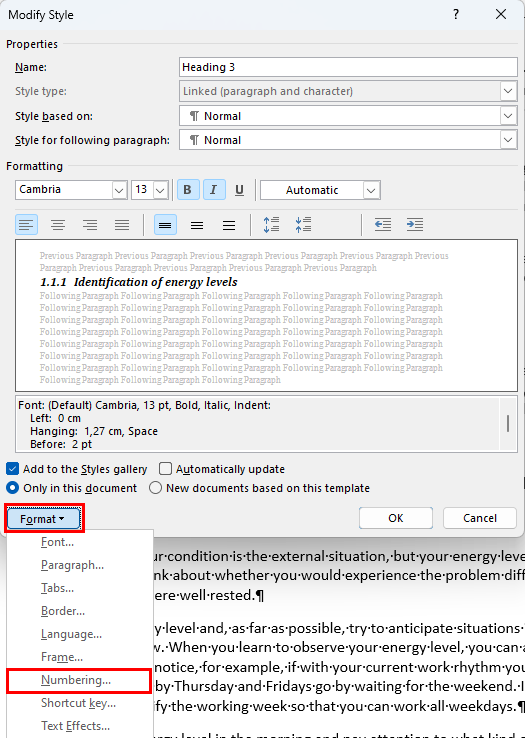
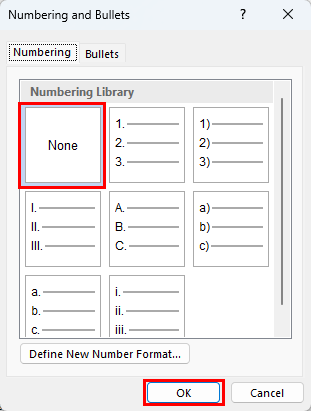
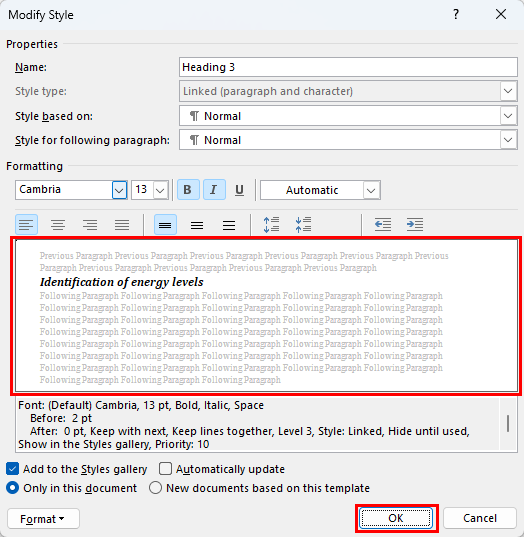
In this task, the numbering of the Heading 3 level is removed, the numbering is left for the other heading levels.

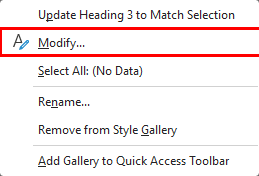 |
Open the menu related to the style by right-clicking the Heading 3 style in the Styles group on the Home tab. From the menu that appears, select Modify.
|
Are you ready to move forward?