Preview — Office Skills Accelerator course materials (EN). Not production.
Page 6 / 13
Cover Page
Often you want a cover for a document, especially if you want to make a printable booklet or pamphlet. The cover can have a similar function to the cover of a book or magazine. Word includes a separate tool for creating a cover page. Its essential feature is that the cover page does not count in the total number of pages in the document and does not have a page number. Also, the title on the cover page does not appear in the table of contents.
The Objective
A cover page has been added to the document. All possible extra fields have been removed from the cover page.
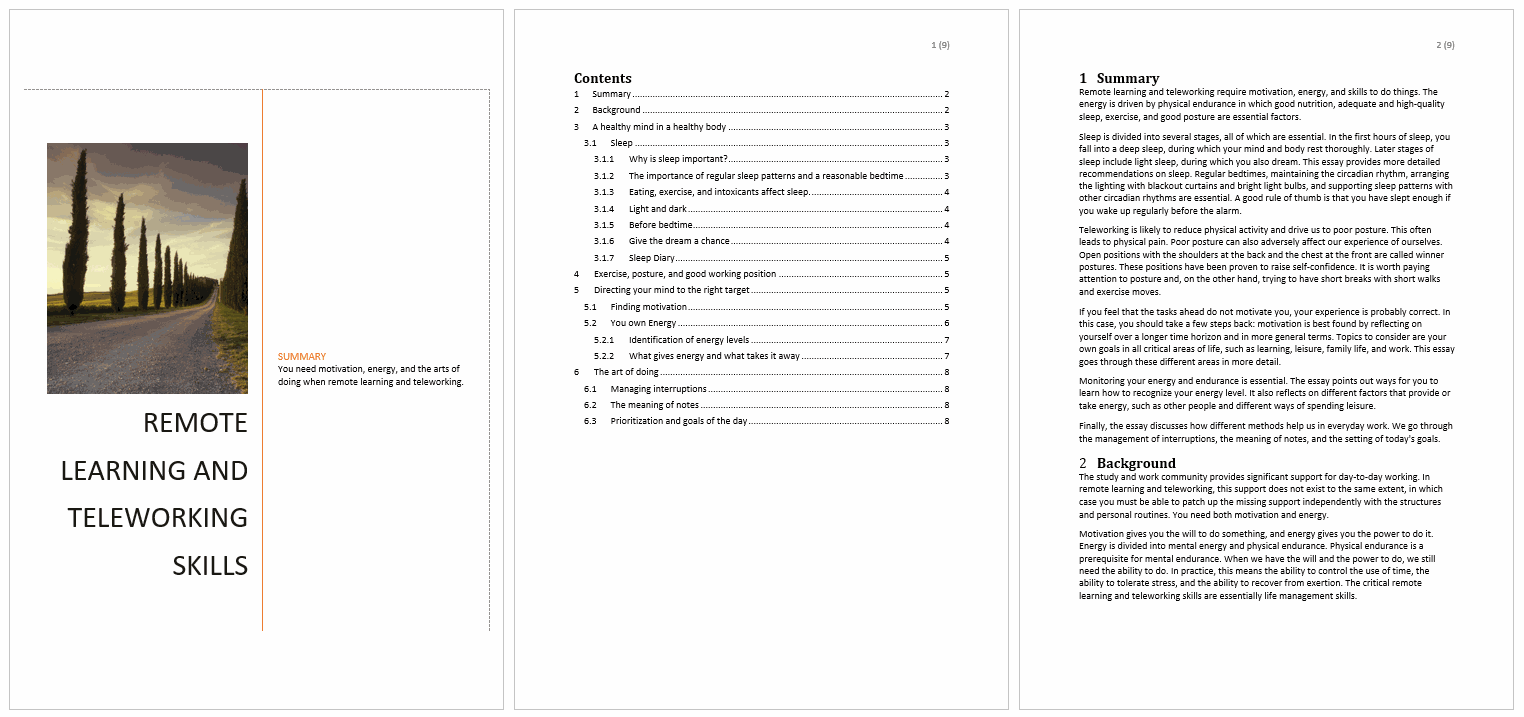
A model of a document with a cover page:
Kuvassa malli kansilehdestä, sisällysluettelosta, sivunumeroinnista ja otsikkotyylien käytöstäTask: Add a cover page
Let’s add a separate cover page to enhance the look of the document. Add the option you want from the pre-made cover pages. Fill in the cover page with a heading and, if you wish, write a short summary. Finally, delete the extra fields.
Accessibility and cover page
Let's review what you've learned and then move on to the Footnotes page.
Which of the following activities do you think you know?
Let's stop for a moment to list what kind of Word skills you know.
Applying heading styles
Viewing the document in the Navigation pane
The arrangement of the parts of the document so that the numberings do not change