Preview — Office Skills Accelerator course materials (EN). Not production.
Page 11 / 13
Columnized Footer
People often want to place content in a document footer in columns. Unfortunately, you can't use Word's column setting features in a footer; you have to use a table for formatting.
In general, in Word one should not use tables to lay out content, but only to present information in a table. The use of tables for layout reduces accessibility because screen readers are designed to interpret tables as representing table data.
When a document has several sections, you can add the footer either to all pages or to one section at a time. Now we will add it to all pages and separately adjust the footer on the landscape page, as it will need to be wider.
Video
The Objective
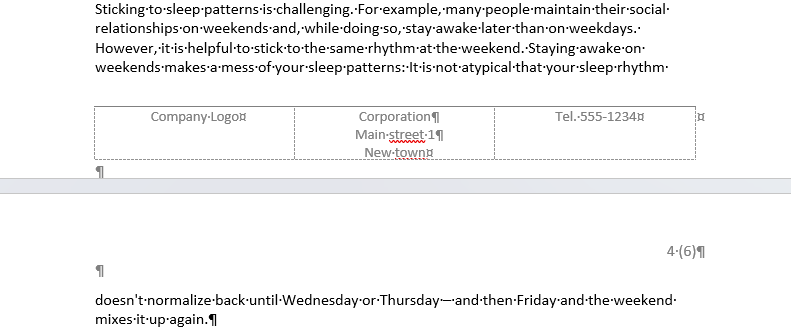
A three-column footer has been added to the document pages as follows:
The footer is visible on all pages except the cover page
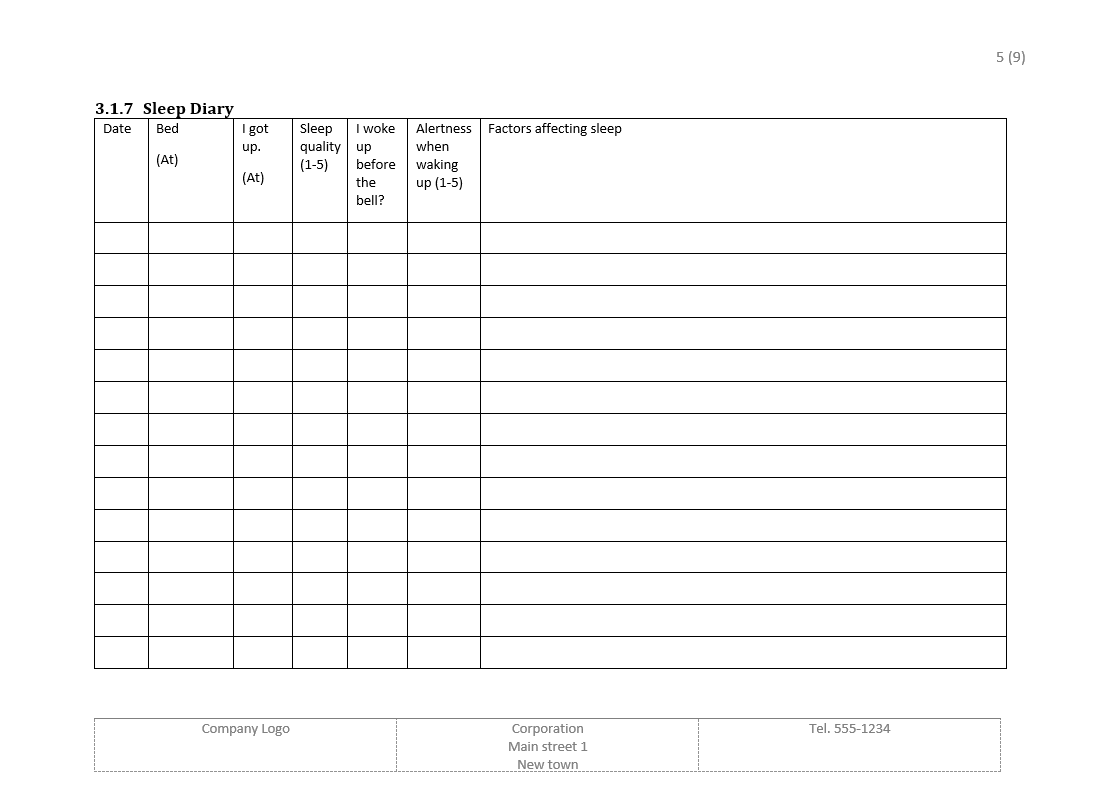
On landscape-oriented pages, the footer has been adjusted for the wider page width
Borders have been removed from the table in the footer. (The lines visible in the template are produced by the View gridlines functionality.) You may also choose to keep the top border of the table visible if desired.
Example of the footer on page 3:
Example of the footer on horizontal page:
Task: Check the Different First Page setting
In each section, it is possible to make the first page different from others.
The Different First Page setting:
Part 1 (pages before the landscape page): On
Part 2 (landscape page): Off
Part 3 (pages following the landscape page): Off
In practice, with these settings, the footer on the document's cover page can be created separately so that it is blank.
Task: Add a table to the footer of the first section
Now the section-specific footer settings have been defined and we can start adding the footers themselves.
We will add the footer to the first section, so it will automatically appear in the other sections as well. Finally, we will adjust the footers in the other sections to fit the pages in those sections. (However, do not add the footer to the cover page, but to the following page.)
Let’s start building the footer by adding a table to it.
Task: Center all cells in the table
The footer looks neater if all three text columns are centered.
Task: Remove the borders of the table
The footer looks neater if the reader does not see the borders of the table.
Task: Add content to the table
Add the contents of the table according to the template. If you wish, you can use one of the logos in the “COMPANY LOGO” section.
Alatunniste sisältö
Task: Remove links between footers (part 2 and part 3)
By default, a footer is “linked” to the footer of the previous section and is effectively copied from it. We remove the linking, because otherwise we cannot edit the footer on the horizontal page separately.
Remove the footer linking from section 2 (horizontal page) and section 3 (pages following the horizontal page).