Extra: Columns Layout
On this page, we practice dividing a document or part of a document into two or more columns.
With column layout, text can be divided into vertical columns. The use of columns often improves the readability of a document, especially when printed. The most common example of column layout is a printed newspaper, but columns are also used in many documents and publications.
<
Download the template file
Download and open Columns.docx.
Columns.docxThe Objective
The document will be laid out so that the text of the body text is in columns but the heading spans the full width of the document. When finished, it looks like this:
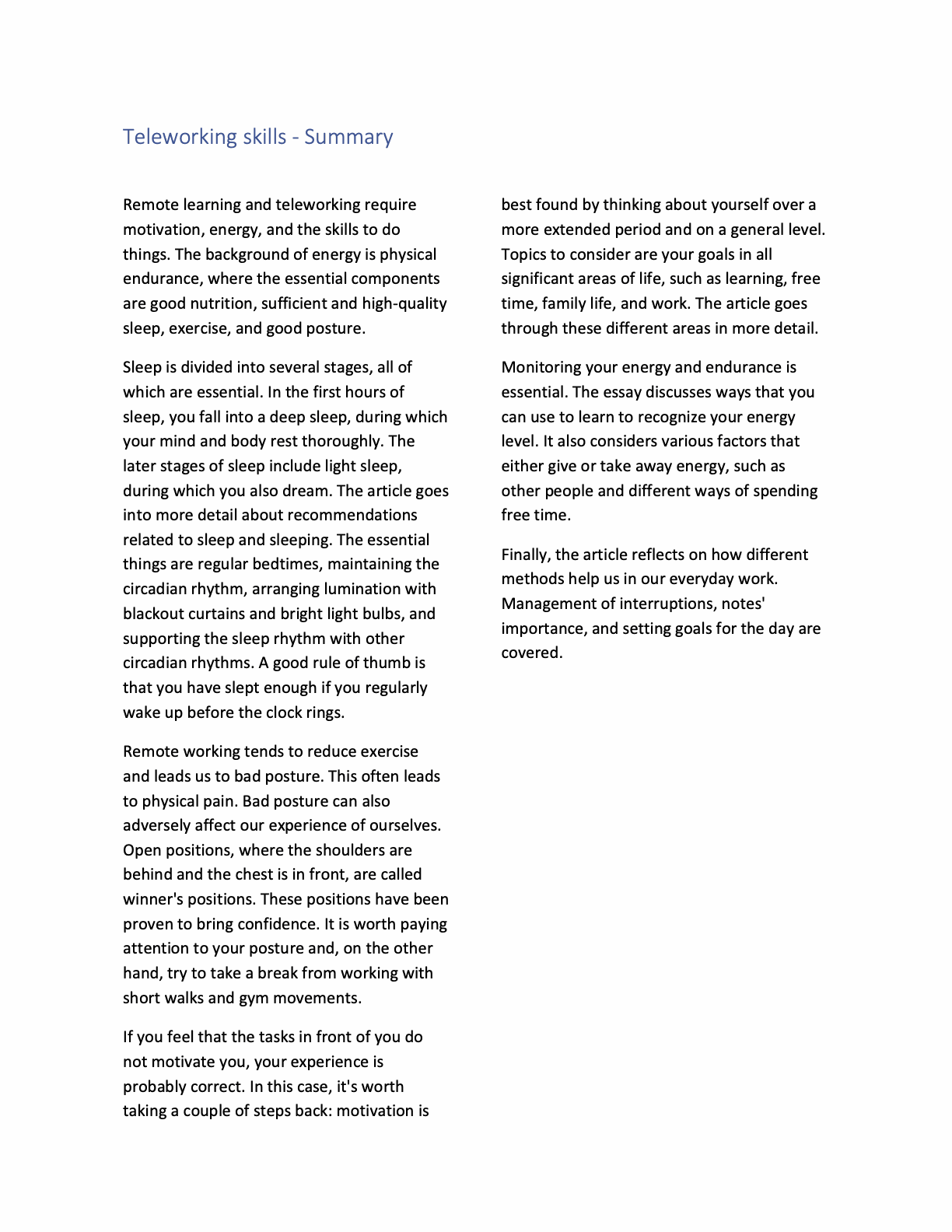
Task: Add a section break to the document
We want to set the document in two columns, except for the heading. We’ll do this so that only a section of the document is affected by the columnization.
Add a continuous section break to the document in the place shown in the model, so that the heading and the rest of the text are in different sections.
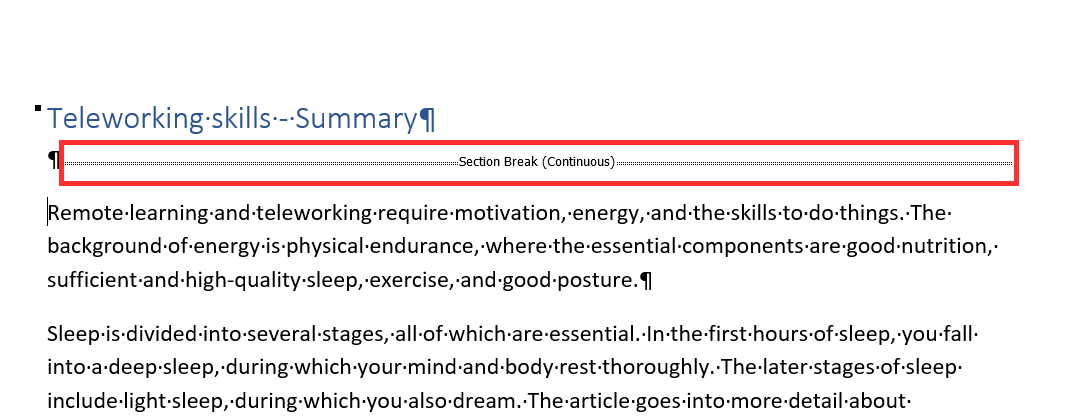
Task: Split the document into two columns
Divide the body text of the document into two columns.
Info: Column layout settings
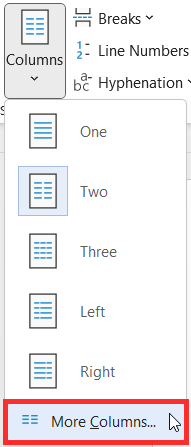
Column layout is changed on the Layout tab, in the Page Setup group, using the Columns button.
Select the option More Columns.
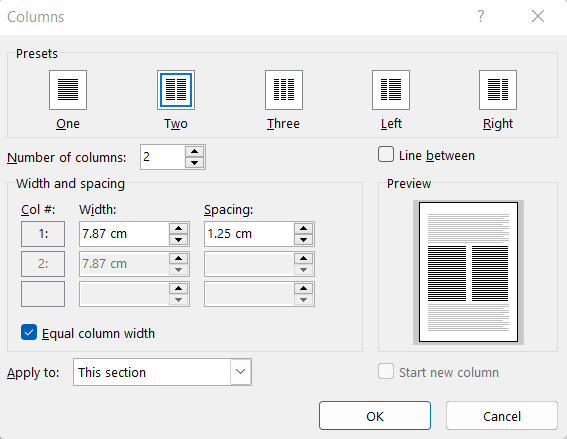
Great, you have now also done the extra task in the chapter. You can move on to the next chapter in good spirits.
Are you ready to move on?