Saving a Document as a PDF File
Often a document is requested to be delivered to its recipient in PDF format. PDF (Portable Document Format) files are highly compatible and will open as desired on virtually any computer, phone or tablet. On the other hand, PDF files are difficult to edit, which is sometimes desirable.
The Objective
Your finished PDF document should look like this. Note that the document contains a table of contents.
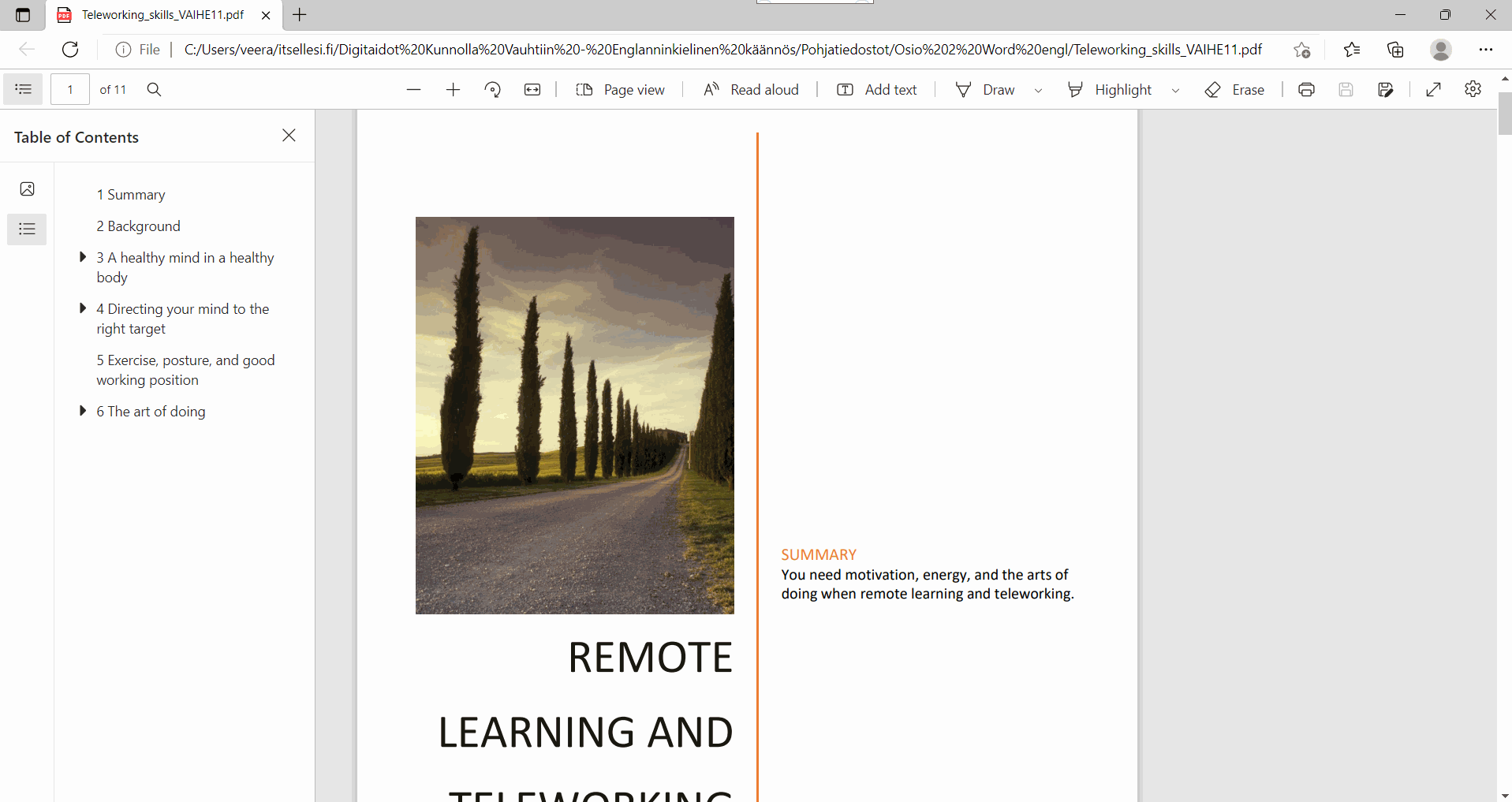
Mac: Bookmarks in PDF file
Mac: Saving to PDF
Task: Save your file as a PDF, add the bookmarks
Word allows you to save a document as a PDF file in several ways. You may already be familiar with one of them. The method taught here is the best from an accessibility and usability point of view, among other things, because it provides bookmarks in the PDF file for easy reading. (Two other ways are the Print function and the Save As function used appropriately.)
Problem: When printing my document, the pages turn horizontal
It's a rather strange problem. Usually the error is due to the fact that the part referred to by the cross-reference Exercise, posture and good working position contains a section break. The page break therefore has a heading style and the cross-reference points to it.
Eventually, printing and/or exporting to a PDF file will update the fields, so that the cross-reference “text” will also copy the section break to the referenced field. Word then goes absolutely nuts for this.
To fix this, first remove the cross-references you have made. Then, find the section break on the horizontal page. To get there, move the cursor to the heading on the next page and press the left arrow key (<i class="fas fa-arrow-left"></i>) sufficiently. Set the section break to use the Normal style. Then rebuild the cross-references again.
Now printing should work.
Task: Open the PDF file in Word
Reflect
Word2 - Final qustionnaire
How well do you feel you know the skills practiced in this chapter?
- I feel that in the future it will be easier to remember the functionalities related to the topics of this part. I might find short instructions as handy reminders.
- I feel that in the future, I will be able to use these functionalities and will be able to expand my skills through experimentation.
- I feel that in the future, I will be able to use these functionalities effectively and without help.
- I feel that I still need more help from the topics in this section.
Did you achieve the learning goals you set at the beginning?
- Yes
- No
Return
Check your exercise document to make sure that all the tasks have been done.
Send your assignment to [email protected] with the subject line Word 2 assignment. Please attach the following to the e-mail:
- Teleworking_skills.docx document that you have edited
- PDF file that you created from the document
Have you sent the email?