Preview — Office Skills Accelerator course materials (EN). Not production.
Page 8 / 15
Copying and Deleting Formatting
By now, you have learned a wide range of text formatting activities. Next, we'll look at copying and deleting formatting.
It is often quicker to copy the formatting in a document to another place than to start from scratch. For example, in a situation where indentation, list marks and line spacing have been changed in a paragraph, it is quicker to copy the formatting to another paragraph than to first examine what formatting has been done to the paragraph and then redo the same formatting in another paragraph.
The most professional way to manage this is to create a style from the formatting and use it. We will look at this later.
Font and paragraph styles are copied in slightly different ways, so pay attention to which one you are copying.
Video
The Objective
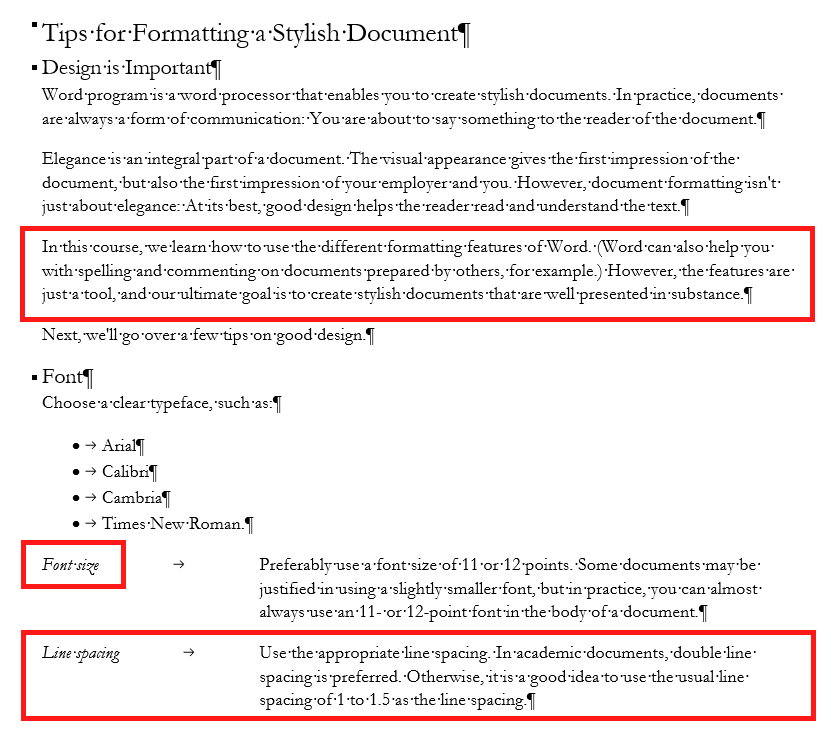
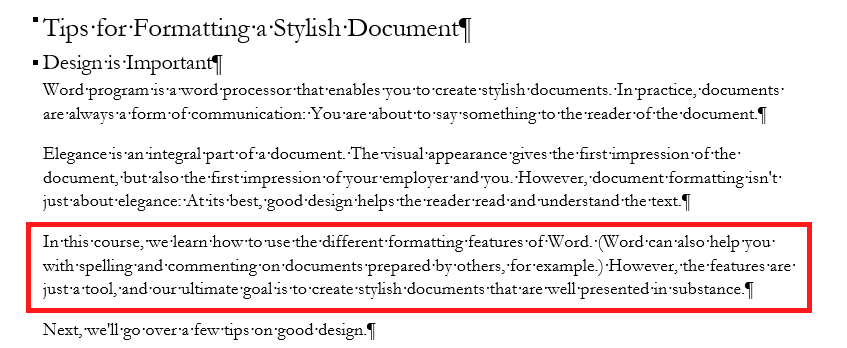
The hanging indentation has been copied to a new paragraph. The italics that we previously used has been copied into the margin headings for the hanging indentation. Finally, all formatting has been removed from the third paragraph of the body text. The changes have been made by copying and deleting formatting. Finally, your document might look like:
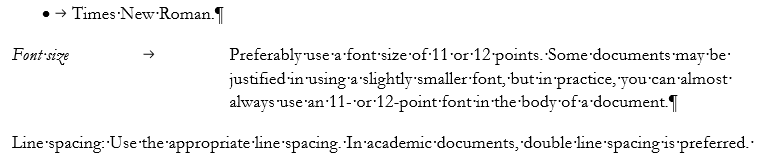
Task: Copy the font formatting
Let's highlight with italics the margin heading “Font size” you made. Instead of doing this directly, we practice copying font formatting. Model:
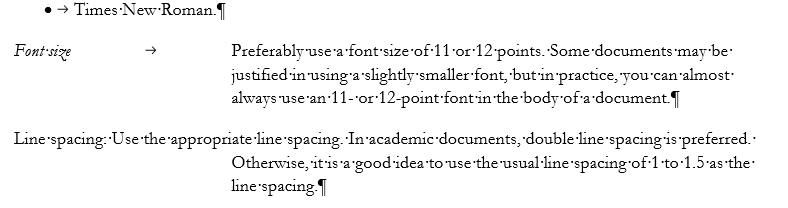
Task: Copying of paragraph formatting
Copy the hanging indentation to the paragraph that starts with the words “Line spacing”. Model:
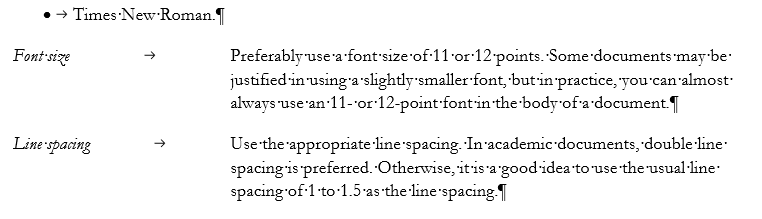
Task: Format a margin heading
Format the words “Line spacing” into a margin heading. Also, remember to remove the extra characters (colon and space) and copy the formatting of the margin heading. Model:
Task: Removal of formatting
When working on a document, you may often need to remove extra formatting that has found its way to the document from somewhere or is some leftover. For example, the indentation we made in our document looks a bit unusual. Let’s remove all formatting from the paragraph that starts with the words “In this course we will learn...”. Model:
Deleting all formatting
First, select the area you want to remove formatting from.
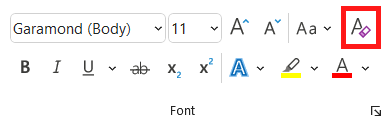
Poista kaikki muotoilut -painike on Fontti-ryhmän oikeassa yläkulmassa.
Then click on the **Clear All Formatting** button in the **Font** group on the **Home** tab. The button switches the selected area to the normal style and removes any formatting.
When you are finished, mark the page as completed and go to the next page "Search and replace operations".