Pasting Text into the Document
Next, you can try out how to paste text into a Word document. In particular, we will go through how you can paste text into a document without formatting. This is a valuable skill if and when you copy text from multiple sources, such as websites.
Keep working on the exercises in the document you created earlier and remember to save regularly!
The Objective
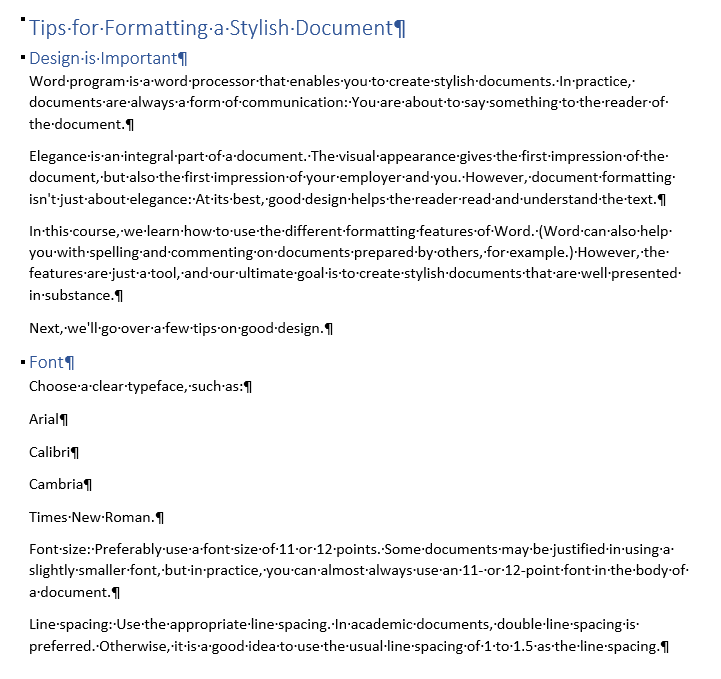
After pasting the text and formatting the text headings with heading styles, the document will look like this. The blue text in the image is formatted using heading styles (Heading 1 and Heading 2) and all other text uses Normal style.
Task: Copy the model text to the clipboard
In this course, we learn how to use the different formatting features of Word. (Word can also help you with spelling and commenting on documents prepared by others, for example.) However, the features are just a tool, and our ultimate goal is to create stylish documents that are well presented in substance.
Next, we'll go over a few tips on good design.
Font
Choose a clear typeface, such as:
Arial
Calibri
Cambria
Times New Roman.
Font size: Preferably use a font size of 11 or 12 points. For some documents, there may be reasons for using a slightly smaller font, but in practice, you can almost always use an 11- or 12-point font in the body of a document.
Line spacing: Use the appropriate line spacing. In academic documents, double line spacing is preferred. Otherwise, it is a good idea to use the usual line spacing of 1 to 1.5 as the line spacing.
Task: Paste text without formatting
Paste the text you copied to the clipboard at the end of the document without formatting.
Task: Remove formatting from the pasted text, if needed
If you happen to include formatted text, you can remove the formatting.
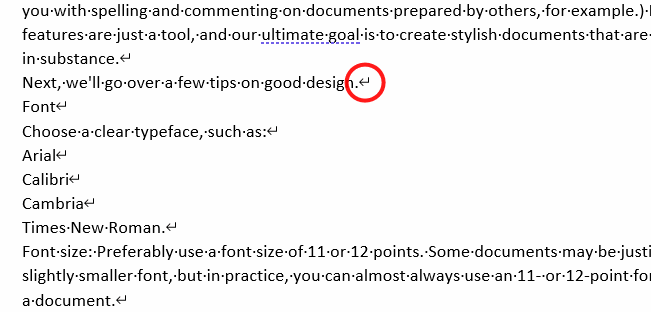
Note that when pasting in a format other than text, the pasted text will have line breaks (↵) instead of paragraph breaks (¶). These should be changed to paragraph breaks.
Info: Automatic proofreading
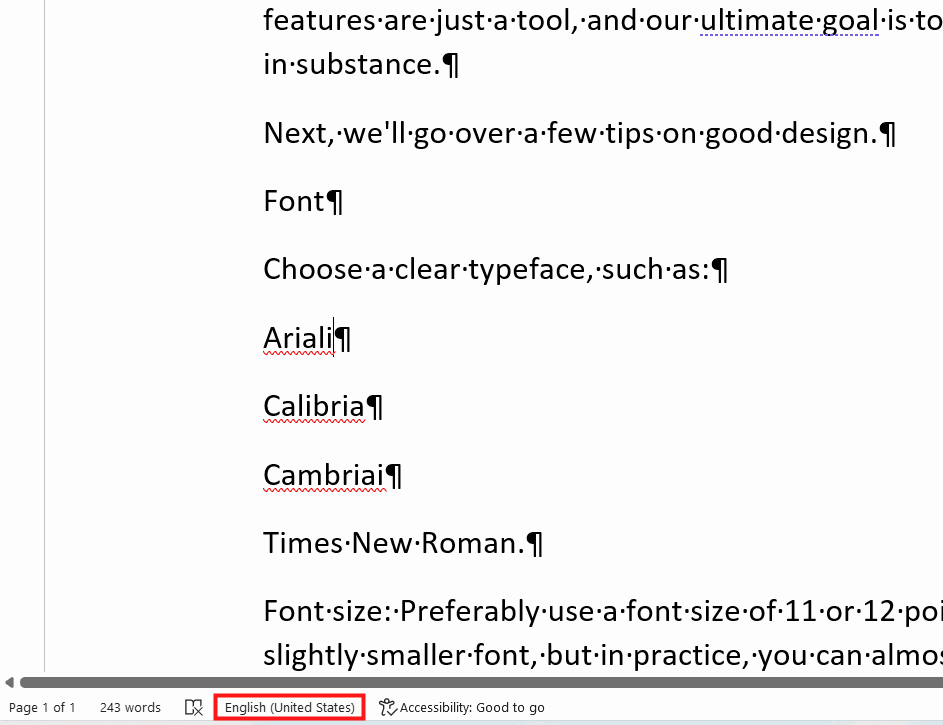
By default, Word has automatic proofreading enabled and marks spelling mistakes with a red wavy line.
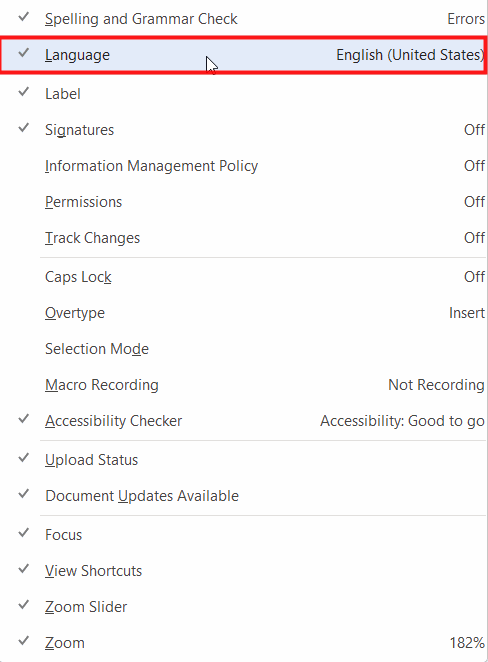
Spellcheck also recognises the language of the text. The language of the selected text is shown as a button at the bottom of the status bar and you can also use the button to change the proofreading language of the selected text.
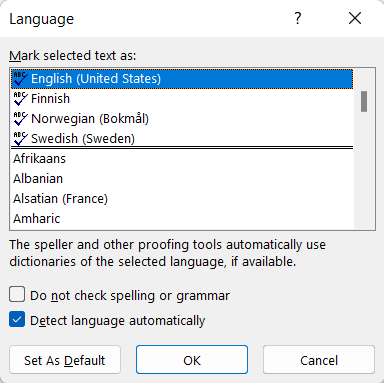
If you don't see the button, you can add it by right-clicking anywhere on the status bar and choosing item Language from the options that appear.
Task: Format the heading (“Font”) with Heading 2 style
Format the line “Font” with the style Heading 2 .
Now we are familiar with pasting text into a document without formatting. There are several other options for pasting, which we will discuss later.
Next, we'll look at how you can design the overall look of your document in a snap. Are you ready?