Adding Images
Images are illustrative and enliven documents to the extent that adding them is a basic skill of using Word. The most common ways are to attach an image or add one from your own computer. Word also has features that let you add images directly from the web or from Word's image bank.
Next, let's look at how you can attach an image to your document.
Download the template file
We will add an image to your document. You can use the image of your choice, or you can download the image used in the template file here:
picture.jpg
The Objective
At the end of the page, the beginning of your document will look like this:
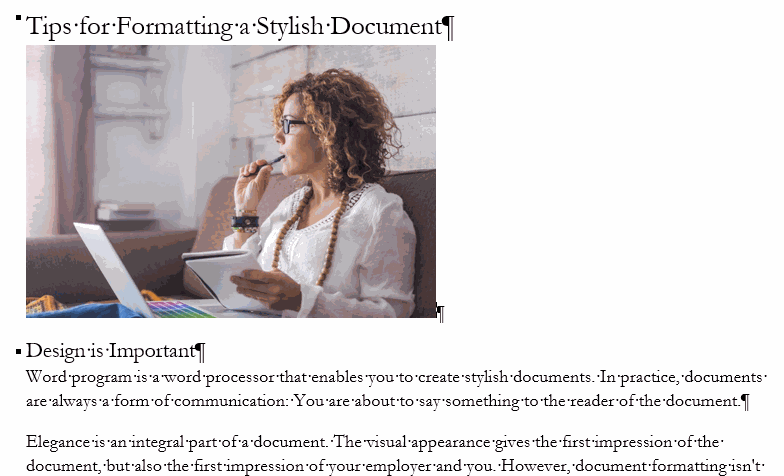
Task: Add an image to your document
Add an image to your document. Make some space for it first and then add it. You can add an image of your choice that suits the topic. Alternatively, you can use the image you uploaded. If you wish, you can also add an image from an image bank or an online image.
Accessibility and images
Info: Image bank photos and online images
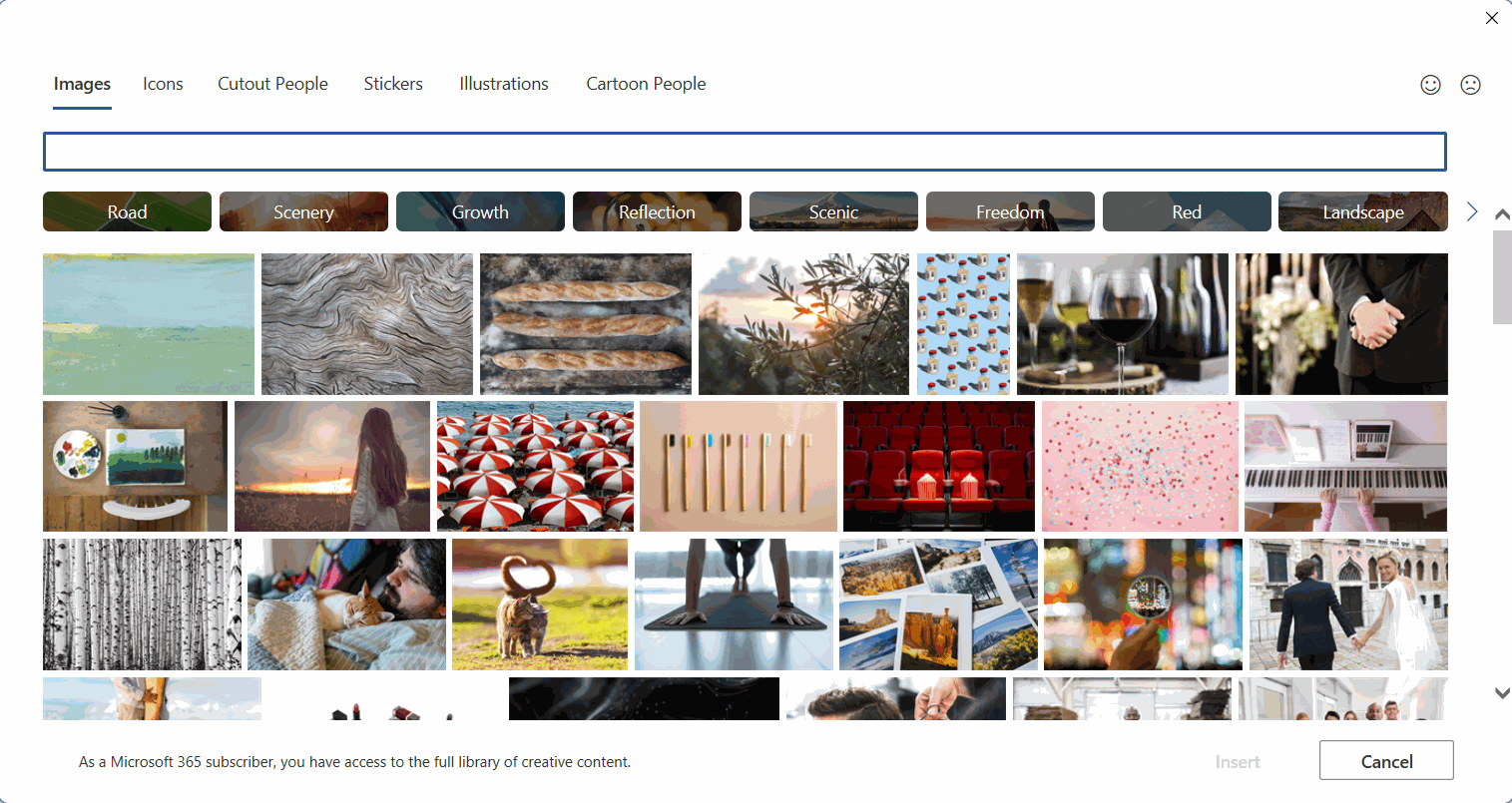
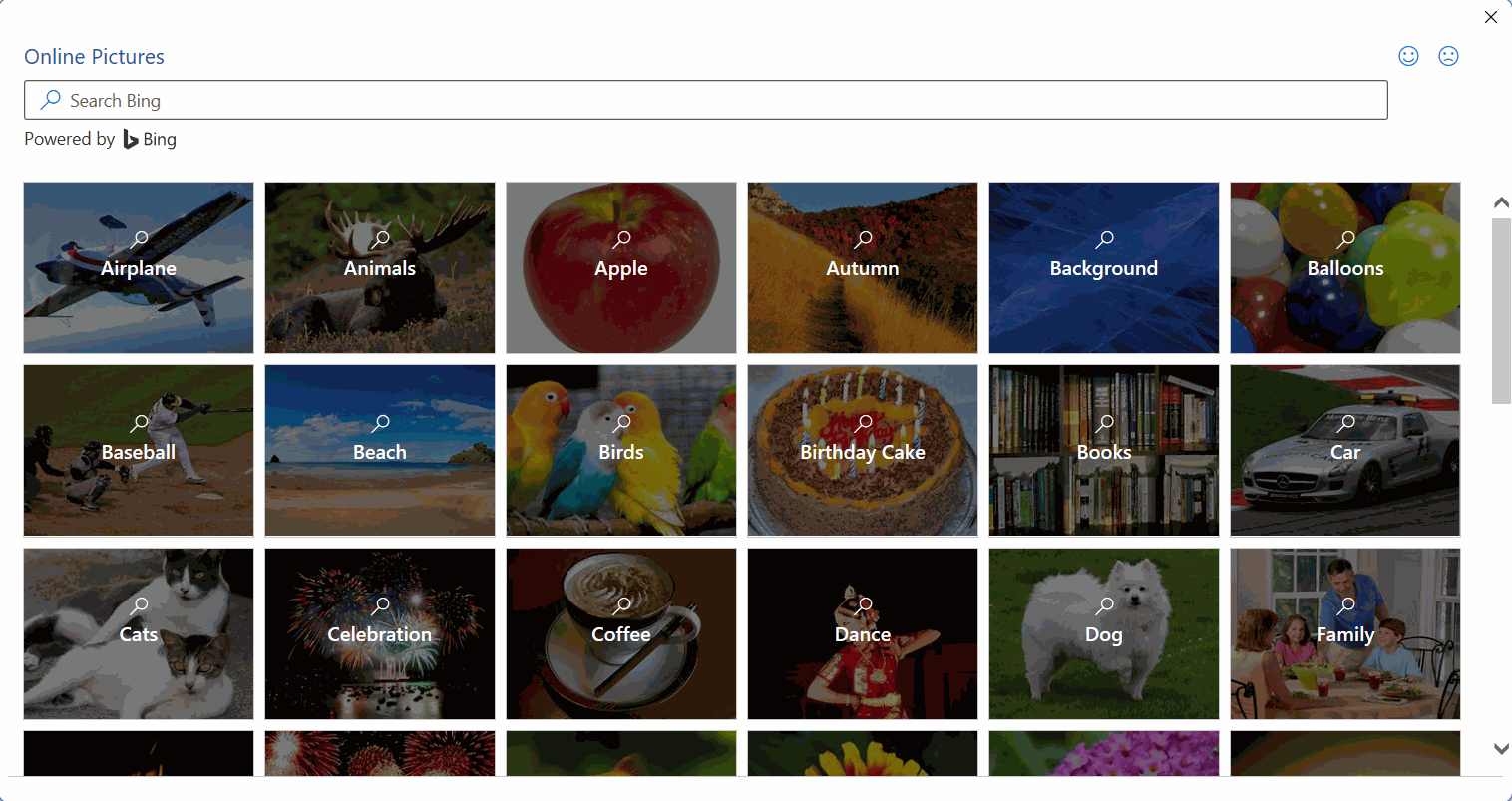
Alternatively, you can also add images directly from an image bank or from the web.
Image bank images
Online images
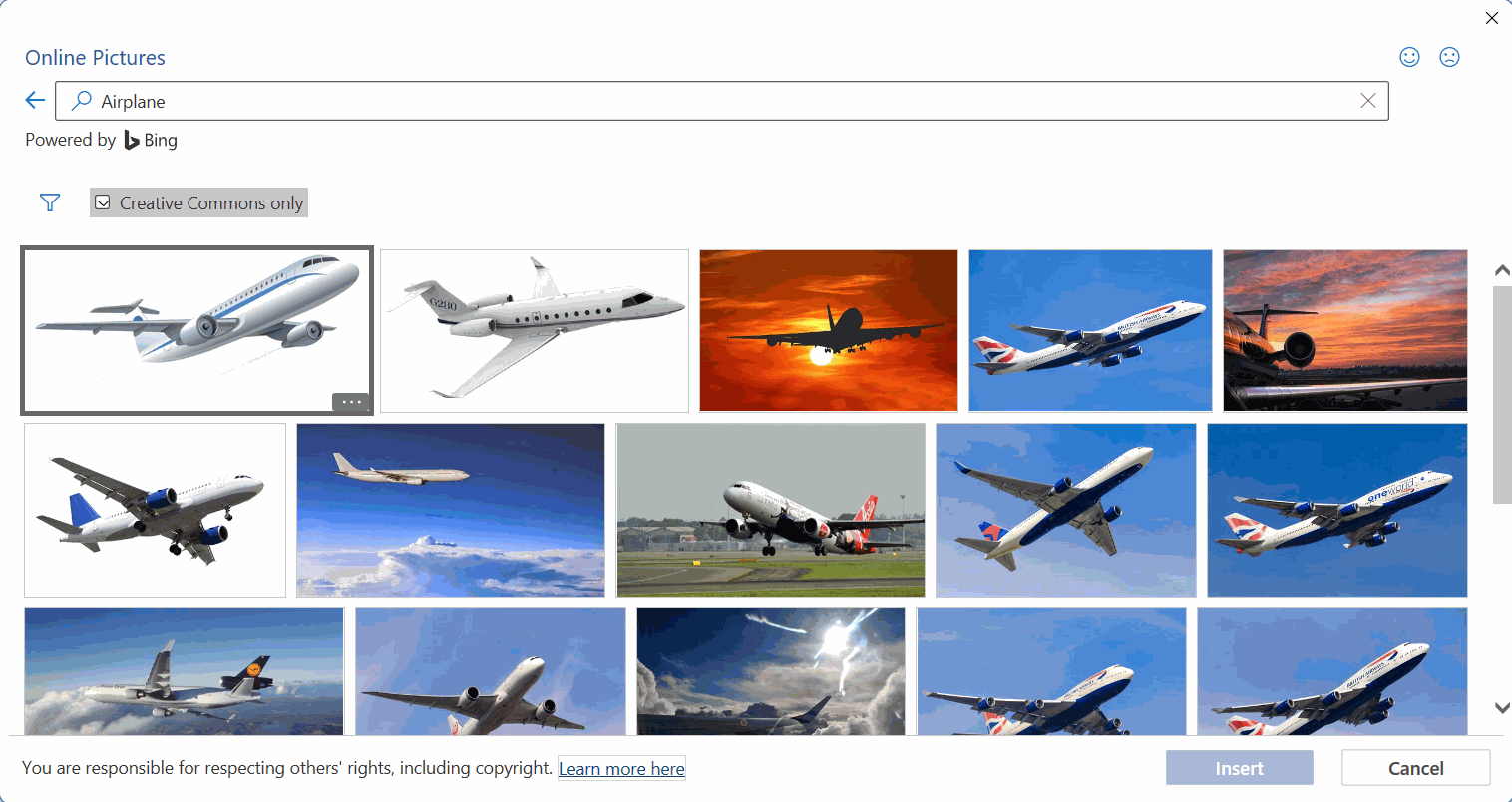
By default, Word only makes available images licensed under Creative Commons (CC).
Good, you can now add pictures from different sources. The next page focuses on practising the layout and styling of an image in a document.
Have you completed the tasks on the page?