Extra: Desktop Version and Web Version
Now that you're familiar with the desktop version of Word, it's a good time to take a look at its online counterpart.
You have access to both web and desktop applications of the same software. The desktop application is the software that we have been using so far. It is also more versatile.
The web app does not need to be installed and is available on all computers when you are signed into Microsoft 365.
We will go through how you can flexibly edit the same document both on your desktop application and in a web browser. This page is entirely an additional task and is not compulsory.
Task: Sign in to Microsoft 365
Task: Open the Word web application
Open Word in a web application. The program that opens works entirely in a web browser.
Task: Change the name of the document to “Saving to the cloud”
When a new file is started with the web application, it is saved in the cloud (OneDrive) as Document (there may be a number after the name), and any changes made to the document are automatically saved.
File naming
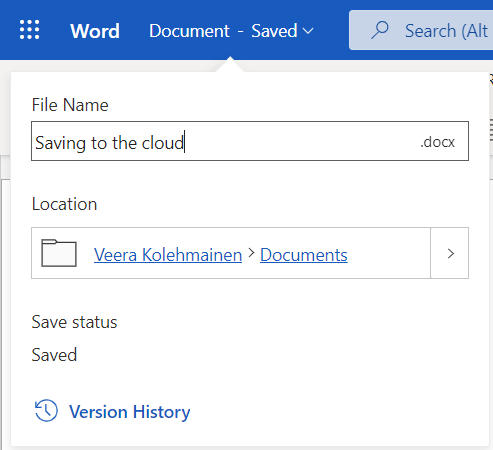
Change the file name to Saving to the cloud by clicking on the name in the top bar and typing the new name.
Task: Write text in the document
Write text in the document. You can copy the text here if you wish:
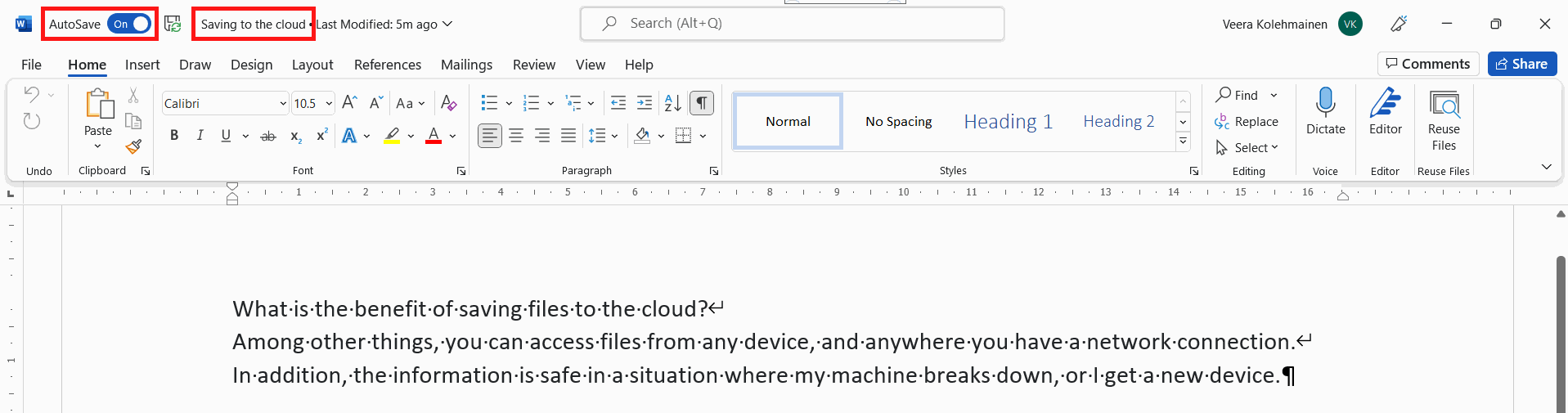
Among other things, you can access files from any device, and whenever you have a network connection.
In addition, the information is safe in a situation where my computer breaks down, or I get a new device.
Task: Go to the Word desktop application
Many times, you may find that there's not a feature in the web application that you'd like to use, or you'd prefer to use the desktop application because it's more familiar.
Task: Edit the document in the desktop application
You can also write more text if you wish.
Task: Check out the changes in the web application
Did you complete the tasks?