The VLOOKUP Function
The VLOOKUP function can be used to retrieve data from a lookup range of cells, a specified part of an Excel spreadsheet, and use it to determine the contents of cells. The name V refers to vertical lookup: the first column of the lookup table always serves as the basis for the lookup. Another column in the search table contains the actual data to be searched for.
Function arguments
=<ek-term id="func_vlookup" />(Lookup_value,Table_array,Col_index_num,Range_lookup)
Lookup_value is the value searched for in the first column of the range. Mandatory information
Table_array is the lookup array, i.e. a part of an Excel sheet with at least two columns. The first column of the list contains the values to be searched for. If the same value occurs more than once, the function finds the first one. Mandatory information
Col_index_num is the sequence number of the column in the lookup array from which the actual data is retrieved. Note that this is a number, not a column letter. Mandatory information
Range_lookup is a logical value TRUE or FALSE, indicating whether a so-called range search is desired. The range search is the default, and it means that if there is no value in the column that is the same as the lookup value, the function will search the column for the value that is closest to the lower value of the lookup value. The range search means a classification into ranges, the boundaries of which are set in column 1.
Example 1
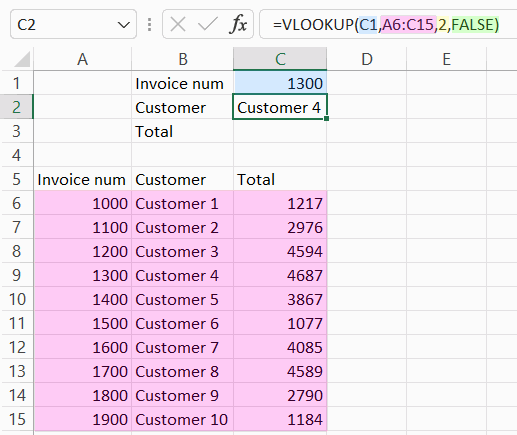
In this example, the customer's name is searched in the table array by invoice number.
Lookup_value is the invoice number, which will be searched for from the first column of the search table.
Table_array in this Excel spreadsheet consists of rows 6-15 of columns A-C. There is no need to include a header row (here “Invoice num ...”) in the table array.
The data is imported from column 2 of the table array. The lookup value is always searched for in the first column of the table array, even if the table array does not start in column A.
FALSE means that only data that fully matches the lookup value will be returned from the search table. If the information is not found in the table, the response will be “#N/A”.
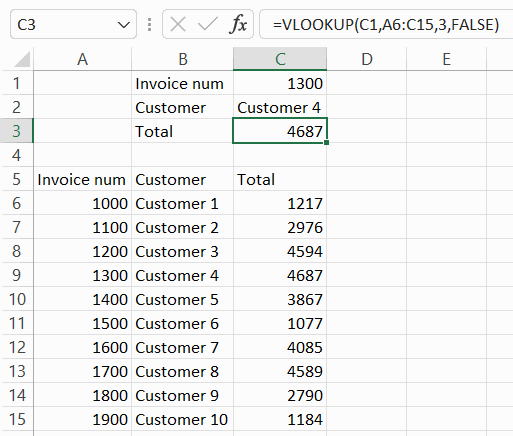
Here is the same formula, but the Total data is imported from the third column of the table array.
Example 2: Classified search
A categorical search does not look for a specific piece of information in column 1 of the search table, but classifies the search values into categories defined by that column. The value in the column sets the lower limit for a particular category.
The search is classified when the fourth argument of the VLOOKUP function is TRUE.
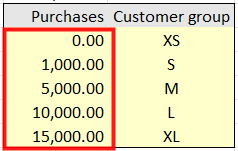 | The table array must then be sorted in ascending order by the first column. |
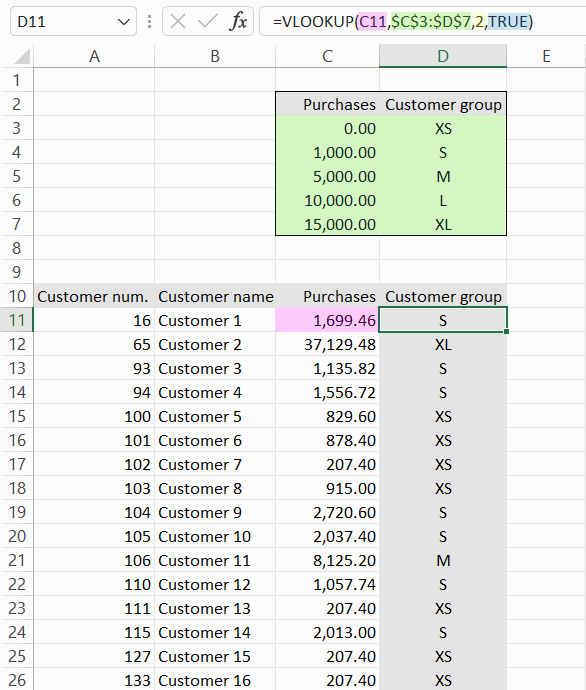
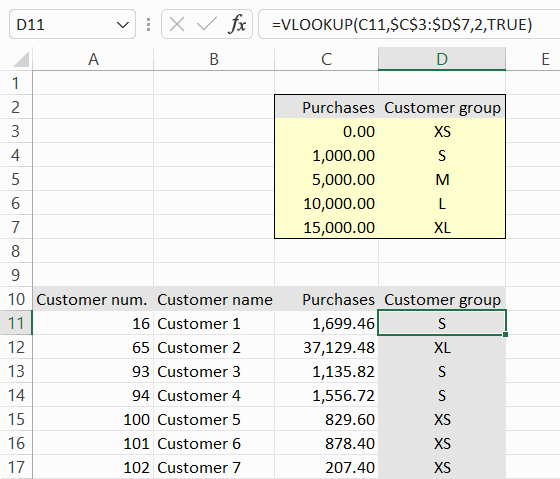
In this example, we want to classify customers by customer group based on the size of their purchases. The table array classifies purchases by category, with purchase limits from smallest to largest.
Lookup value is the first customer's purchases.
Table array is an array where shopping limits are classified by customer group. Note that the array is referenced directly in the formula, so that it remains unchanged when the formula is copied.
Customer group information is imported from column 2 of the table array.
The last argument is specified as TRUE, to search from the lower bound to the next lower bound. For example, an XS rating will be given to purchases less than 1000, and an S rating to purchases of >= 1000 and <= 5000.
Video
The Objective
On the Customer group spreadsheet, customers are categorised by their purchases into customer group XS, S, M, L or XL based on a table array. The table array shows the lower limit of purchases for each customer group. For example, a customer with purchases of $4,999.00 is in group S, but a customer with purchases of $5,000.00 is in group M. Model:
Task: Set client group information with the VLOOKUP function
Do the exercise in the Customer group spreadsheet.
In cell D11, create a VLOOKUP function that will search the table array for the correct customer group identifiction based on the purchases.
Task: Copy the formula to all customers
Finally, copy the formula to all customers.