Preview — Office Skills Accelerator course materials (EN). Not production.
Page 3 / 13
Editing Multiple Sheets at a Time
Often, your workbook has several similar worksheets. Sometimes you want to make the same changes to all of them. For example, you are preparing a report, and you want all the sheets to be stylish and, on the other hand, look the same. Maybe there are up to ten spreadsheets, and you don't have all day to edit each of them separately.
For this common problem, Excel has a so-called group mode. In practice, you select several sheets in the group mode, and the changes you make apply to all of them.
Let's first learn how you can select several sheets to edit, and then we'll practice it.
The Objective
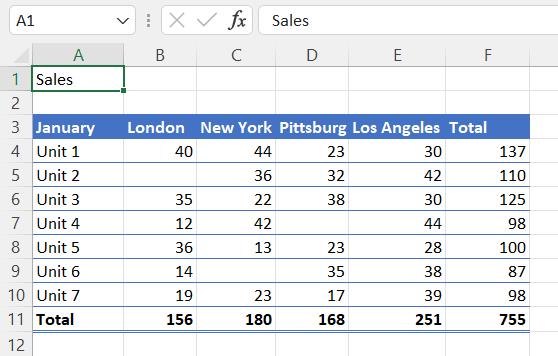
Two new rows (rows 1-2) have been added to all four worksheets January, February, March and Q1 total, and “Sales” has been written to cell A1. The change according to the example is repeated in all sheets. The following picture shows one sheet after the changes were made; in the group mode, such changes directly affect the other sheets in the group as well.
Task: Choose the sheets for the group
Choose the sheets (some also talk about grouping them) January, February, March and Q1 Total. Below we will get to learn two different methods.