The XLOOKUP Function
The new XLOOKUP function will replace the VLOOKUP function, as it is more flexible and versatile. However, it is also good to understand the VLOOKUP function, as it has been used a lot and you may come across it in existing workbooks.
Function arguments
=<ek-term id="func_xlookup" />(lookup_value, lookup_array, return_array, if_not_found, match_mode, search_mode)
lookup_value (mandatory)
The value that is searched.
lookup_array (mandatory)
The array in the Excel spreadsheet from which the information is sought. (This corresponds to the column 1 of the table array in the VLOOKUP function.)
return_array (mandatory)
The array in the Excel spreadsheet from which the data corresponding to the value is imported.
if_not_found
The text that will be displayed in the cell if no value is found. If you leave this blank, the cell will display the text #N/A.
match_mode
The match mode determines what information is interpreted as matching the search value. The match mode can be 0, 1, ‑1 or 2:
| **0** | Only data that exactly matches the search value will be interpreted as matching it. If none exists, the cell will contain the information specified in **if_not_found**. This is the default value, so it does not need to be specified separately. | ||||
| **‑1** | An exact match is sought. If it is not found, the data closest to the lower search value is taken as the match. | ||||
| **1** | An exact match is sought. If it is not found, the data closest to the higher search value is used as a match. | ||||
| **2** |
The first data that matches the format of the search value is taken as the match, with the characters `*`, `?` and `~` interpreted as so-called wildcards.
The wildcard The wildcard The wildcard search_modeThe search mode allows you to control the order in which the search matrix is scanned. The most common values are 1 and ‑1:
VideoThe ObjectiveInvoice data in the spreadsheet is used to search for the invoice number (in cell B1), the customer (in cell B2) and the invoice total (in cell B3). The search is exact, and if the invoice number is unknown, the search returns “No invoice found”. The data is searched using the XLOOKUP function. Model: 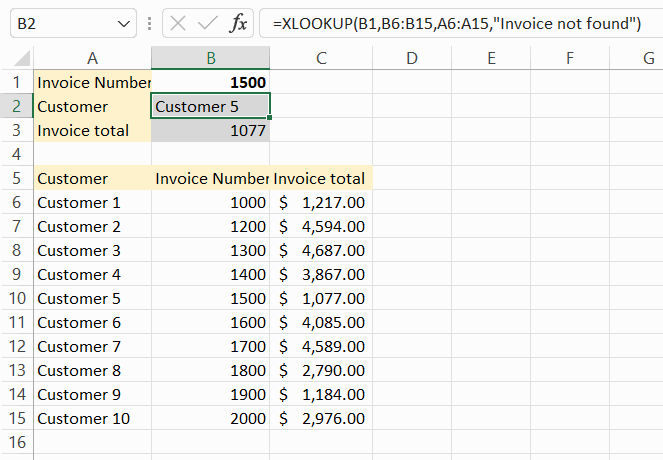 |