Sheets of a Workbook
An Excel workbook can (and usually does) consist of several separate spreadsheets. The sheet is selected from the sheet selectors, also known as sheet tabs, containing the sheet name at the bottom of Excel.
 |
When you start a new Excel workbook, by default, there is one sheet called **Sheet1**. You can find its selector in the lower left corner of the workbook.
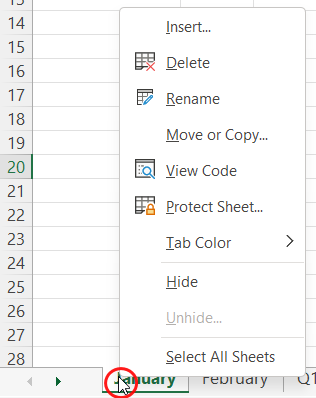
Sheets can be added, deleted, copied, renamed, and moved in the workbook. Next, we will learn how to do all this. The most convenient way to work on workbooks and make above-mentioned changes is to move the mouse pointer over the sheet selector (tab) and right-click with the mouse. In this case, a menu opens where you can, for example, add a spreadsheet or change the name of a spreadsheet. Several spreadsheets enable clearer information structuring in Excel when everything does not have to be in one place. Formulas can also refer to other spreadsheets. Downloading the base fileAll of the exercises of this course on advanced use of Excel will be done in the Advanced_Excel.xlsx workbook. Download it here. Advanced_Excel.xlsxThe ObjectiveIn addition to adding, copying, moving, and deleting sheets, we change the color of the table selector. In the end, the footer of your workbook will look like this:  Task: Add a sheet to the exercise workbookTask: Name the sheet you created as “Cover”Rename the sheet you created. Set the name as “Cover”. Task: Move the sheet you created to the first on the rowMove the sheet you created (“Cover”) to appear as the first one of the sheet row. Task: Deleting a sheetDelete the sheet Delete this sheet in your exercise workbook. Task: Create a new sheet by copyingCopy the February sheet and name it March. Add a title for the copied sheet by writing “March” in cell A1. Task: Copy a sheet to another workbookMore extensive reports are often compiled from existing Excel workbooks. Let's imagine, for example, a situation where your employer collects the time records of all employees in separate workbooks. Each employee submits their hours with a separate workbook, and your task is to combine the workbooks into a unified report. An easy way to copy tables between workbooks speeds up work. Let's practice the function. Copy the Cover table to a new workbook and save the workbook as Task.xlsx. Close the saved workbook. Task: Browsing the sheetsIt is not unusual for a workbook to have more worksheets than the sheet tab row can fit. In this case, you should know how to find the invisible sheets. In everyday work done with Excel, you must constantly switch from one sheet to another. Smooth and effortless switching between sheets is a sign of a professional. We'll learn about it in the exercise workbook you downloaded by going to the sheet Invoice data and then back to the sheet Cover. In this task, it is essential that you learn to use different ways to move from one sheet to another and that the transition becomes smooth. Task: Change the color of the sheet selectorsWhen there are many worksheets in the workbook, it is easier to use them, if you separate them from each other with different colors. Few people know about this. If you use this feature in your work, someone may come and ask how you got the colors added. It's a sign that the feature is useful and people want to use it. Change the color of the selector of the Q1 total spreadsheet. The finished task looks like this: Good job. That was the first set, and you've found a good pace. Next, we will take a brief look at how we can edit several sheets at the same time. If you are ready, we can move on. Shall we? |