Importing Slides into a Presentation
Importing slides into a presentation from another one is highly convenient because this way, you don't have to remake the slides in question manually. Knowing how to import slides saves time and effort when done correctly, so it's worth learning this skill well!
Downloading the base file
Download and save Import_slides.pptx.
Import_slides.pptxInterestingly, you don't have to open the file at any point. You'll see.
The Objective
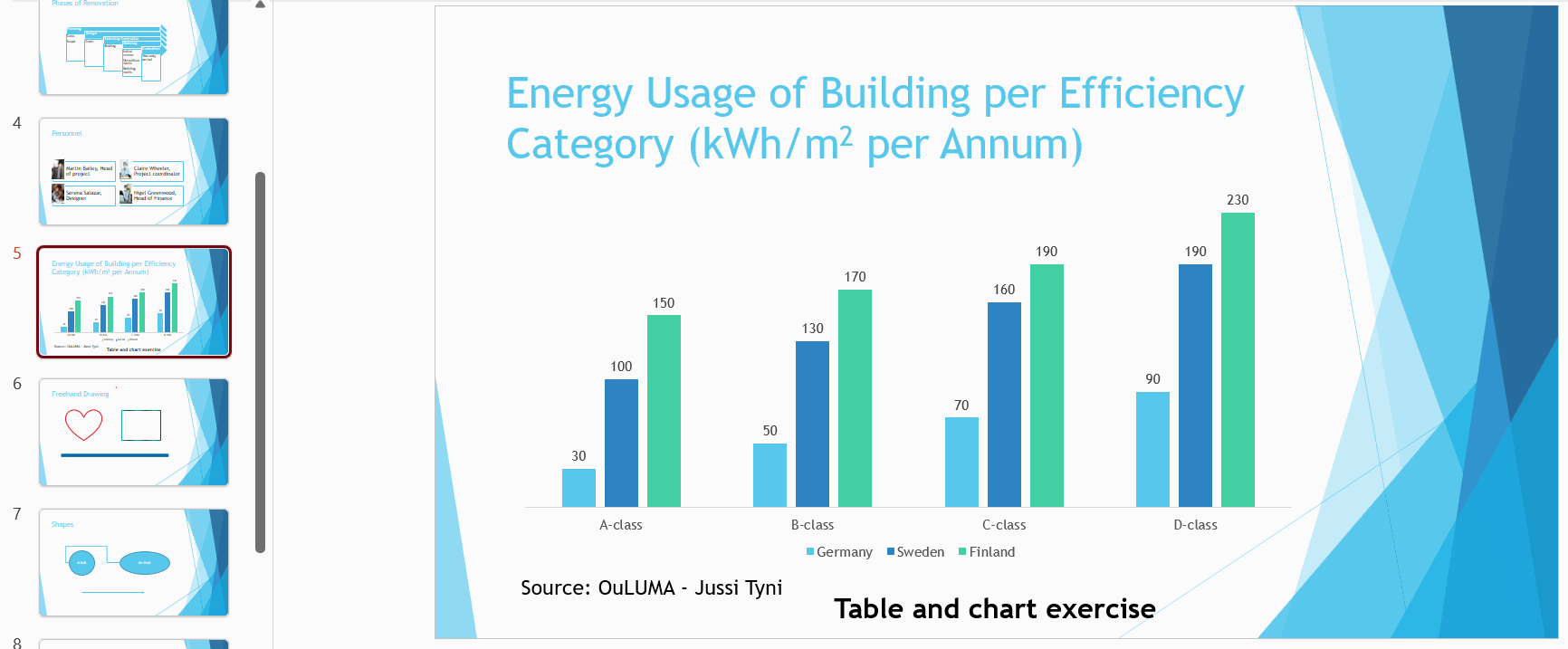
Next, we'll add a new slide into Bringing_Presentation_to_Life.pptx. Afterwards, there's a slide like this:
Task: Import a slide from another presentation
Import slide 4 (a chart) from the Import_slides.pptx PowerPoint presentation to your presentation Bringing_Presentation_to_Life.pptx, and place it after the project managers slide. Use the theme of your current presentation.
The colors, fonts, and the appearance of the chart and the slide automatically change to reflect the theme of your presentation.
Task: Reset the formatting of the slide
Check what formatting the imported slide is using, and reset it so the possible formattings and edits to it are removed.
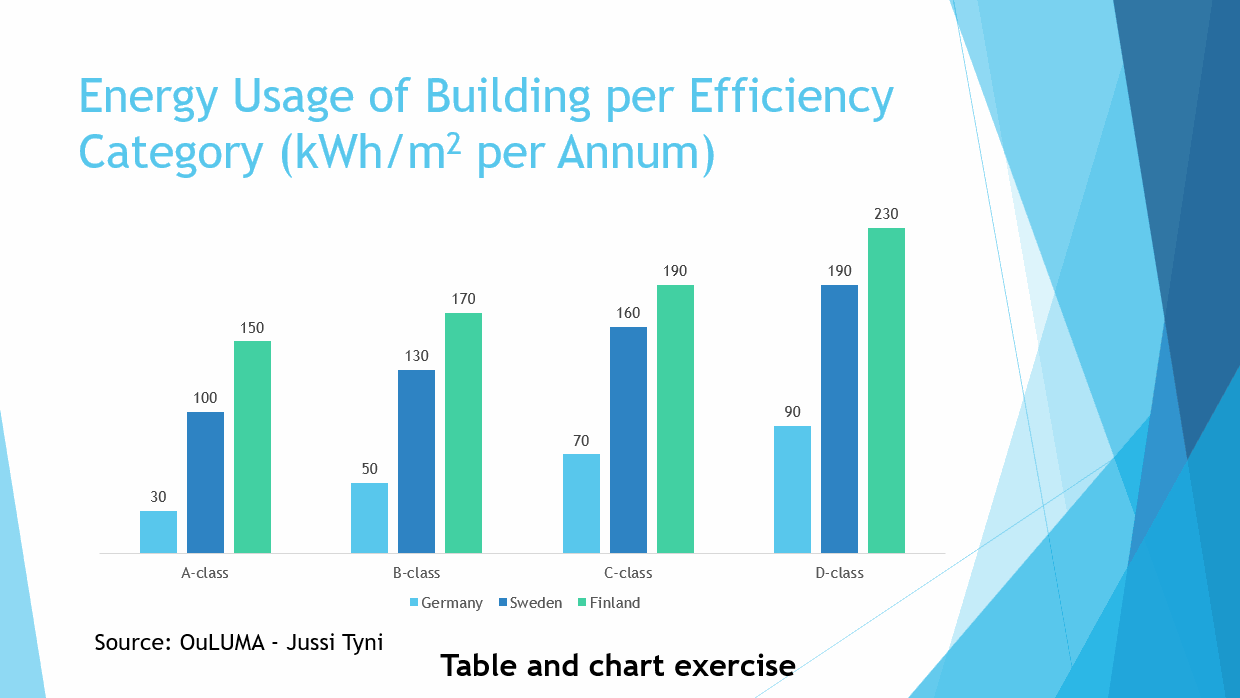
For example, below the right side of the bar chart is mixing with the slide’s background.

When you fix it, the bar chart will be easier to read too.
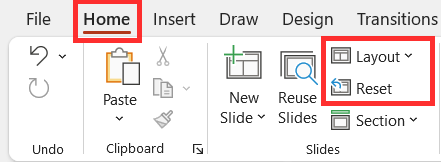 |
Layout of the slides When you import slides from other presentations and set them to use the theme they're imported to, you should check their layout. You can restore a layout by navigating to the Home tab, then to then**Slides** group, and then clicking Layout. |
In addition, you should click the Reset button in the same group, so that all the manual formatting in the slide will be removed.
Revisit the contents of this chapter if you feel it necessary, or ask for help via email or at the message board. Note that you can also help others and answer the questions on the message board!
Then let's learn to create transitions and animations that will add liveliness to your presentations.
Shall we move on?