Preview — Office Skills Accelerator course materials (EN). Not production.
Page 2 / 10
Editing and Designing the Appearance of the Presentation
PowerPoint allows you to edit the appearance of all slides at once. Visually, a good layout does miracles in terms of the interestingness and readability of the presentation. On this page, you will learn the basics of a few functions related to editing and formatting the layout:
Changing the slide background
Changing the color scheme and fonts of the presentation
Changing the slide layout
Downloading the base file
Download and open the file Bringing_Presentation_to_Life.pptx.
The tasks on this page are made into the presentation Bringing_Presentation_to_Life.pptx.
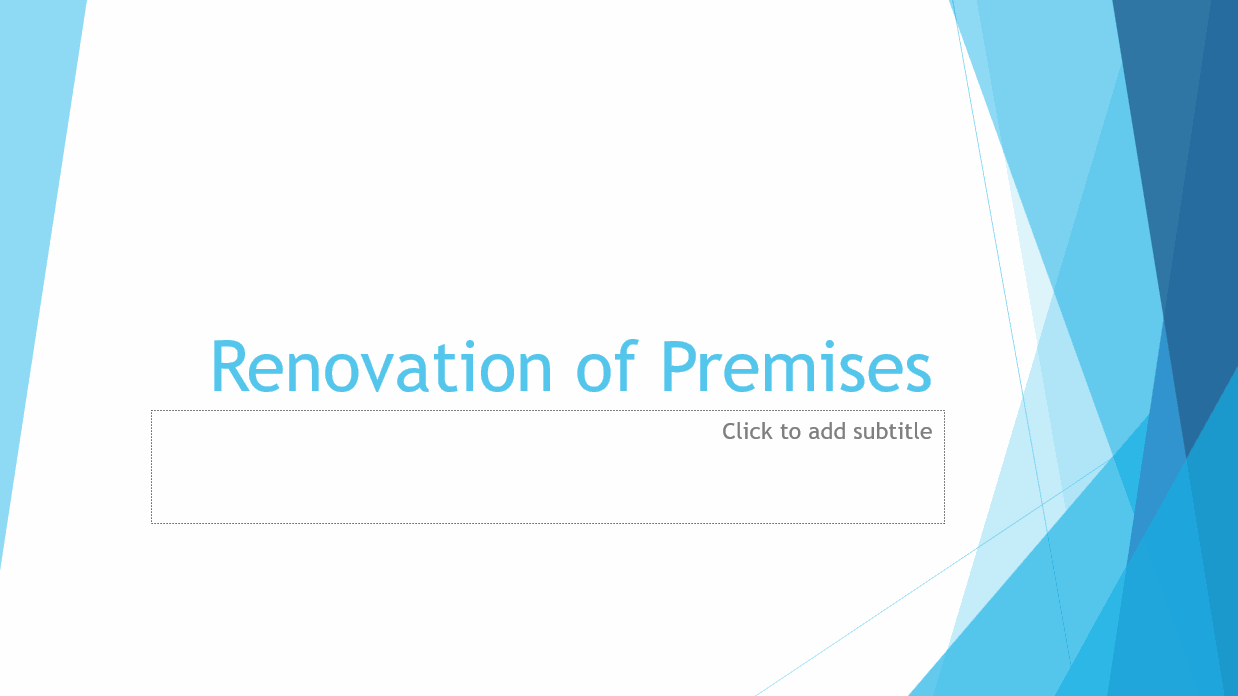
After working through this chapter, all the slides in the slideshow should be slightly different. For example, the title slide might look like this:
Task: Hide the background of the title slide and restore it
Hide the background graphic of the title slide. What does it look like now? Now go back to showing it.
Task: Change the fonts and colors of the presentation
Change the fonts and colors of the entire presentation to your liking. For example, you can choose a color palette called Blue and a font collection called Office.
Task: Get to know the slide master
By using the slide master, you can, for example, change the colors of all headings and bullet point styles. In the slide master, you can also choose to edit only slides with a specific layout.
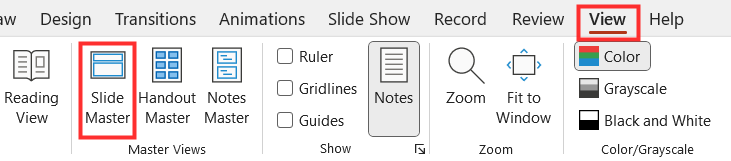
Find the slide master by navigating to the Master Views group, then the tab View, and clicking Slide Master.
Perustyylinäkymän vasemmassa reunassa näkyvät kaikkien diojen asettelut.Perustyylinäkymän vasemmassa reunassa näkyvät kaikkien diojen asettelut.
You have now reached the end of the first chapter. Especially the master slide offers an efficient tool, and you can spend a lot of time learning about it if you wish to. Now you know where you can access the master slide if you want to learn more about the topic.
Continue to the next page when you feel that you know how to use the functions presented on this page. The following two chapters are creative in a different way: We're going to learn about free drawing and adding shapes!