Options for saving
In addition to being able to record the presentation as a video, there are many other saving options. Let's go through them again so that saving goes smoothly in the future.
A convenient way is to save a “PowerPoint Show” file before the presentation.


The normal file format of a PowerPoint Presentation is .pptx, while the file format of a PowerPoint Show is .ppsx. The difference is that if you double click a PowerPoint Presentation, it will open in the normal editing mode of PowerPoint, while a PowerPoint Show file opens directly in the Slide Show mode and closes when you exit that mode.
Mac: Saving as PowerPoint Show
Task: Save the file as PowerPoint Show (.ppsx)
Save the presentation under the name “Bringing_Presentation_to_Life" on your desktop, and then try to open it from there.
Mac: Saving notes
On macOS, the printing views are somewhat different than on Windows. With the following steps, you can print your notes.
Task: Save Notes
The first few slides have notes. Save them under the name “Notes” as a PDF file so that one page shows a small image of a slide and its notes.
Info: Other saving formats
GIF files
File → Export → Create an Animated GIF
One video file option is to save the file as an animated GIF.
The GIF file has the same restrictions as the video: Online videos and subtitles are not saved.
Create handouts
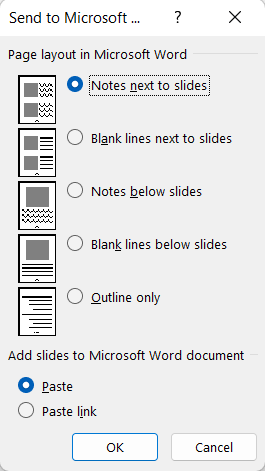
File → Export → Create Handouts
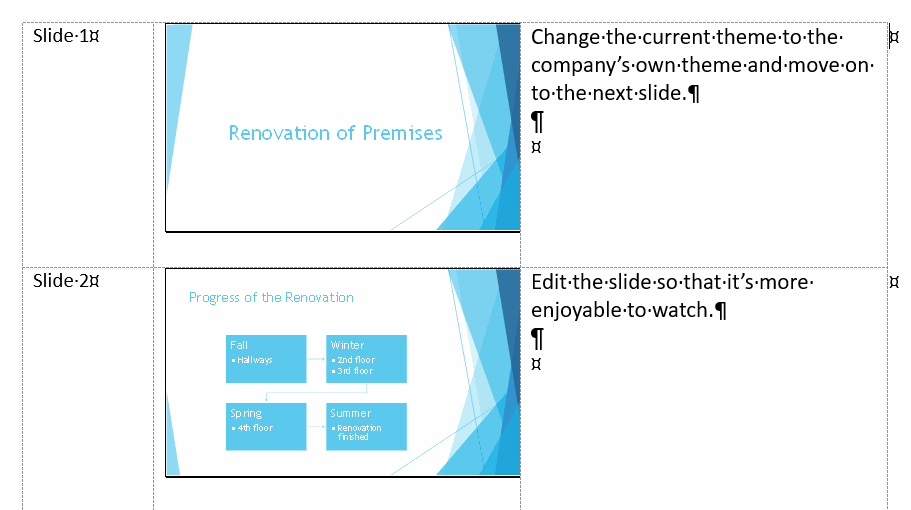
You can take a presentation to Word in many different ways. In the example below, we have chosen Notes next to slides when all the information is transferred into a Word table. You can continue editing the text in Word.
 |
 |
Saving as images
File → Export → Change File Type
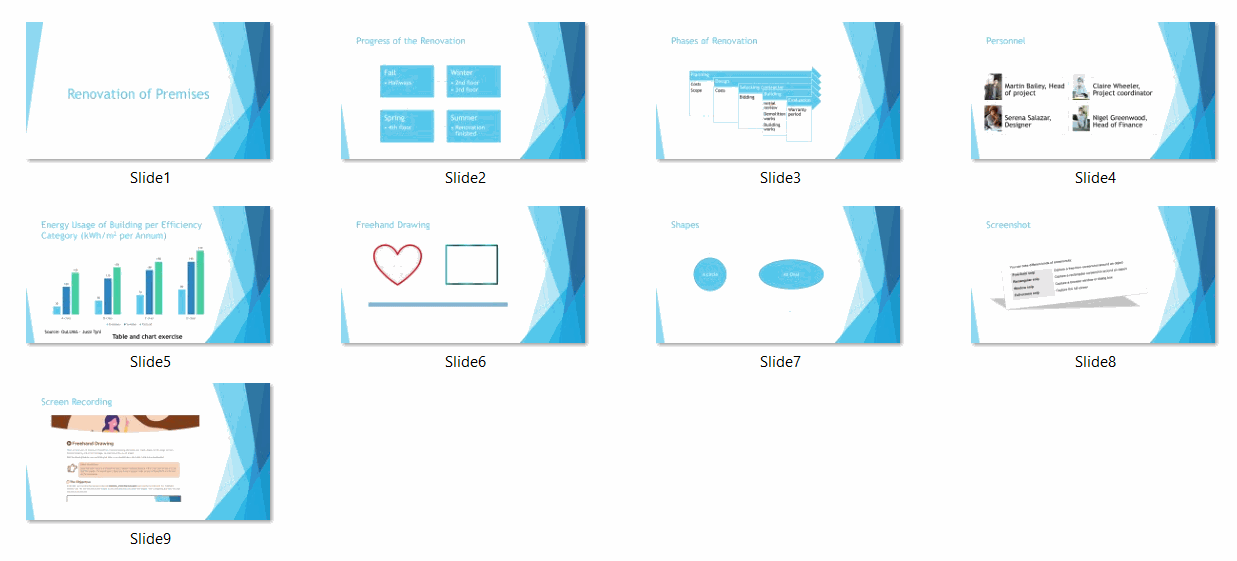
You can save each slide as either JPG or PNG image files too.

Task: Check the size of the final file
Check how big your final file turned out. We are about to send the file by email, so it is good to ensure that the file is not too big.
Usually, e-mail services reject messages with large files. The limit varies depending on the service. Common limits are, for example, 10 MB and 20 MB (MB = Megabyte). In practice, you have no way of knowing this without trying.
If your file is too big to send, first check if you can somehow reduce it. Are there any pictures in it that could be packed? Videos that could be compressed? If the file cannot be reduced in size, another option for sending it is to share it via a cloud service. We'll cover that below.