Preview — Office Skills Accelerator course materials (EN). Not production.
Page 7 / 10
Transitions and Animations
Transitions refer to how you want the changing of the slides to be displayed in the slide show.
Animations can be added to the selected object on the slide. The purpose of the animations is to enliven the presentation and to direct the viewer's attention to a specific area. You should also consider what you want to emphasize when adding animations. Here we will familiarize ourselves with how animations are implemented in practice. There are many different options available. If you want to animate the show well, it takes a lot of time, so it's not worth adding them in a hurry. However, it is good to know a few useful and reasonably quick animations that can be used in SmartArt graphics and charts to highlight the message.
Animations are a good way in situations where you want, for example, to show different information step by step on the same slide.
The Objective
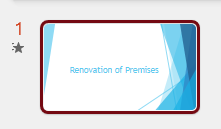
After completing this chapter, all the slides of the presentation have a transition. In this case, all the slide thumbnails on the left of your PowerPoint screen will show a small star beside them.
You'll also get to make an animation to slide 4, which will show in the thumbnails as a set of numbers above the slide. Afterward, the slide might look like the one below, where the animation has four stages, all the people becoming visible one by one.
Task: Add a transition to all the slides
Add a similar transition of your liking to all the slides
See how they look like in Slide Show (F5)
Task: Add an animation
Add an entrance animation to slide 4, so that each project member appears in the picture when you click your mouse.
Valmiin animoidun SmatrArt-objektin vasemmassa yläkulmassa näkyy numerot yhdestä neljään
Extra task: Animate the chart to build step by step
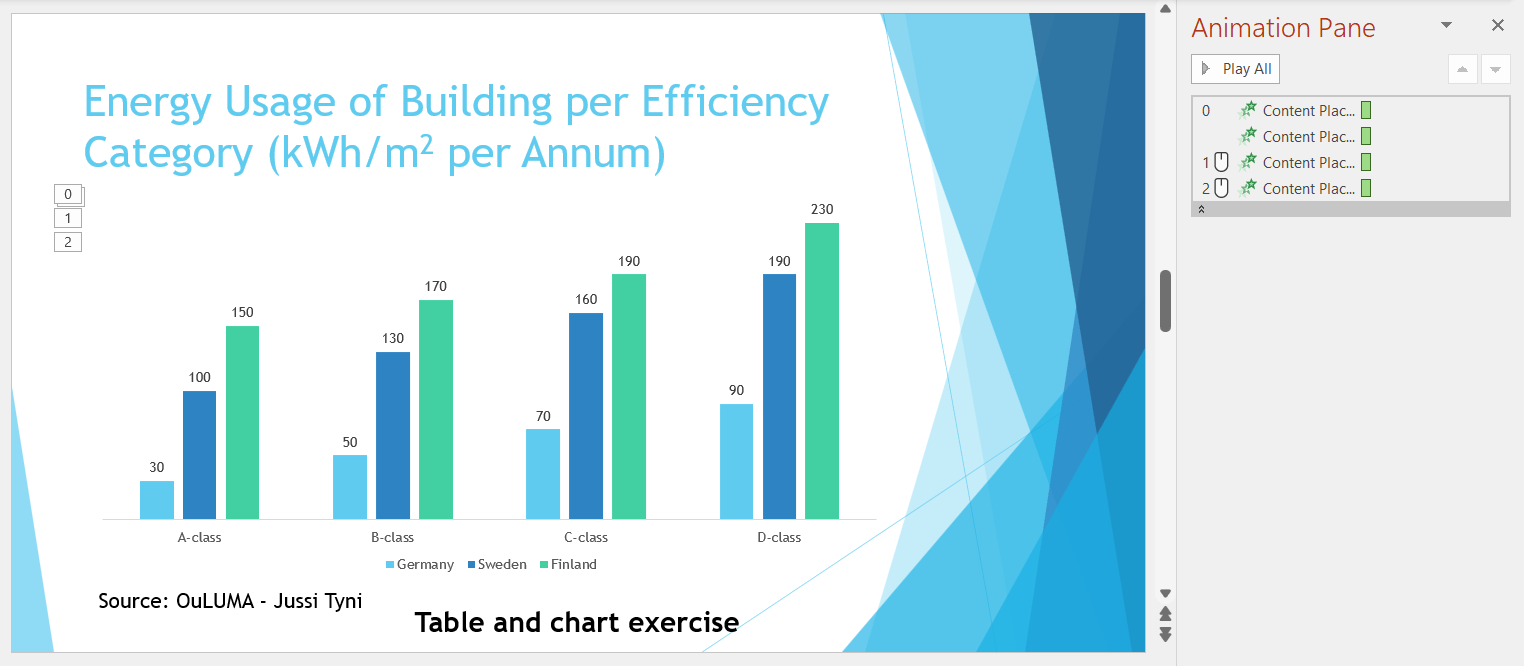
Add an animation to the chart on slide 5 and edit it so that the axes of the chart and the first bars (Germany) are visible when the presentation enters the slide. After this, the columns about Sweden will be displayed with a mouse click, and finally, the columns about Finland will be displayed with the third click.
The final slide looks like this with animation annotations:
pylväsdiagrammi on animoitu oikealla olevassa animaatioruudussa
Task: Inspect the animations in Slide Show and make sure the animations are set as desired
Enter the Slide Show with the keyboard shortcut Shift+F5, so that the slide show starts from the selected slide.
Making transitions and animations isn't that hard after all, right?
💭Reflect
PowerPoint3 - 4 - Loppukysely - 1
On a scale of 1-5, how experienced do you think you were in using transitions and animations before studying this section?
1 Not at all experienced
2
3
4
5 Very experienced
On a scale of 1-5, how well do you feel you know how to add transitions and animations to your presentation?
1 Not at all
2
3
4
5 Very well
On a scale of 1-5, how likely are you to use transitions and animations in your own presentations in the future?
1 Not at all likely
2
3
4
5 Very likely
Ask yourself: in which contexts would you use transitions or animations?
Remember to save your presentation regularly, and if you're completing this whole thing at once, take a short break now at the latest!