Printing Options
Here, on the last page of this chapter, let's look at the different printing options. When you select File → Print, you can see in the preview how the presentation will look like when printed with your selected printer. The default setting is that all slides are printed one slide per page.
You can change the printing settings, e.g., printer, which slides are printed, and how. Next, let's practice making the printing selections.
The Objective
We will add a title slide to PowerPoint_Exercise.pptx and then save it as a PDF, on which all the slides will appear on the same page. The PDF file might look like this:
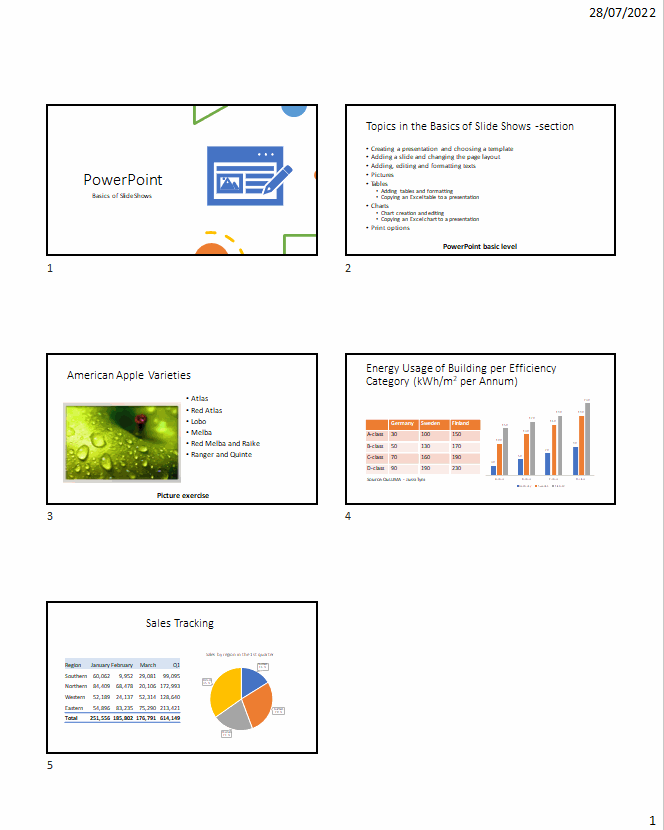
Task: Add a title slide
Add one slide to the presentation and select Title Slide as the layout.
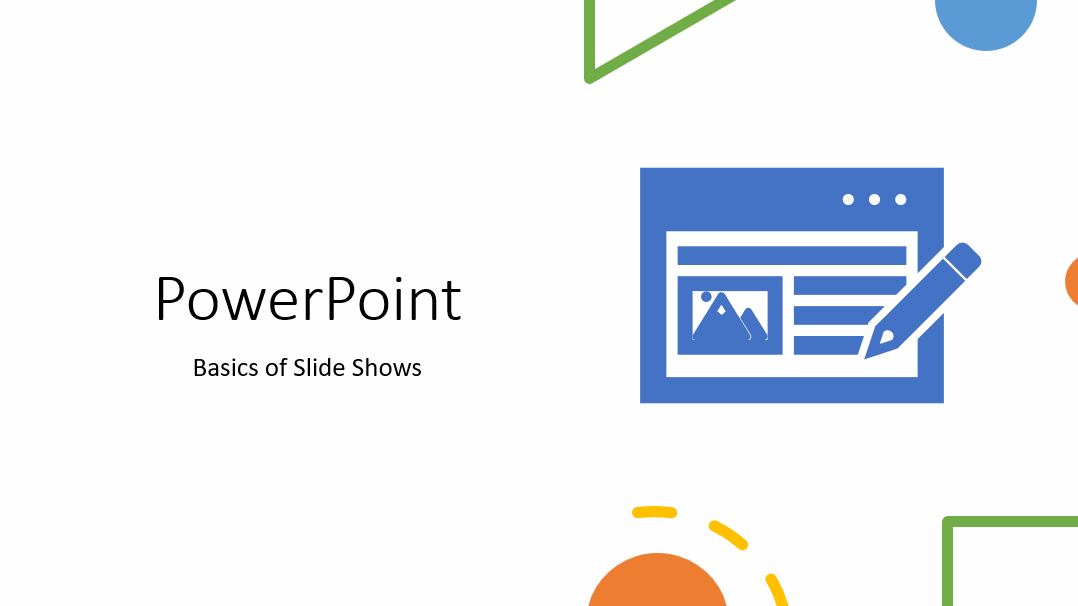
Enter "PowerPoint" as the title of the slide and "Basics of Slide Shows" as the subtitle. If you want, use a pre-made design idea. Move the title slide to the beginning of the presentation.
The end result might look something like this:
Mac: PDF printing
Task: Print the slideshow as PDF with all slides on one page
Now we will make a compact print on which all the slides appear on the same page. We'll ask you to submit this PDF at the end of this chapter.
Extra task: Fix the fit of the slides on the PDF
A standard six (6) slides per page printout leaves quite a lot of space.
It's about the difficulty of fitting 4 or 6 slide-style boxes on a standard A4 page.
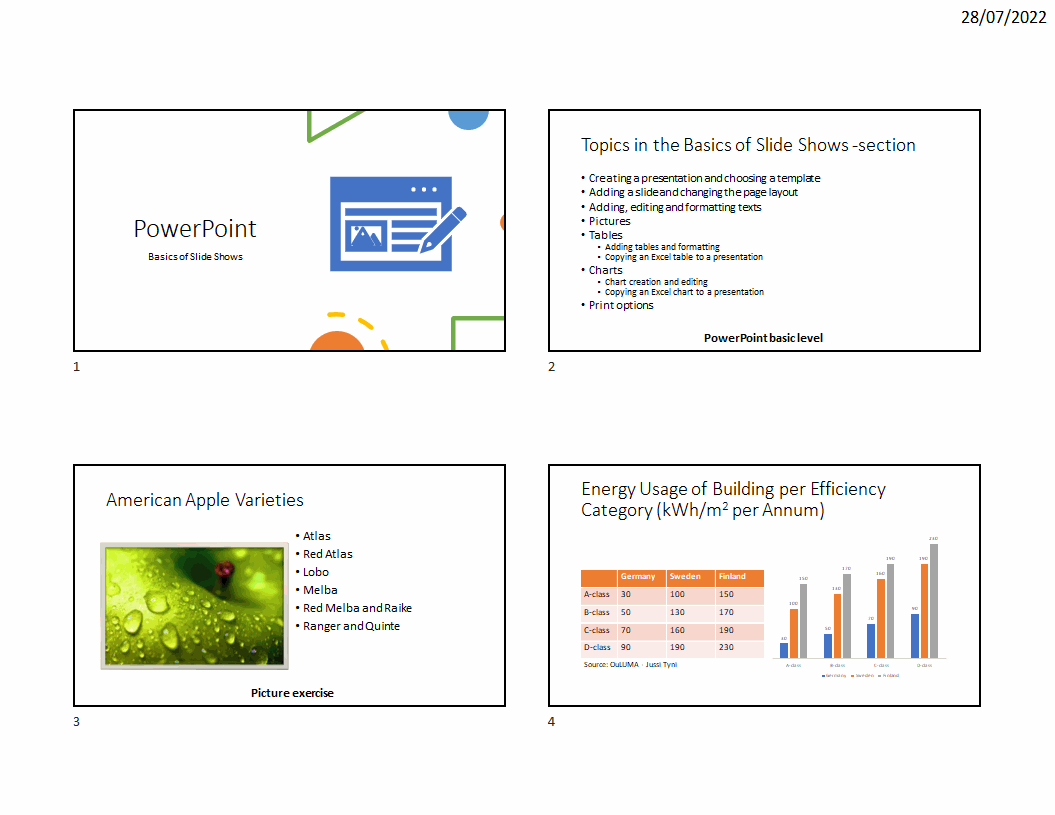
The best layout for the slides is (in terms of free space) to lay out the slides so that the printout is horizontal with four slides per page. Now the problem is, obviously, that there will be two pages of printout.
Model:
Extra task: Change the aspect ratio of the slides
In this context, we can also test how the dimensions of the slides affect the printout. The print itself is not necessarily a good reason to change the aspect ratio of the slides. On the other hand, the slide's size significantly affects how the slides fit into the prints.
Change the aspect ratio of the slides to Standard, i.e., 4:3. Do you notice how PowerPoint handles the slide layout so that you can resize without having to resize individual elements?
After that, create a vertical printout with six slides per page.
Problem: PowerPoint only saves a PNR file, not a PFD. What to do?
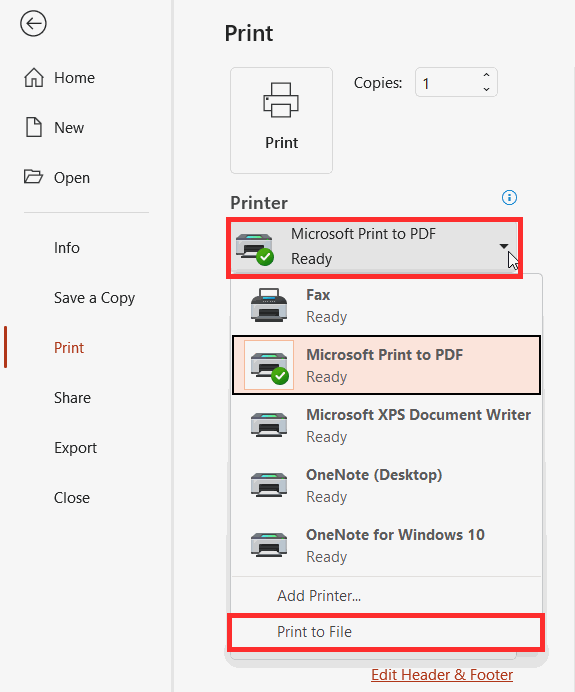 | You may have accidentally turned on the **Print to File** option. Make sure, that the **Print to File** option in the **Printer** menu _IS NOT_ activated. If necessary, deactivate it. |
Problem: On my computer, I don't have the option to use Microsoft Print to PDF. What now?
This is an unfortunate problem that doesn't seem to have a quick fix. Unfortunately, you cannot make a handout-type printout. In this case, return the exercise as a regular presentation and take a screenshot of the print view so that you have placed six slides per page in the printout.
We got familiar with taking screenshots in the Preliminary information chapter, in Task: Add a screenshot.
You have now reached the end of the first chapter of PowerPoint, i.e., The basics of PowerPoint slideshows. How does it feel? Answer a few more questions and then hand in the presentation you prepared.
Reflect
Printing Options - monivalinta
How important do you think adding and editing text in PowerPoint is?
- Not important at all
- Somewhat important
- Quite important
- Very important
How important do you think it is to add and edit pictures and videos in PowerPoint?
- Not important at all
- Somewhat important
- Quite important
- Very important
How important a skill do you consider adding and editing tables and charts in PowerPoint to be?
- Not important at all
- Somewhat important
- Quite important
- Very important
How likely are you to use PowerPoint in your everyday life?
- Not at all likely
- Not very likely
- Quite likely
- Very likely
You are also welcome to give us feedback of this chapter, on our message board or by email. You can also ask us about things you feel unsure about.
Handing in the presentation
Send the assignment to the email address [email protected], and write PowerPoint 1 assignment as the subject. Attach the following files to the email:
- PowerPoint file (.pptx suffix)
- PDF file you prepared
Have you submitted the assignment?