Tables
You can create a table in a PowerPoint presentation in many different ways, and you can also import the table from, e.g., Excel. On this page, you will be practicing adding and editing a table.
The Objective
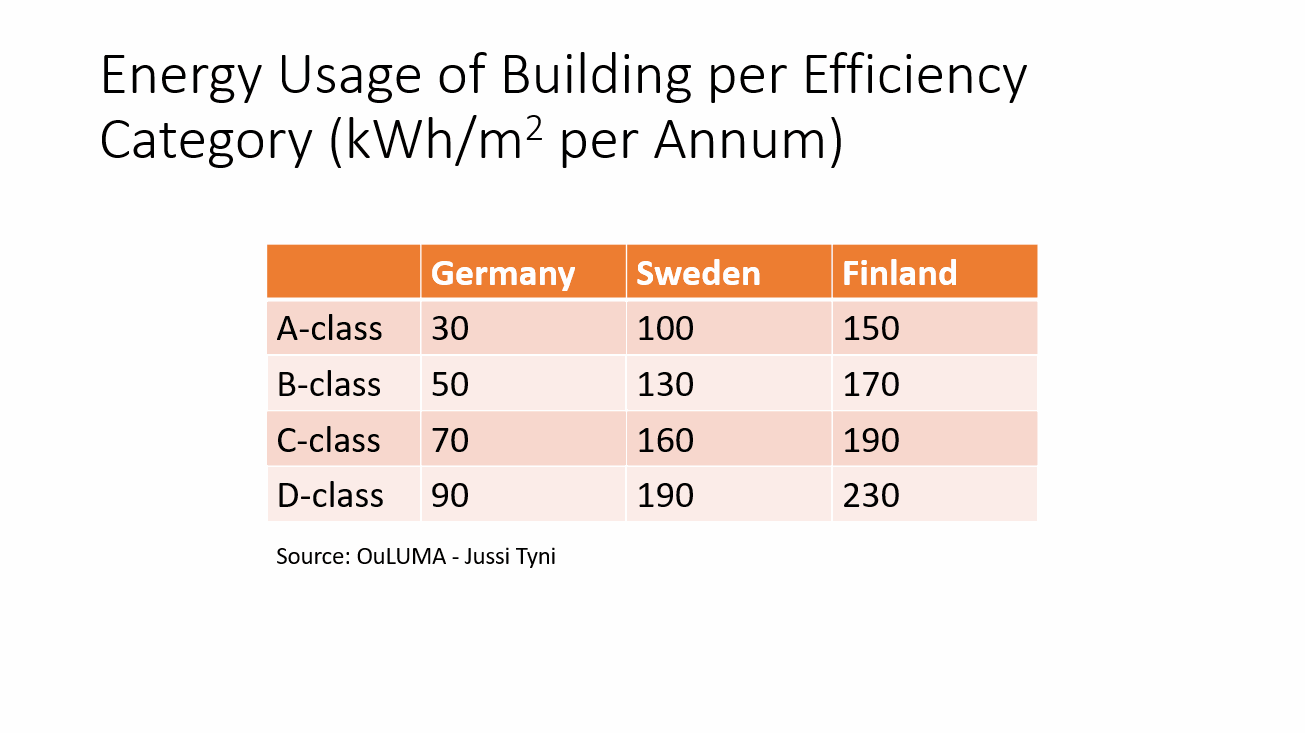
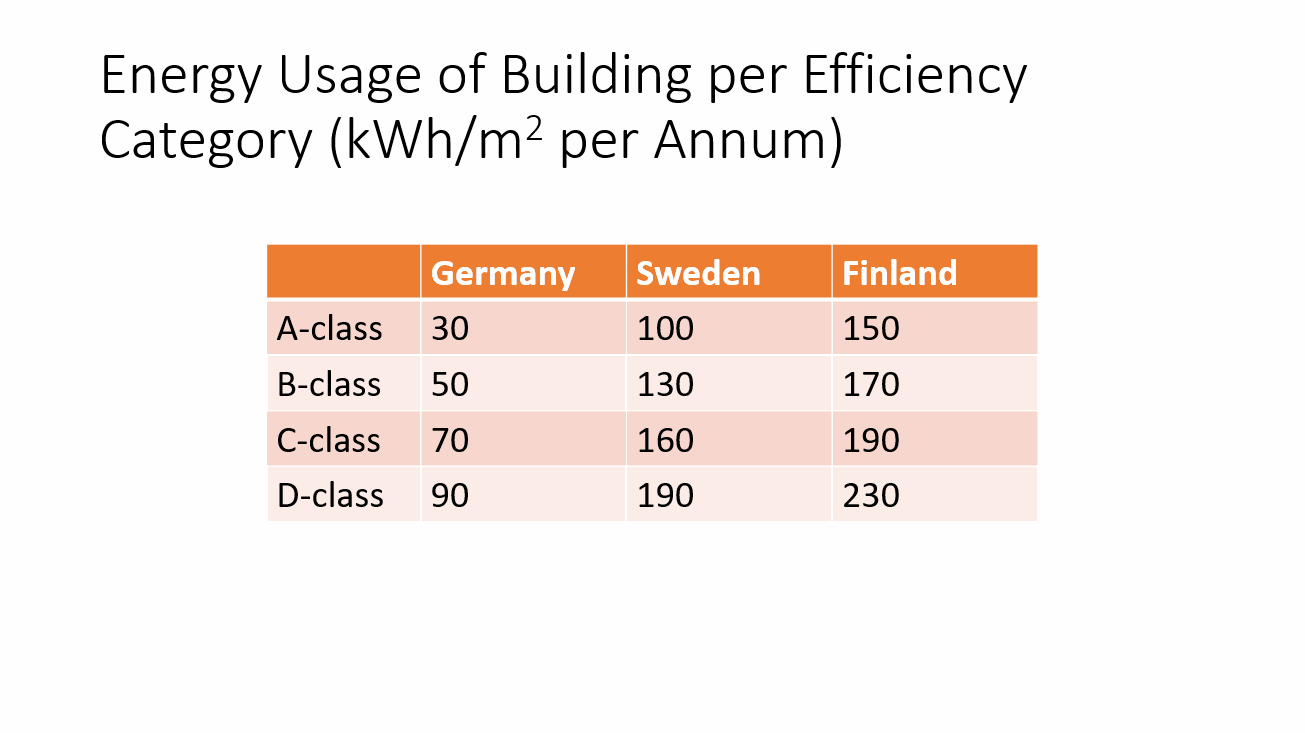
We will add a third slide to the PowerPoint_Exercise.pptx, and create a table. The result could look like this, for example:
Mac: Creating a superscript
Unlike the Windows version, the Mac version has its own separate button for the superscript. On the other hand, the keyboard shortcut that works in the Windows version does not work on Mac.
Task: Add a new slide and give it a title
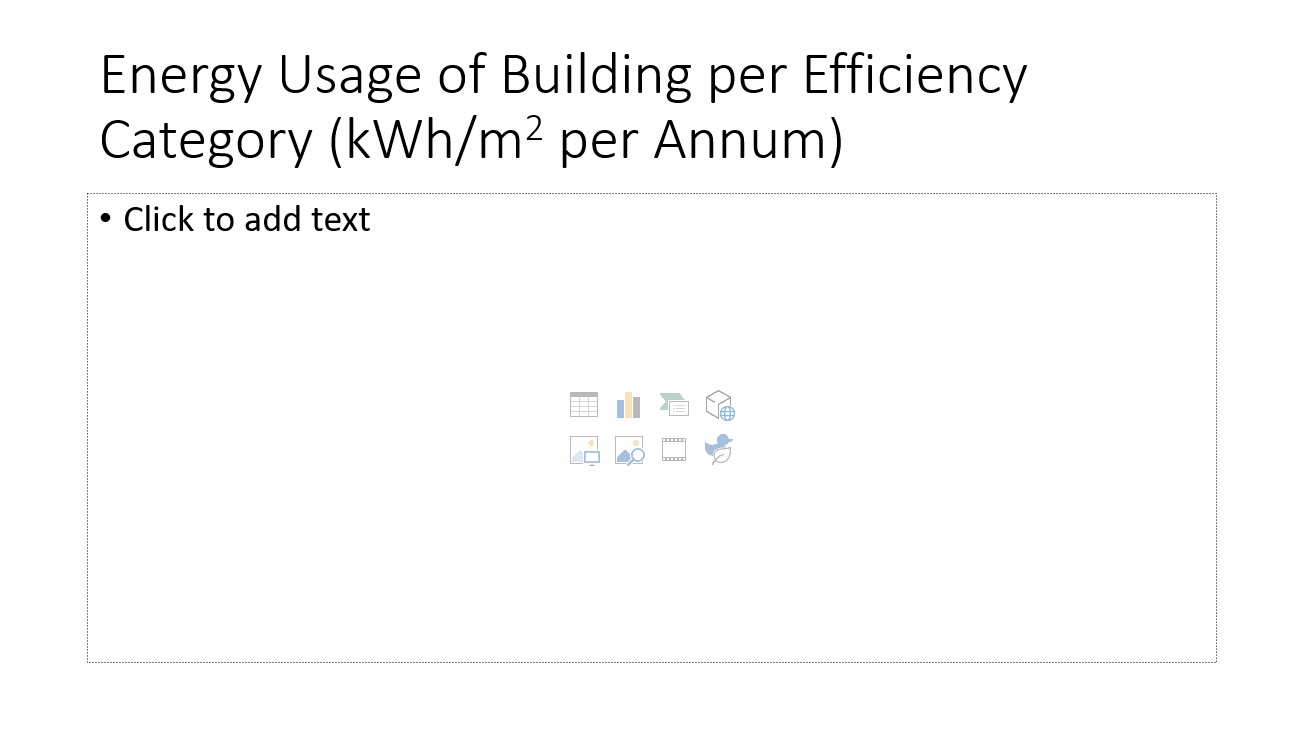
Choose Title and Content as the slide's template. Write a title: “Energy Usage of Building per Efficiency Category (kWh/m2 per Annum)”.
The model:
Task: Add a table to a placeholder
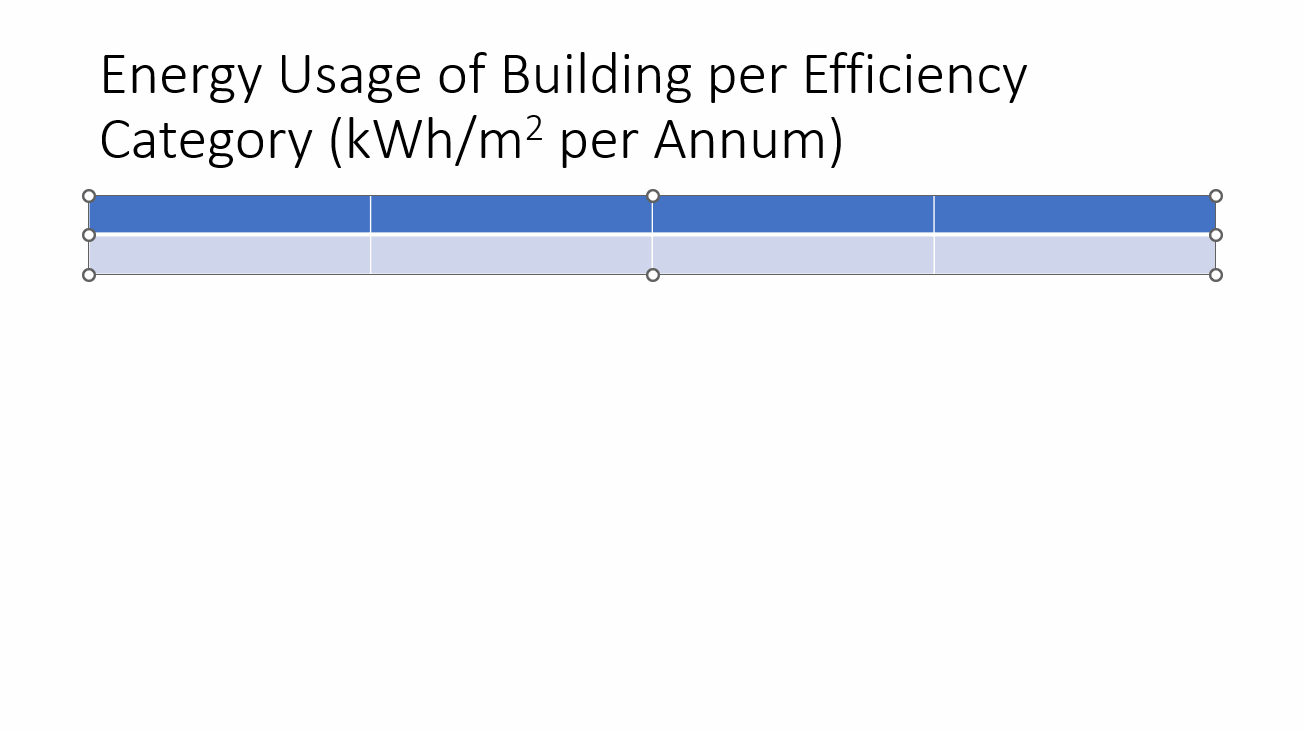
Add a table with four (4) columns and two (2) rows.
The model:
Task: Enter the data in the table
Enter the following data to the table:
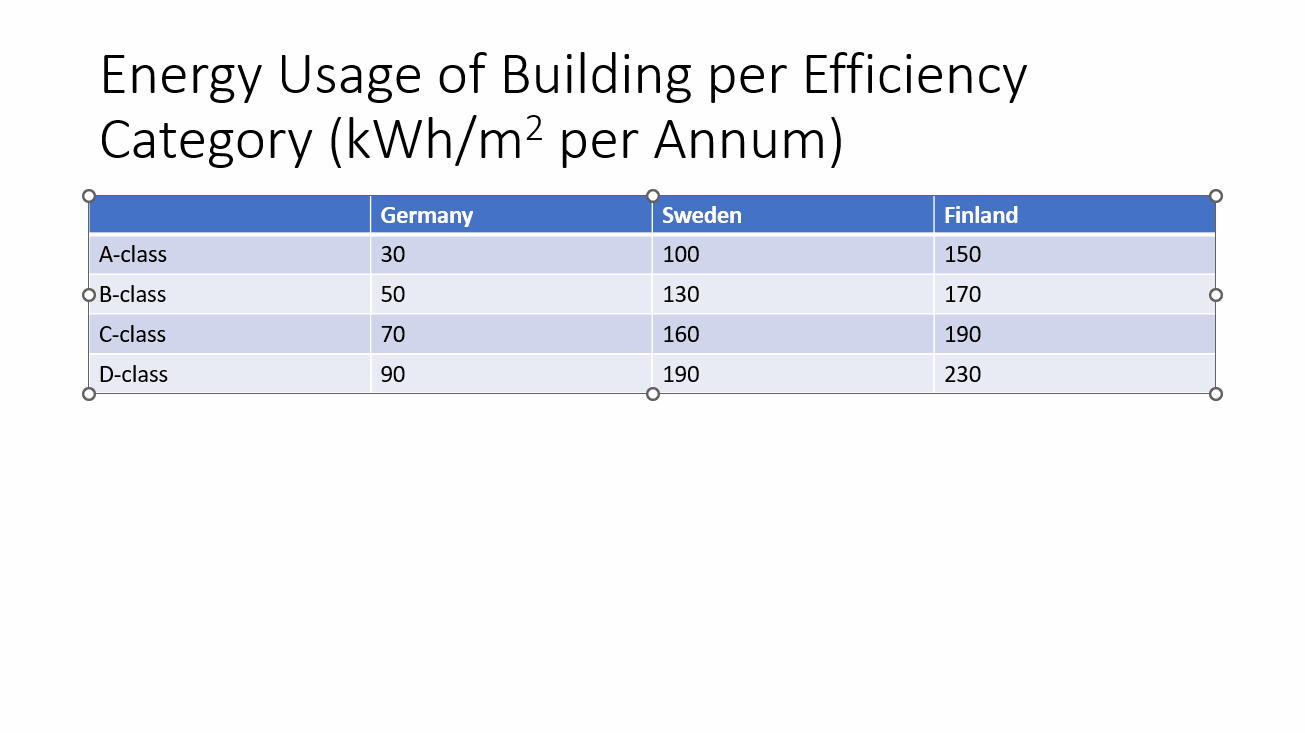
Task: Format the table how you want
When formatting, take into account, e.g., the width of rows and columns, the size of the table in general, the border of the table, and the formatting of the text such as size, colors, and fonts.
In the model below, the table has been moved slightly to the center, the font size has been increased, the width of the table has been set to 20 cm, and also its color scheme has been changed.
Problem: The table cannot be reduced in size?
If a PowerPoint table is too large and you can't reduce its size normally, try changing the font to something else or adjust the font size.
Reduce the font size

Paint the contents of the table and change the font size using the Decrease Font Size and Increase Font Size buttons in the Font group of the Home tab.
Task: Add a text box
Let's clarify the table contents by telling the readers the source of information in the table. Add a text box to the table with the following text:
You have now reached the end of the Table page. You can add text, images, and tables to a PowerPoint presentation. You have already come a long way! If you've done the PowerPoint Slideshow Basics set in one sitting, take a short stretching break now at the latest. Mark which of the movements you did during the break:
Next, we'll get to know how Excel and PowerPoint work together. Shall we move on to the next page?