The Structure of a PowerPoint Presentation
Let's start by getting familiar with PowerPoint terms and then try creating and editing a new presentation. This page introduces some basic operations, which you will learn more about later. Now the goal is for you to become familiar with the following concepts:
- Themes
- Designer
- Slide placeholders
You will also learn:
- To move slides
- To change the structure of the slides (we use structures called Two Content and Title and Content)
The Objective
At the end of completing the task on this page, you will have created the file PowerPoint_Exercise.pptx, containing one slide using a structure called Title and Content. To get there, though, we will be taking an educational detour, so it’s recommended to finish all the exercises thoroughly.
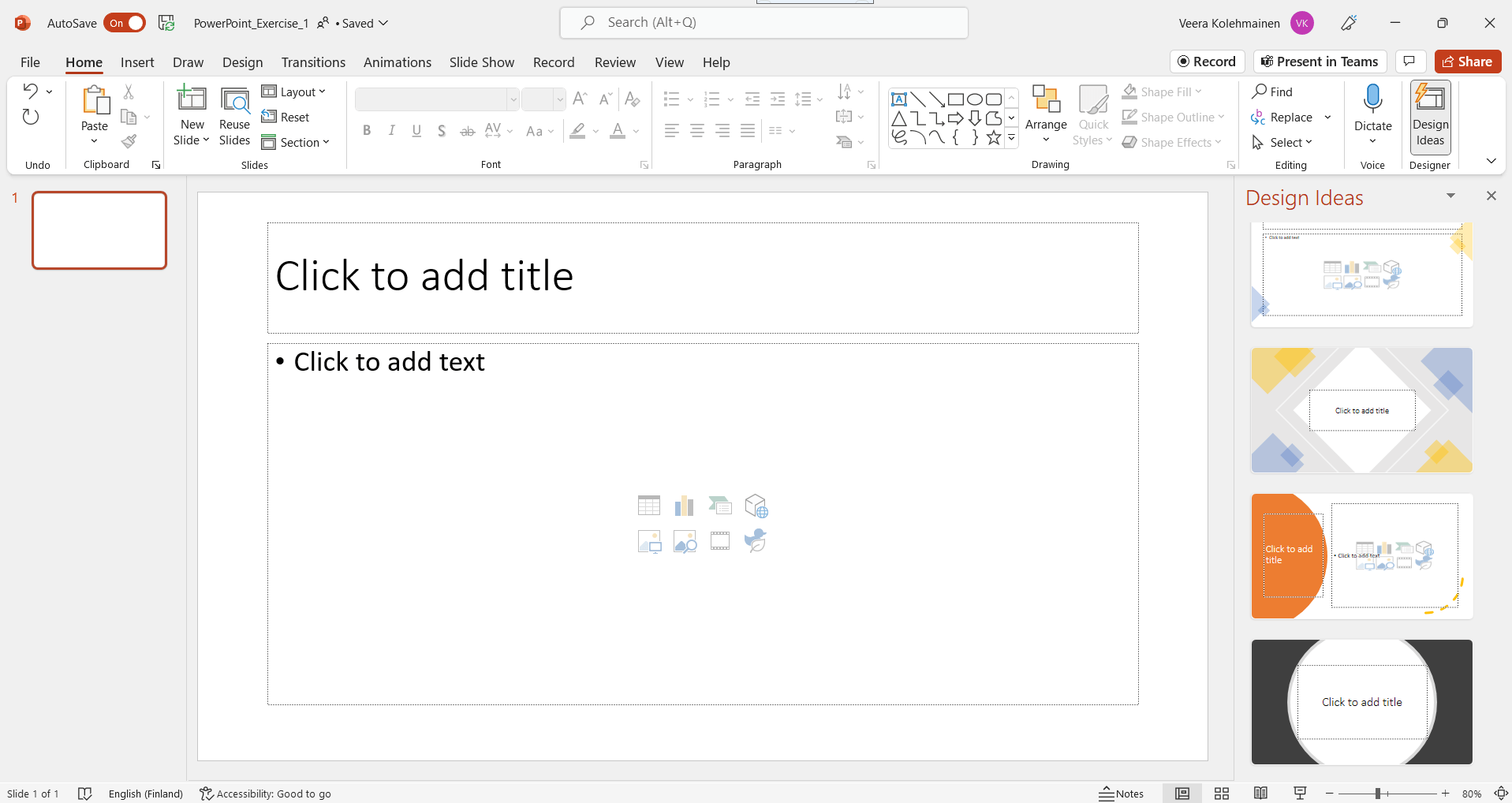
Info: Terms of Powerpoint
When creating a new PowerPoint presentation, one always uses a base (template or theme), where the page size (slide), fonts, colors, bullet points, and the layout/structure are predefined.
A theme only determines the appearance of a presentation, while a template may have different predefined pages (slides).
It's essential to get familiar with the terms because most misunderstandings in collaboration happen due to the use of different terms when talking about the same thing.
Task: Start PowerPoint and create a new presentation
Choose the base for your presentation from the pre-made templates. Save the presentation you created to your chosen location on your computer, and name it "PowerPoint_Exercise.pptx", for example. We went through the subject of saving a PowerPoint presentation in the Preliminary Information chapter.
Task: Use Designer to choose the appearance of the Title page
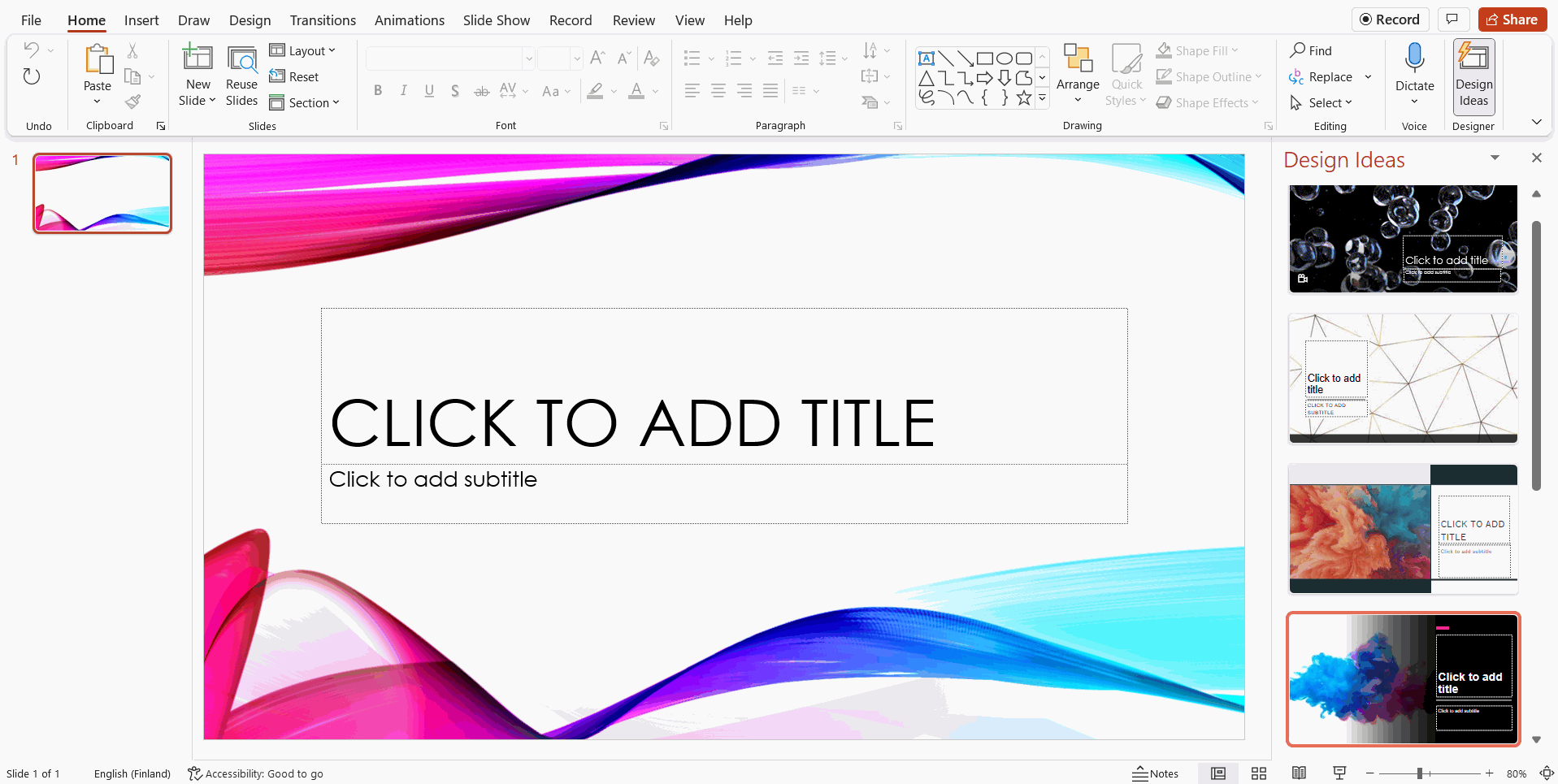
Task: Change the theme of your presentation to an Office Theme
Next, we will ensure that the structure of the presentation is sound and set the theme to Office Theme.
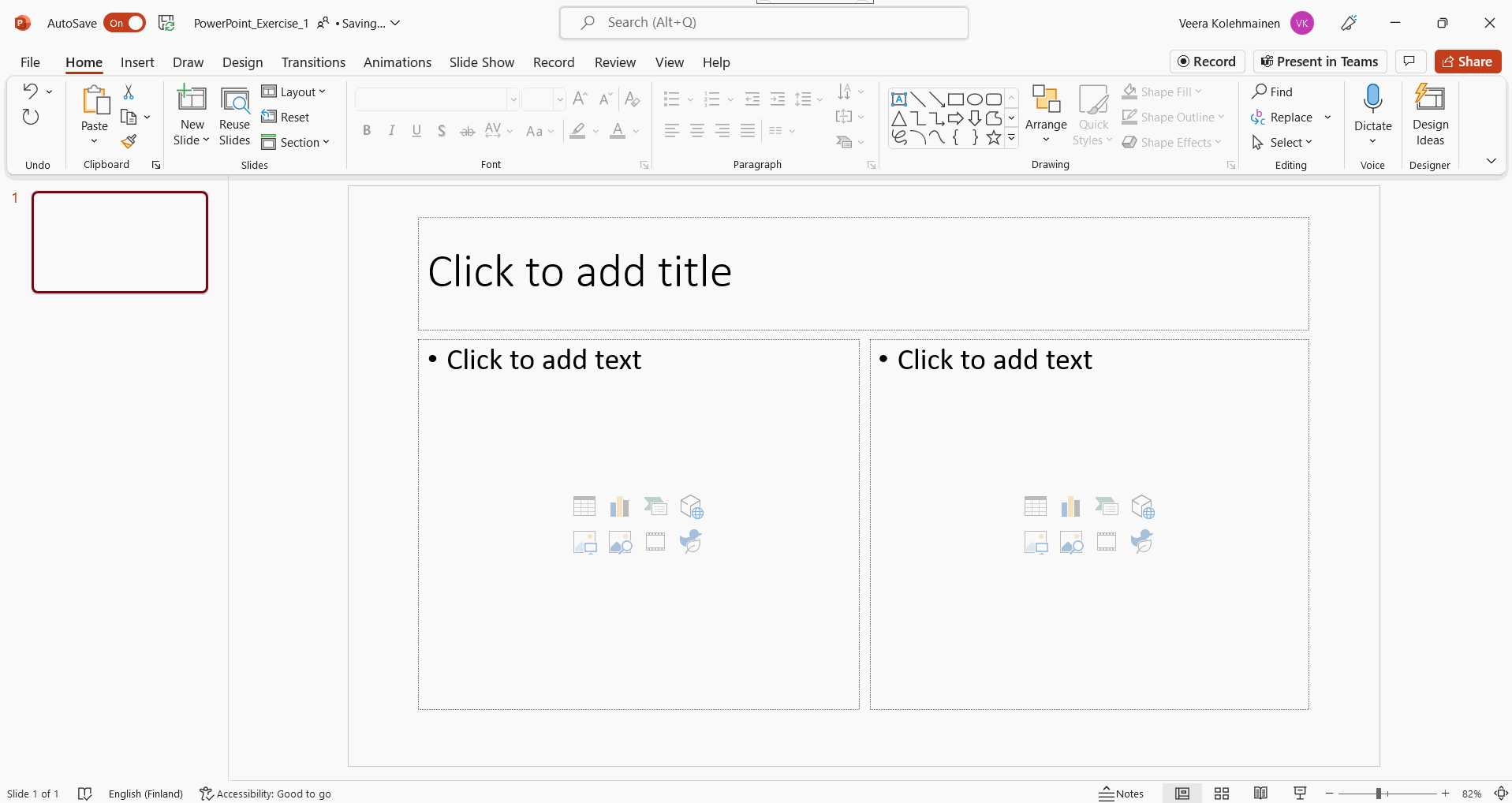
Task: Add a new 'Two Content' -slide
Slides are pages of a PowerPoint presentation. When you add a new slide, choose the Two Content layout.
Example:
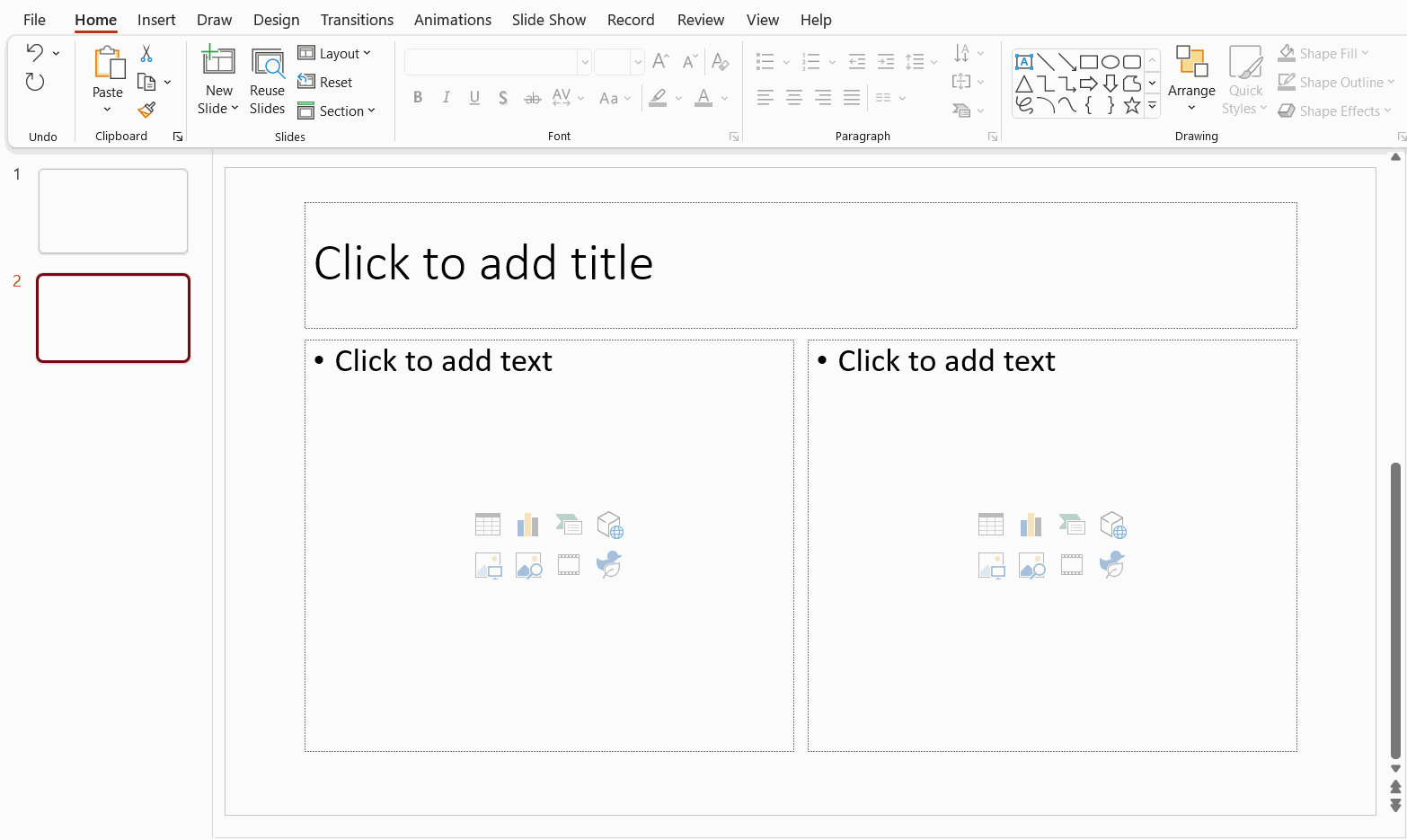
Info: Placeholders
The slides have predefined placeholders for different types of content, texts, images, diagrams, tables, etc. To make the slide follow the layout of the presentation, the content is added to these placeholders.
There is also no need to format, e.g., text separately, but the idea is to follow the formatting of the chosen theme. Visuality and placement of content is an integral part in terms of the readability of presentations. With the help of predefined placeholders, you ensure that the basic principles related to these matters will also hold in your presentation.
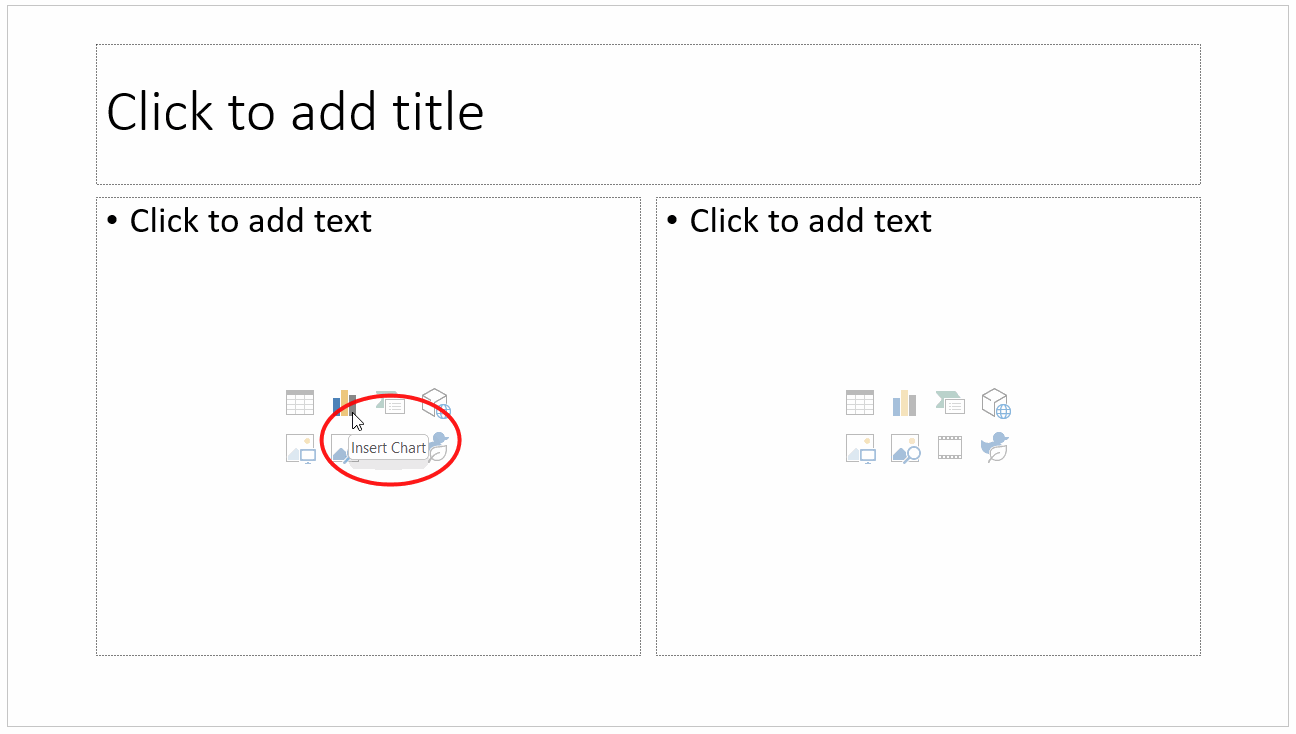
Task: Reorder the slides and then delete the title slide
The slides of your presentation are visible in the panel on the left of your screen. Move Two Content to the top, and then delete the Title Slide which now appears under the Two Content.
Example:
Task: Change the layout of a slide
Change the layout of a slide to Title and Content.
Example:
Info: Restoring the original layout
 | If you have changed the appearance of the text or content in the placeholders of your slide, you can restore all the changes to follow the guidelines of the theme by navigating to **Home** tab, and clicking on the **Reset** button in the **Slides** group. |
Accessibility and PowerPoint
Great! You have now finished the first chapter of the PowerPoint course. You should now be able to handle new slides and their layouts and themes. Next, we will look into adding content to your presentation - text being the first thing to look at.
Are you ready?