Importing a Table from Excel
Usually, we don't make tables in PowerPoint; we create them in Excel. It is a significantly more efficient program for processing tables. The information presented as a table is often already in a ready-made Excel file. Next, let's learn how to import a table from Excel to a PowerPoint presentation. In practice, importing is done by copying to the clipboard, i.e.:
- Copy the table from Excel to the clipboard
- Paste the contents of the clipboard into PowerPoint
Downloading and opening the base file
Download and open the Excel file Importing_table_and_chart.xlsx. We copy the table in it to the clipboard.
Importing_table_and_chart.xlsxThe Objective
We add a fourth slide to the PowerPoint_Exercise.pptx, to which we will add the table from Excel. It might look like this:
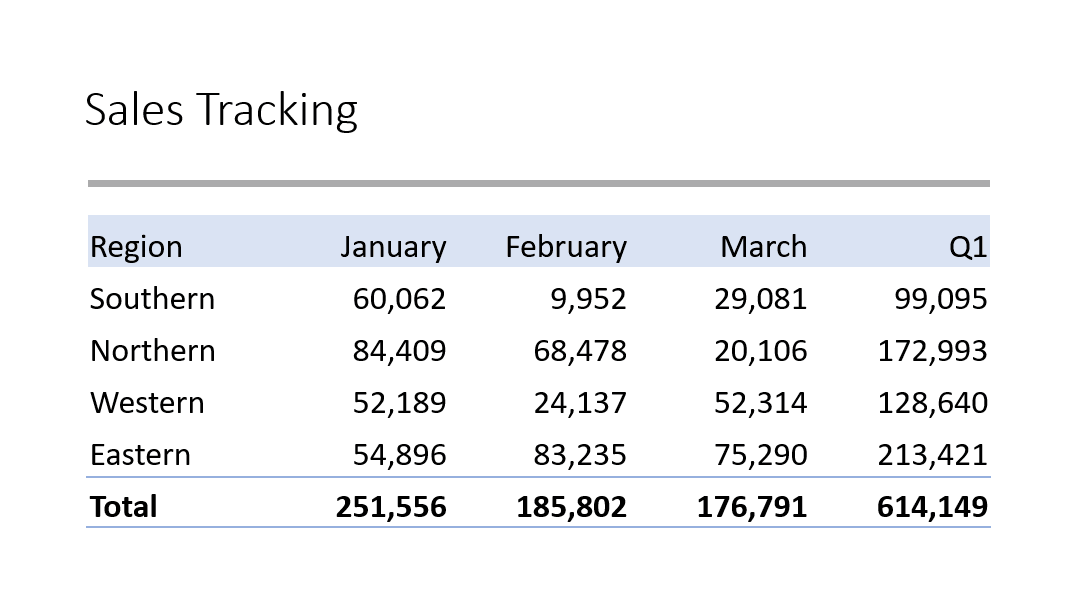
Task: Add a new slide to your presentation
Choose the template Title and Content. Write "Sales tracking" as the title.
Task: Copy the table from Excel to the clipboard
Task: Paste the table into the PowerPoint presentation
Return to your presentation in PowerPoint. Paste the table to the slide by clicking Use Destination Styles. Afterwards the slide should look like this:
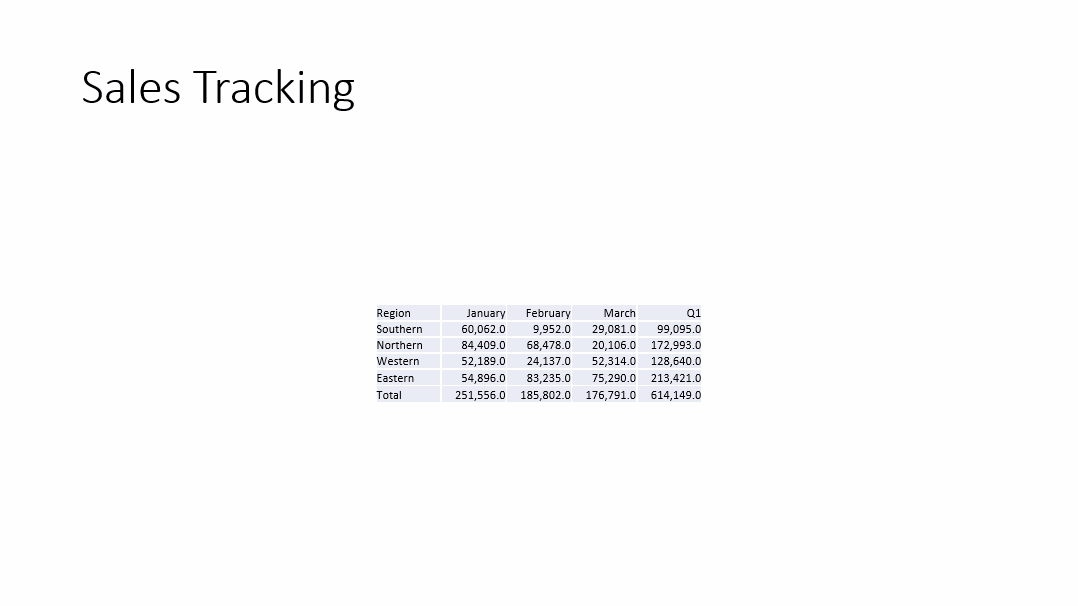
Task: Format the table to your liking, and add a text box
Format the table to your liking and to be as clear as possible.
As you probably noticed, Excel and PowerPoint work very well together. They complement each other.
Next, we shall move on to creating charts. Shall we?