Text
Almost all PowerPoint presentations contain some text. It is still good to be aware that there should not be too much text on the slides. This page introduces you to adding and editing text in a PowerPoint presentation.
The text is usually added to slide placeholders in a presentation by clicking on the placeholder.
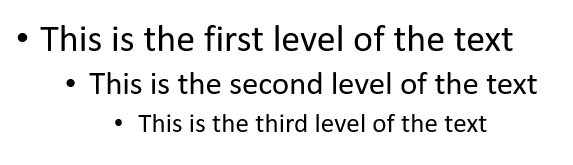
Lists can have up to nine text levels, but in presentations, the number of levels should be 1–3. This is because the readability of the presentation suffers if too many levels are added. In the example below, you can see three text levels.
Video
The Objective
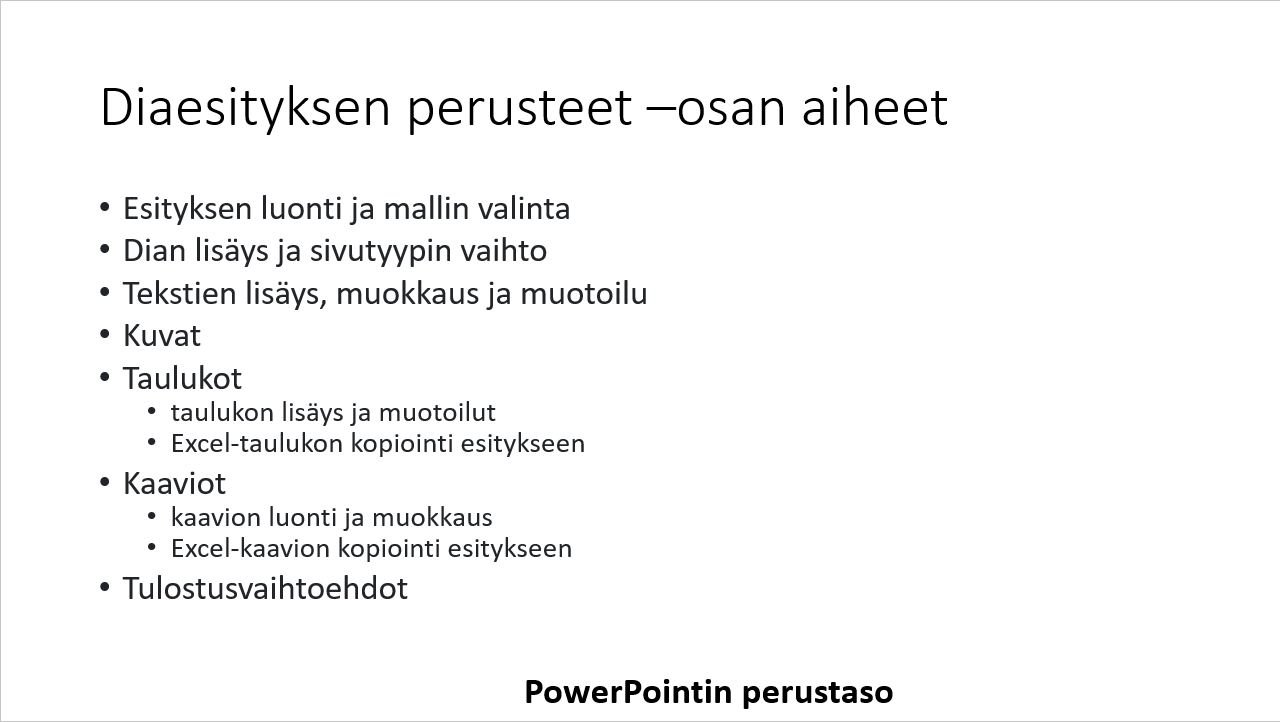
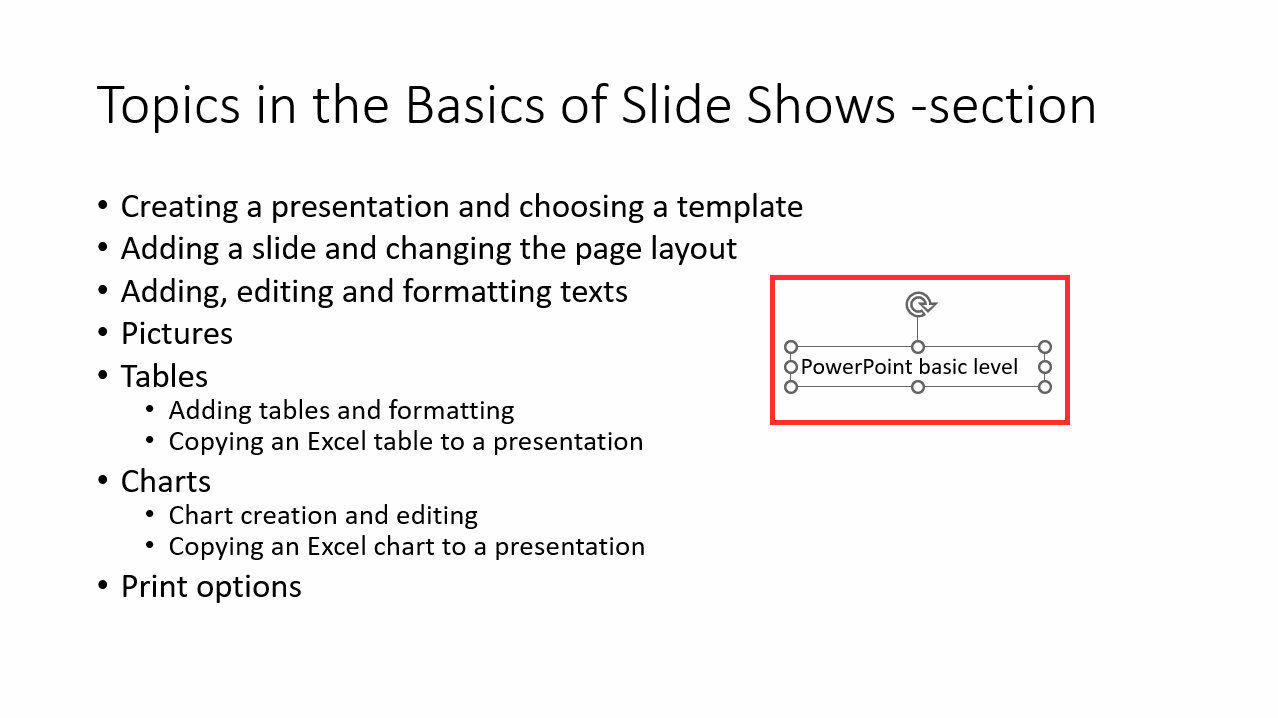
Next, we will continue editing the PowerPoint_Exercise.pptx and add text to the title, content, and a separate text box in the slide we already made in the last chapter. The result will look like this:
Task: Add a title to the slide
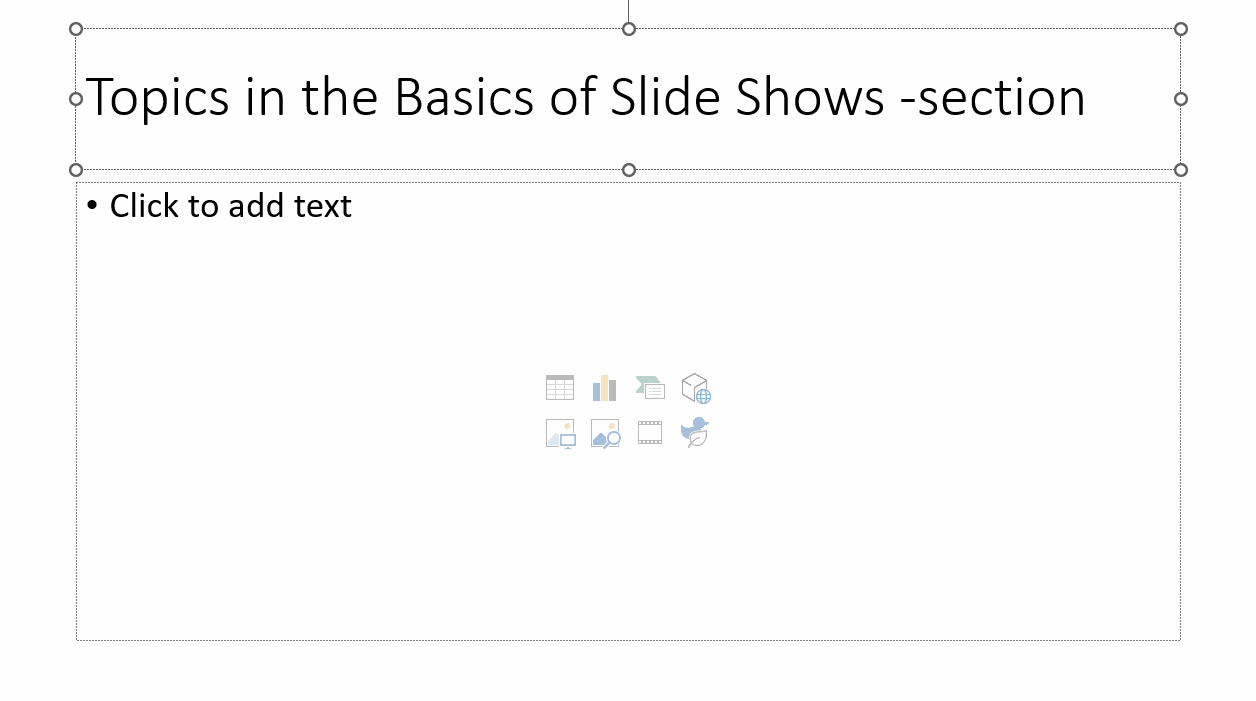
Use the title “Topics in section Basics of Slide Shows”.
Example:
Task: Add text in the slide
The text you will be adding:
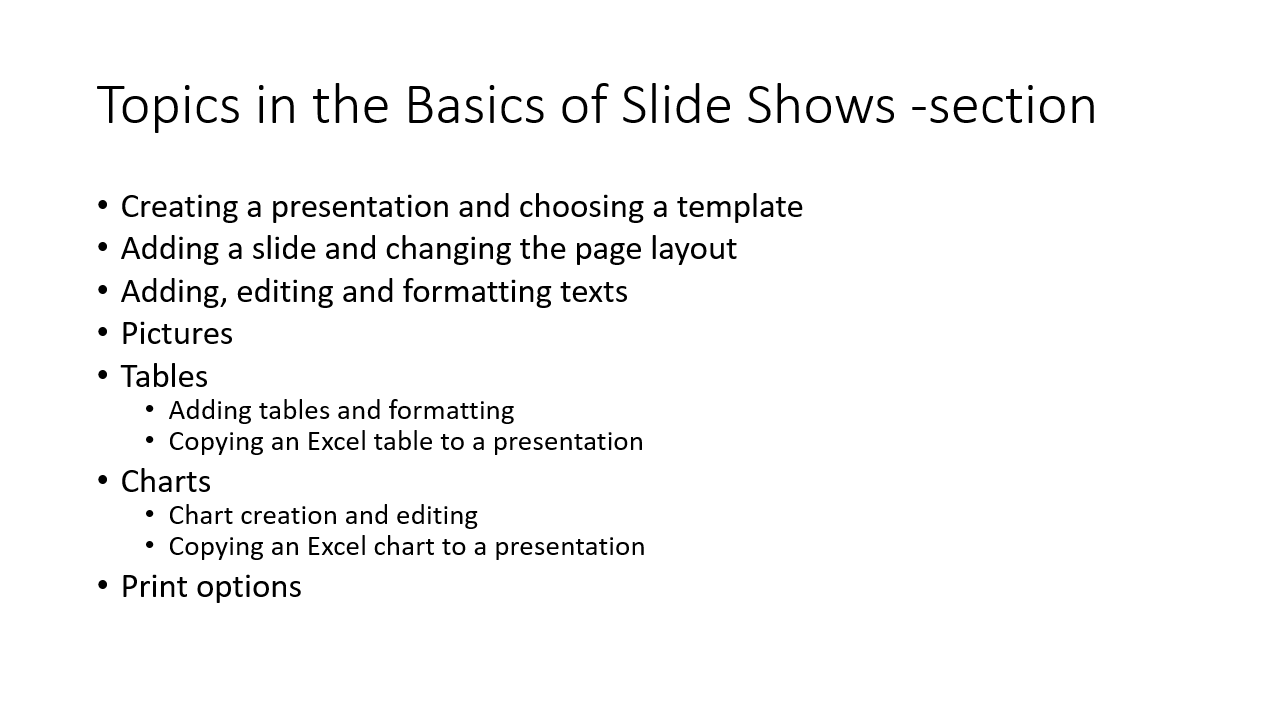
You can copy the text below:
Adding a slide and changing the layout
Adding, editing, and formatting text
Pictures
Tables
Adding a table and formatting it
Copying and pasting an Excel table to a PowerPoint presentation
Charts
Creating a chart and editing it
Copying and pasting an Excel chart to a PowerPoint presentation
Printing options
Task: Add a text box to a slide
Add a text box to the PowerPoint_Exercise.pptx, and write: “Basics of PowerPoint”.
Example:
Info: Working with a text box
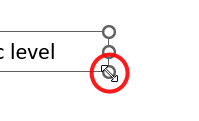
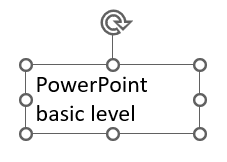
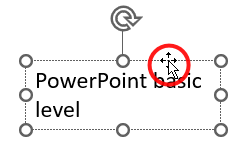
When you have chosen the text, you will see the text box frame around it. A text box is often used to highlight a particular subject. You can change the text box size by dragging it in your chosen direction by a handle.
| 1. Move your cursor to a corner of the text box | 2. The user has changed the size of the text box. Note that changing the size of the box does not affect the size of the text, only the lineup. |
 |
 |
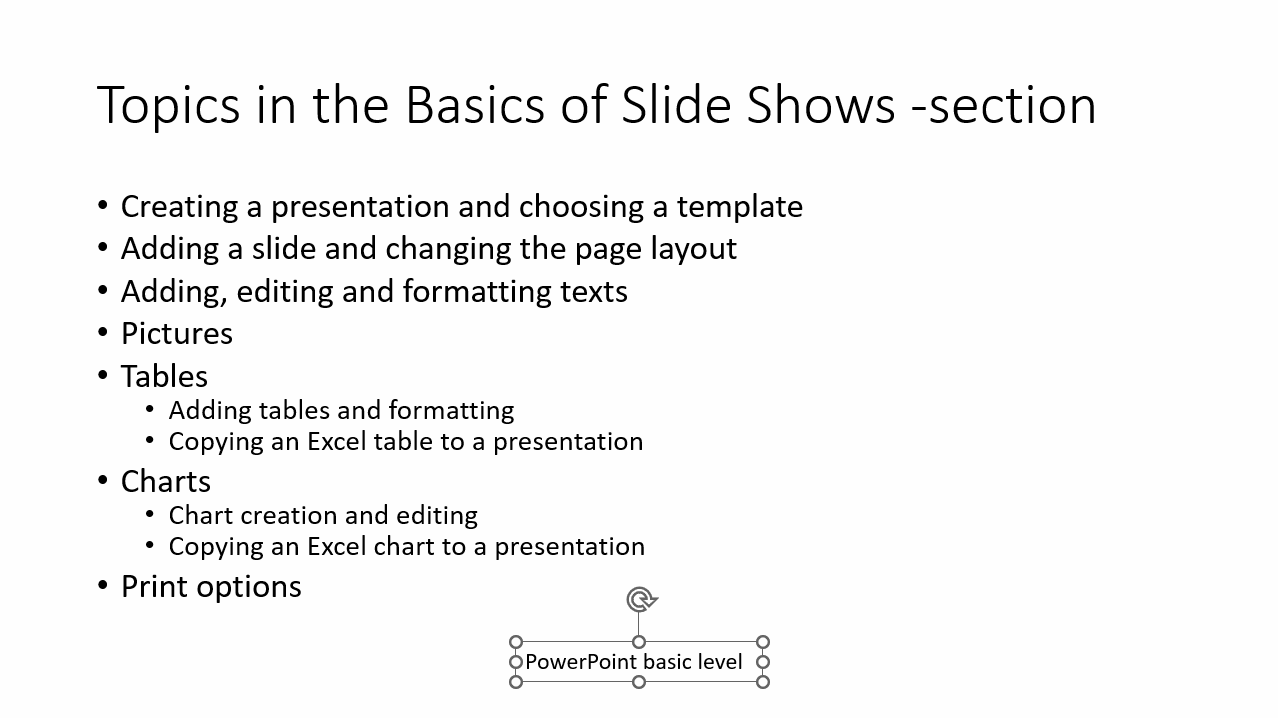
Task: Move the text box to a place of your choosing
Example:
Info: Deleting a text box
When you want to delete a text box, you need to click on it to activate the frame. Click on the frame so it is solid and not a dotted line, and the text cursor inside is not flashing, indicating you are editing the text.
Delete the frame by pressing Delete or Backspaceon your keyboard.
Task: Format the font of the text
Example:
In the example, the text font size is 28 and bolded.
Great! You have now added text and even some formatting to your presentation. Remember still what we have been talking about?
Basics of Slide Shows - Words
The call name of a single page in the presentation is _____. When you make a _____ change, the presentation's fonts, colors, bullet points and the layout/structures of various pages also change. The theme only has things related to the appearance of the show. A _____ may contain pre-made pages. In the presentation, the number of _____ should be 1-3. When text is selected, a _____ appears around it.
- slide
- theme
- template
- text levels
- text frame
I hope doing the short test above left you in a good mood. Next up, we will look into adding pictures to PowerPoint presentations!
Shall we proceed?