Saving
Saving files and learning how to save them is important so that hours of work are not wasted in seconds. Let us exercise to save the new file you just created.
Task: Save file to OneDrive
Info: What is OneDrive?
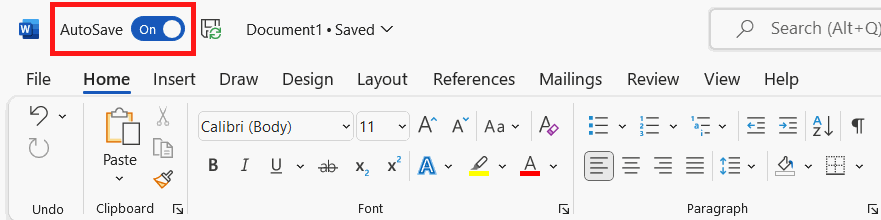
Info: One benefit of OneDrive: automatic saving
Info: Other storage locations
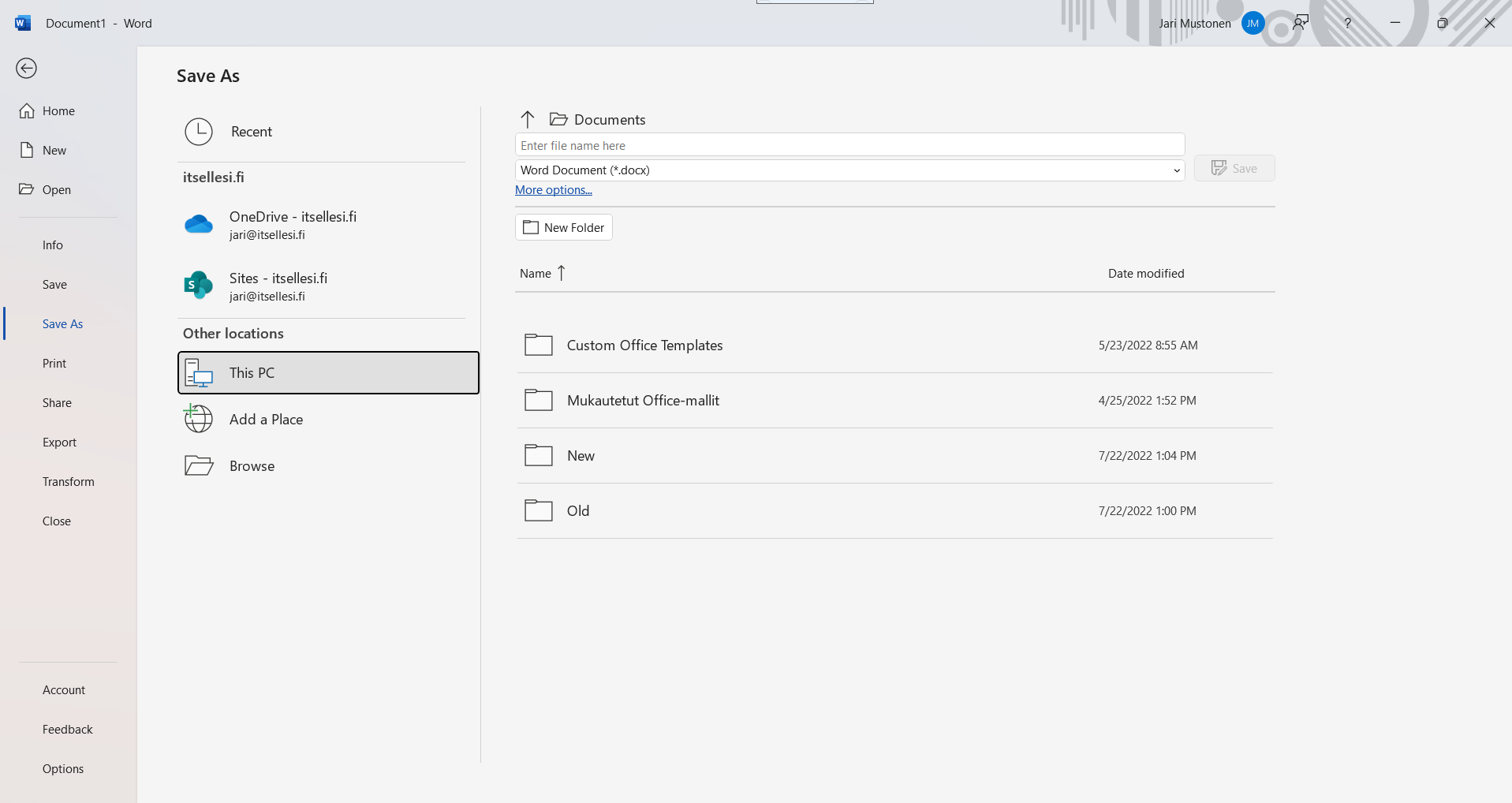 RecentCLick on **Recent** button and you will see the most recent locations and folder on the right-hand side.OnlineThis section shows the network locations you can save to. Online locations include OneDrive and Sites. Use OneDrive for personal files; Sites are for sharing. Saving to a web location does not take up computer storage space.This PCSave the file to this computer.BrowseUse this to go to the classic file saving view.
Most experienced users prefer this view.Right-hand sideAfter selecting the main location from the left-hand side, you can use the right-hand side to navigate to the exact folder where you would like to place your file.
RecentCLick on **Recent** button and you will see the most recent locations and folder on the right-hand side.OnlineThis section shows the network locations you can save to. Online locations include OneDrive and Sites. Use OneDrive for personal files; Sites are for sharing. Saving to a web location does not take up computer storage space.This PCSave the file to this computer.BrowseUse this to go to the classic file saving view.
Most experienced users prefer this view.Right-hand sideAfter selecting the main location from the left-hand side, you can use the right-hand side to navigate to the exact folder where you would like to place your file.If the file is intended for sharing, you can also save it to Sites. However, Sites is meant for sharing only, so please do not store your personal files there. Save your personal files to OneDrive or your computer.
Without an internet connection, files may not be accessible, which can sometimes cause problems. For other locations, the This PC option opens storage location alternatives from the computer's storage space, allowing you to access the file even without an internet connection. The Browse button displays the traditional file directory.
Video: Copying Files
Info: Copying a file
You can make a copy of the file by right-clicking on the file icon and selecting the option Copy and by going to the desired directory, right-clicking and selecting the option Paste.
You should now have a file saved on your computer with your name written twice. If so, great!
Shall we mark this as done and move on to the next page, where we go through the differences between the desktop and online versions?