Dividing the Presentation into Sections
In PowerPoint, the presentation can be divided into sections, which makes it easier to process and understand the entity as a whole. Dividing a presentation into sections can be done, for example, according to the structure of the presentation model presented above.
The Objective
We will add sections to SmartArts_videos_and_presentation_view.pptx and organize the slides a bit more. Afterwards, the presentation should look like below, when entering Slide Sorter mode. In this chapter, you'll also learn to print specific presentation sections.
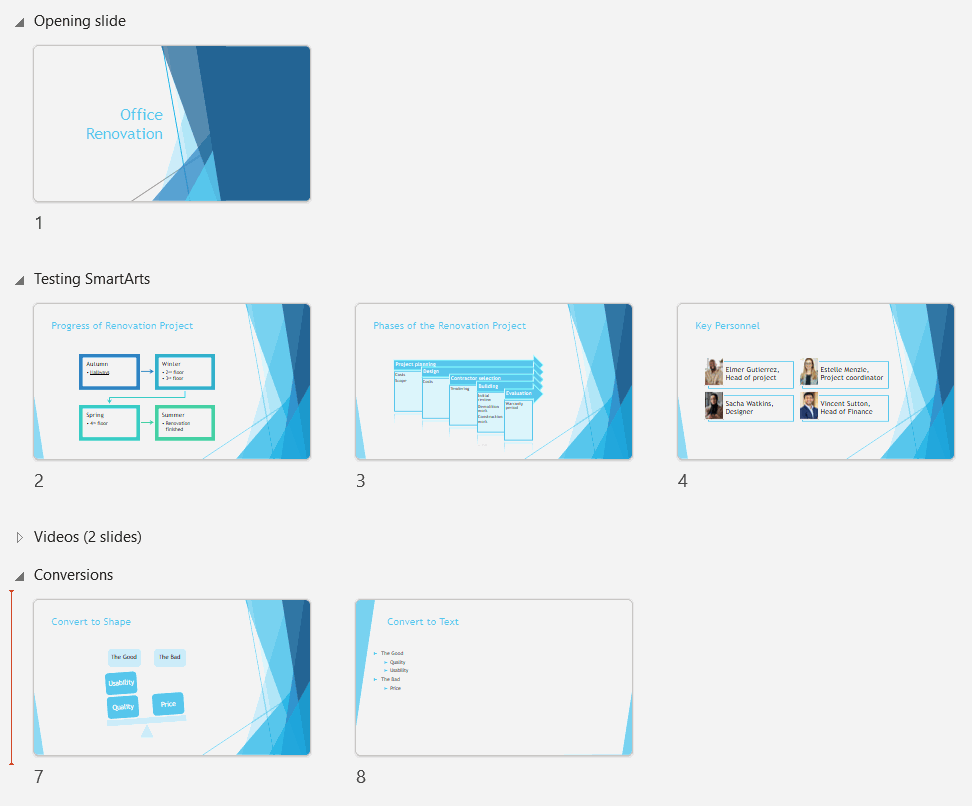
Task: Add sections into the presentation
Add the next sections into your presentation:
- SmartArt experiments from slide 2
- Conversions from slide 4
- Videos from slide 7
Task: Change the name of the first section
When you added a section starting from slide 2, PowerPoint automatically created a section for the first three slides of the presentation: Default Section. Let's name this section again as Opening slide.
Info: Removing a section
|
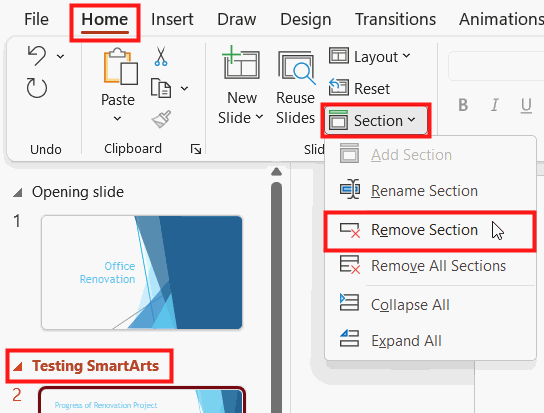
This is simply additional information and is not included in the task. Still, see if you can find the actions below. You can remove a section or all sections. When you remove a section, the slides in it will not get deleted, only the section holding them together. Click over the name of the section and navigate to the Slides group in the Home tab. Click on Section, and choose either Remove Section or Remove All Sections. |
 |
Task: Collapse the slides of the Opening slide section
PowerPoint is easier to use when only the slides that are relevant to you are visible. Next, let's explore how we can collapse and open sections.
You can view the thumbnails on the left side of the screen in two views: You can see all the slides of each section, or you can collapse a section so that you only see the name of it.
Especially in large presentations, collapsing sections makes it easier to work.
Task: Collapse and expand all the sections
Instead of collapsing and expanding the sections one by one, you can do it to all the sections simultaneously.
Task: Inspect the presentation in the Slide Show mode
Task: Rearrange slides
We can move slides between sections, and we can also easily change their order. Next, let's make some structural changes to the presentation by rearranging some slides.
Move slide 6 (Key Personnel) to the end of the Testin SmartArts section, as slide 4.
Task: Move a whole section
Move the Videos section to appear after Testing SmartArts section.
Task: Print a specific section
Instead of printing the whole presentation, you can print a specific section.
Print the slides of the Testing SmartArts section as a PDF file.
If you wish to, you can pop back to review the printing instructions in Basics of Slide Shows: Printing options
PowerPoint 2 - 2 - Loppukysely
Mark the statements that are true.
- In a good PowerPoint presentation, all spoken information is repeated.
- A good structure makes it easier to follow the presentation.
- In PowerPoint, the slides can be divided into parts that are visible to the audience when your presentation is in the presentation view.
- You can condense and expand all parts at the same time.
- In the presentation view, each picture of the presentation is displayed as a thumbnail, and you can therefore easily visualize the whole while making the necessary changes.
- In addition to the entire presentation, you can also print individual parts of the presentation.
If you think this all went well, you can now move on to the last pages of this PowerPoint chapter, where we will discuss the presentation itself!
On these last two pages, we will go through the issues related to presenting in front of an audience and familiarize ourselves with the PowerPoint's features that support presenting to others.
Shall we move on?