SmartArt Graphics
People get bored if they are shown lists of text slide after slide. SmartArt objects are one easy way to enliven a presentation or replace texts with descriptive graphic objects.
We can replace plain text with SmartArt graphics.
#### The original slide
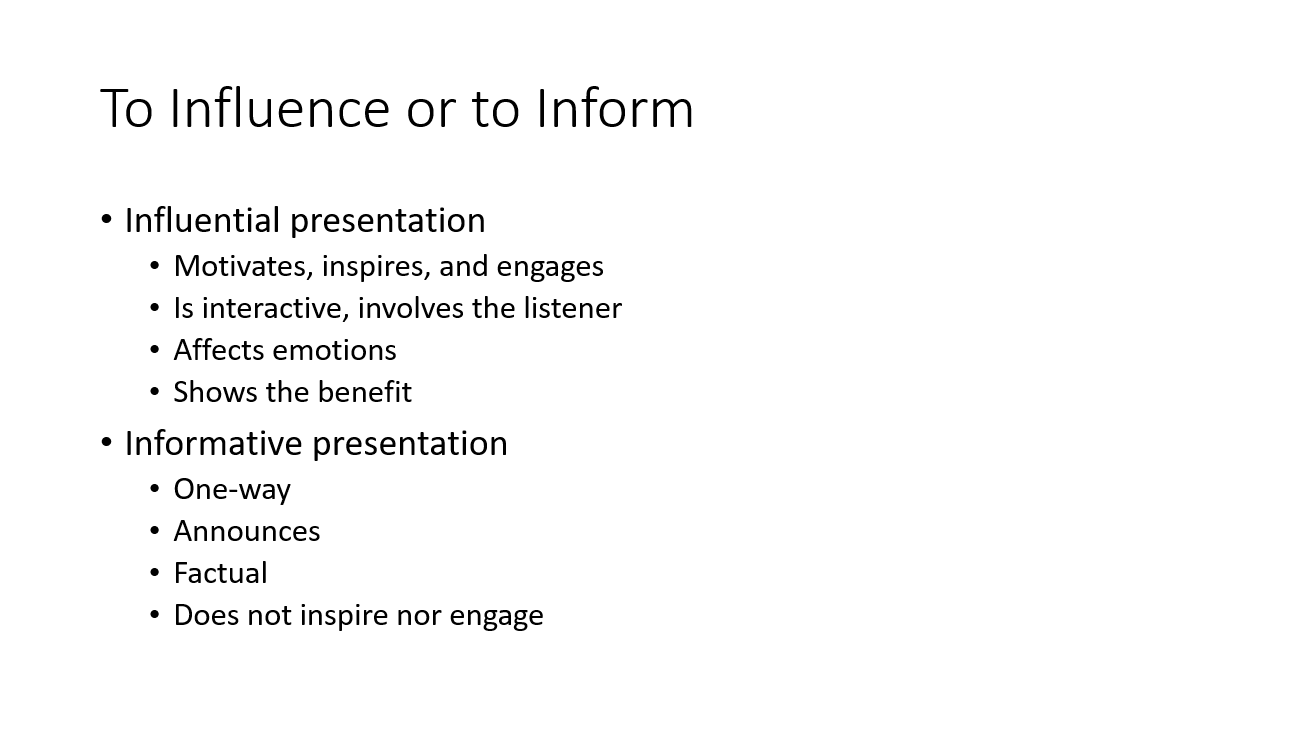 |
#### The SmartArt graphic object
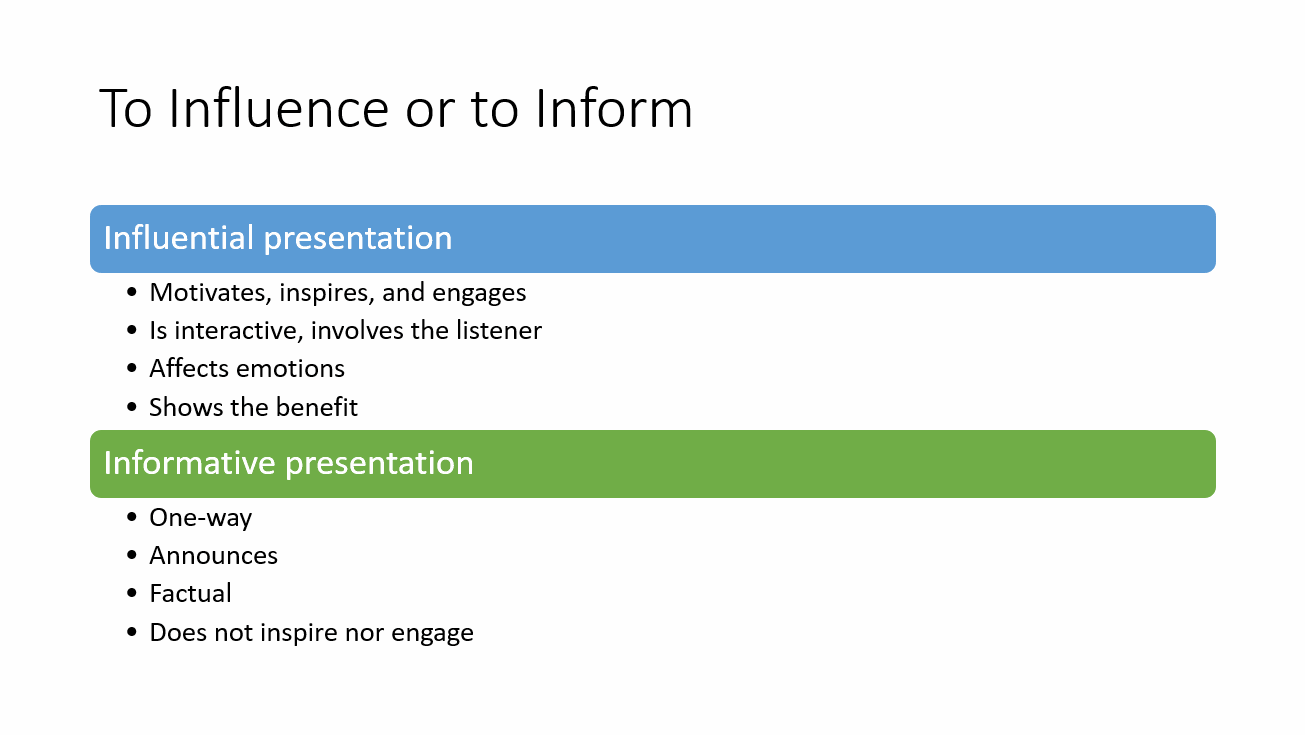 |
We can also liven up the slide with an image. SmartArt graphics and images go well together.
#### The SmartArt graphic object
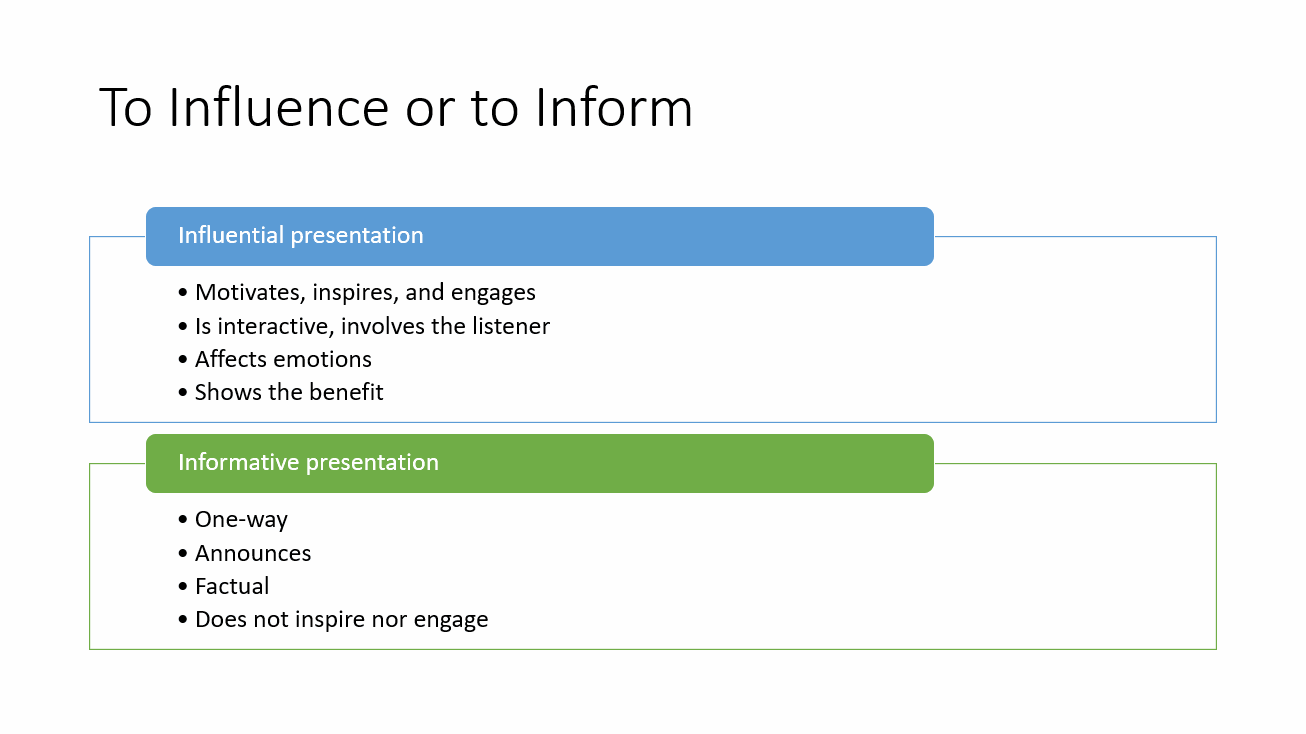 |
#### The SmartArt graphic object and an image
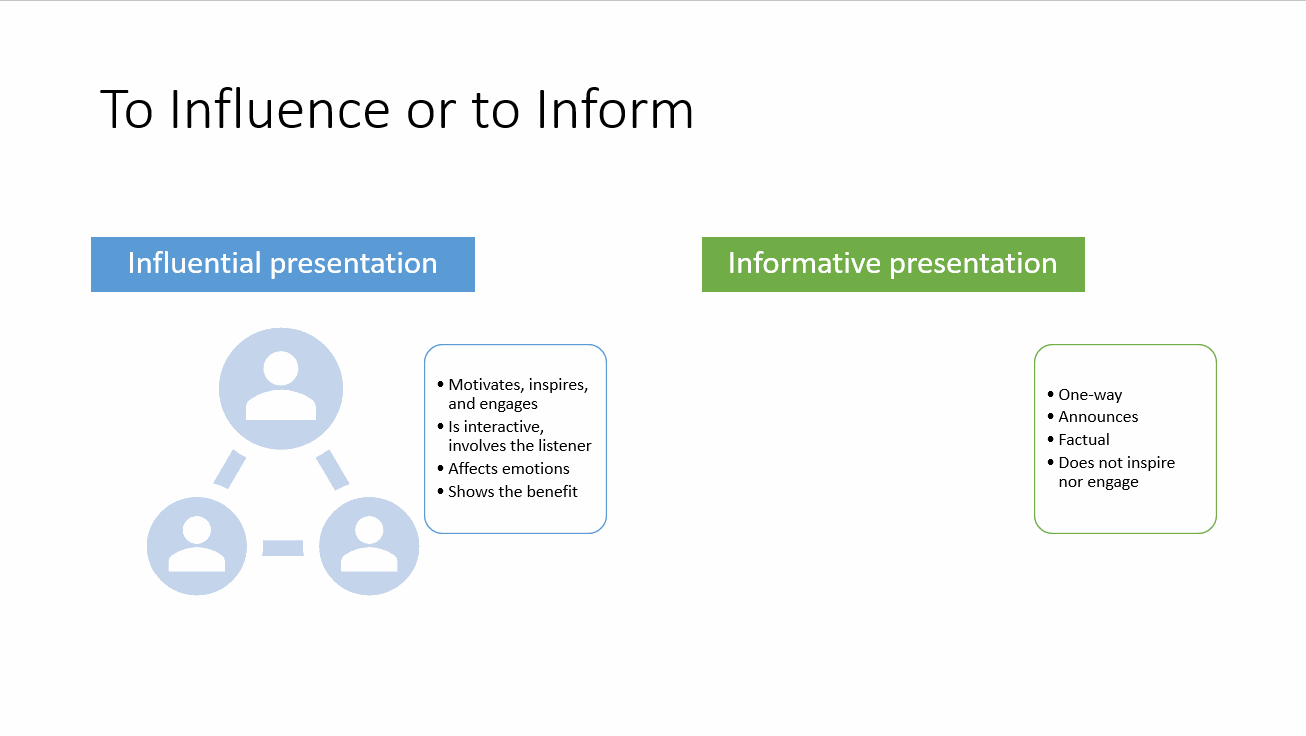 |
You can also make the slides more interesting with the help of ready-made design ideas.
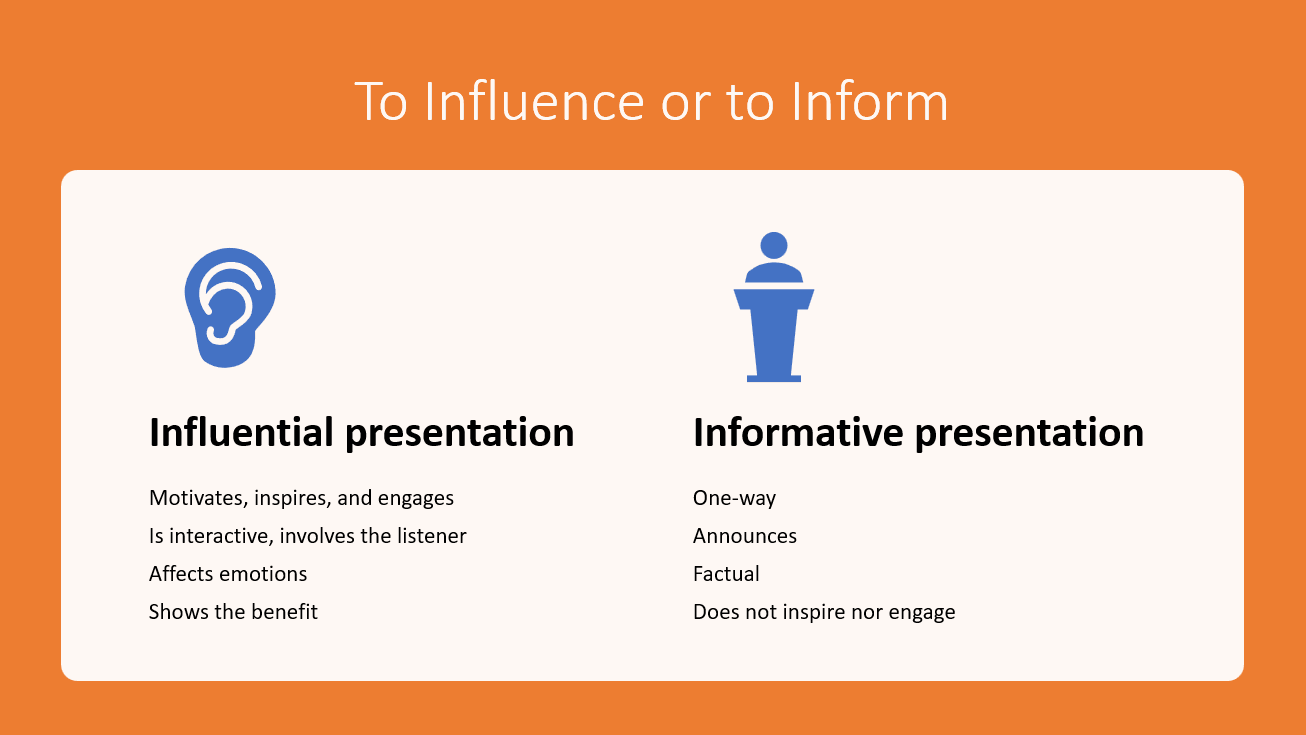 |
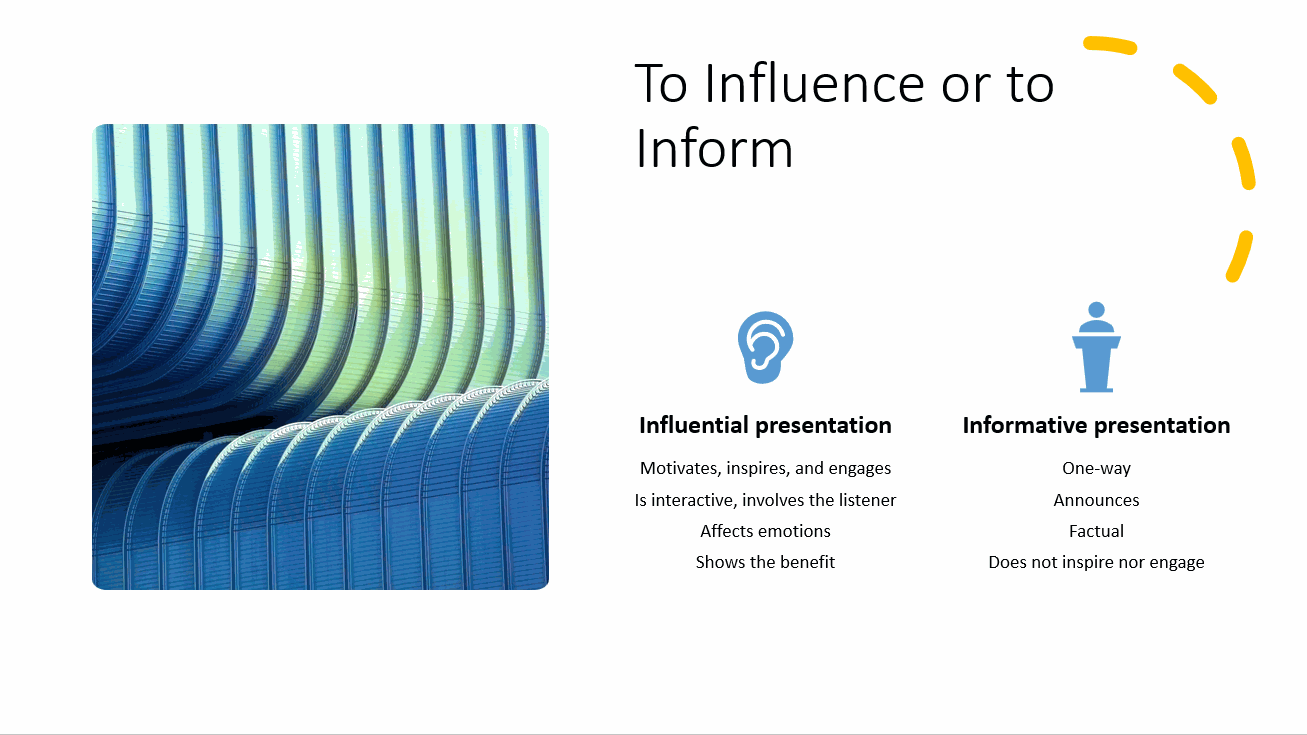 |
As you can see from the examples, you should only use lists consisting of text rarely and only after considering other ways to present your case more visually. We will practice creating and using SmartArt graphic objects on this and the following few pages.
Video
Video
Downloading and opening the base file
Download and open the SmartArts_videos_and_presentation_view.pptx file.
SmartArts_videos_and_presentation_view.pptxThe Objective
Next we will add a SmartArt graphic object to the slide 2 of the SmartArts_videos_and_presentation_view.pptx presentation. As we continue, you can edit and format the slide to your liking, but at the end, we will use a SmartArt object called Repeating Bending Process, and we have added a link to the slide, too. The result might look, for example, like this:
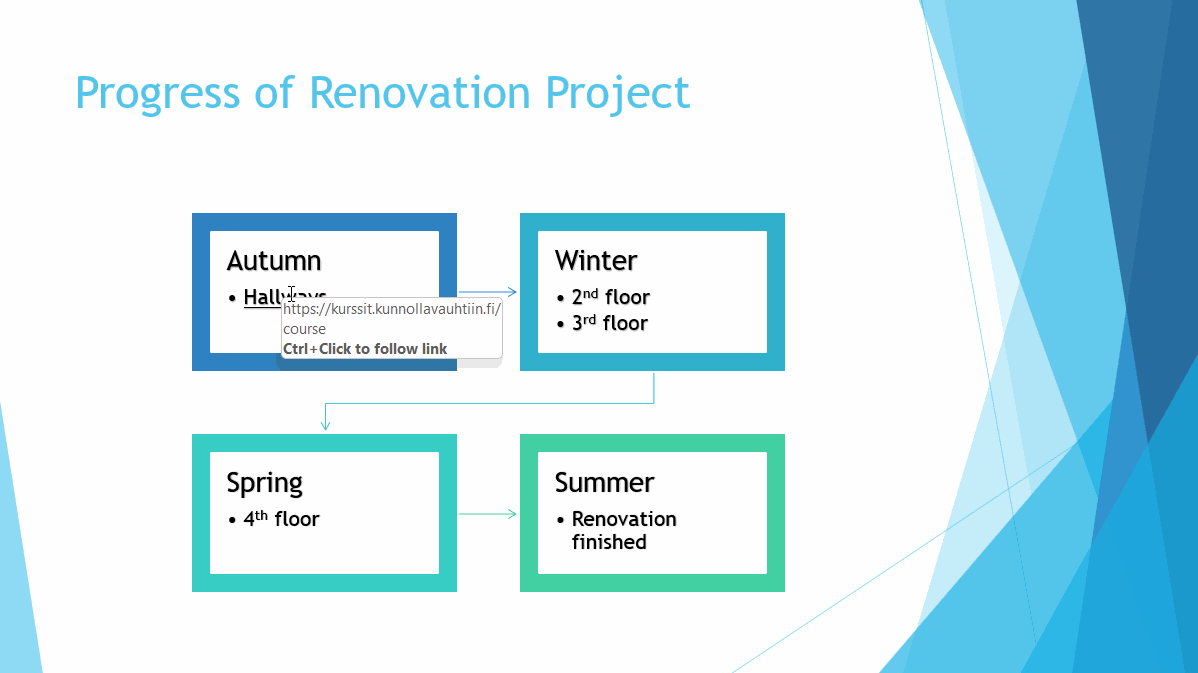
Task: Add a SmartArt graphic object
Start working on the file you downloaded (SmartArts_videos_and_presentation_view.pptx), and add a SmartArt graphic object from a template to slide 2. We are now experimenting with the SmartArt Continuous Block Process, and later on we will turn it to an another kind of SmartArt.
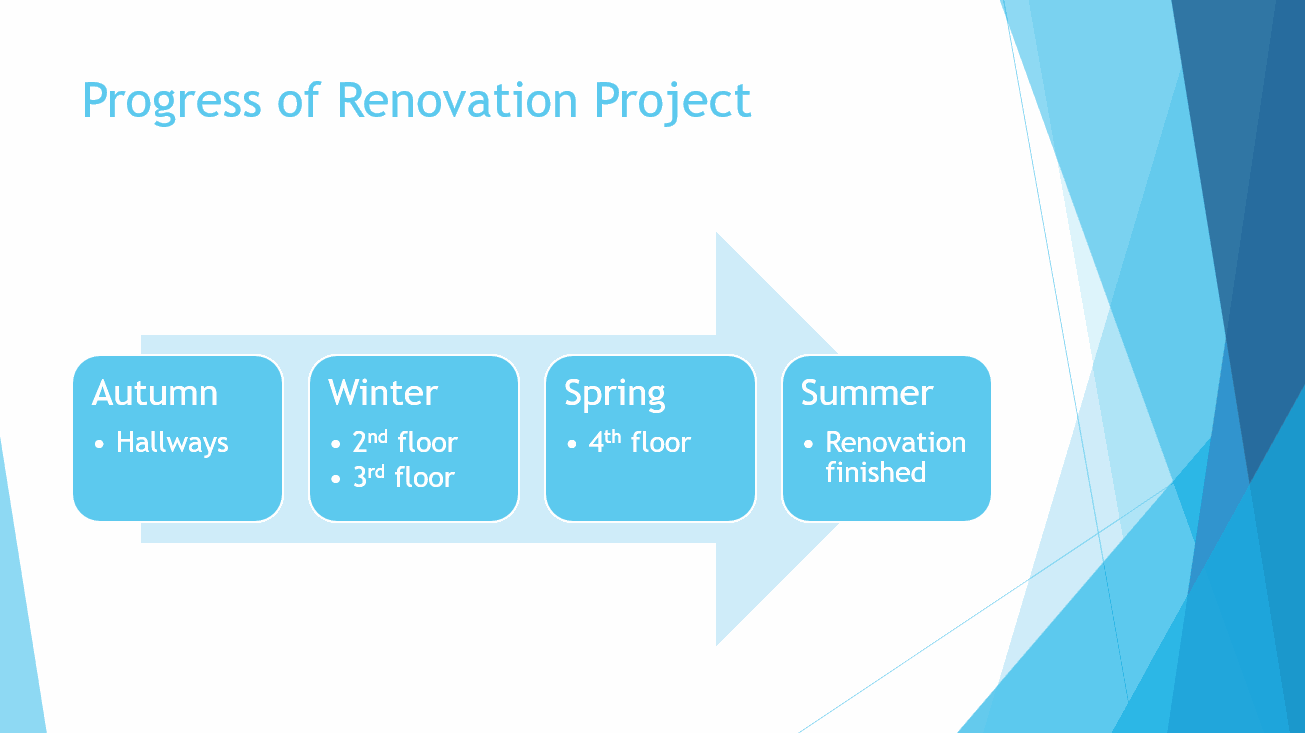
|
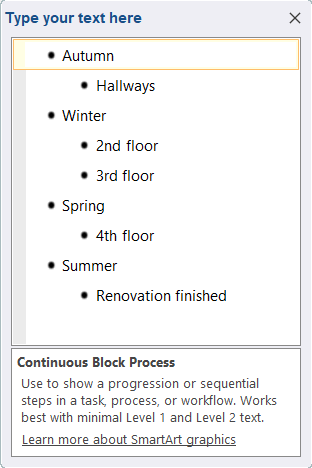
Write the texts you want to the SmartArt in the box, just like you would write on a slide.
If you do not want to use the mouse to click on the next point to be written, clear the box before you start writing content. (Select all the text with the keyboard shortcut Click inside the box and enter the first text. Press Press |
 |
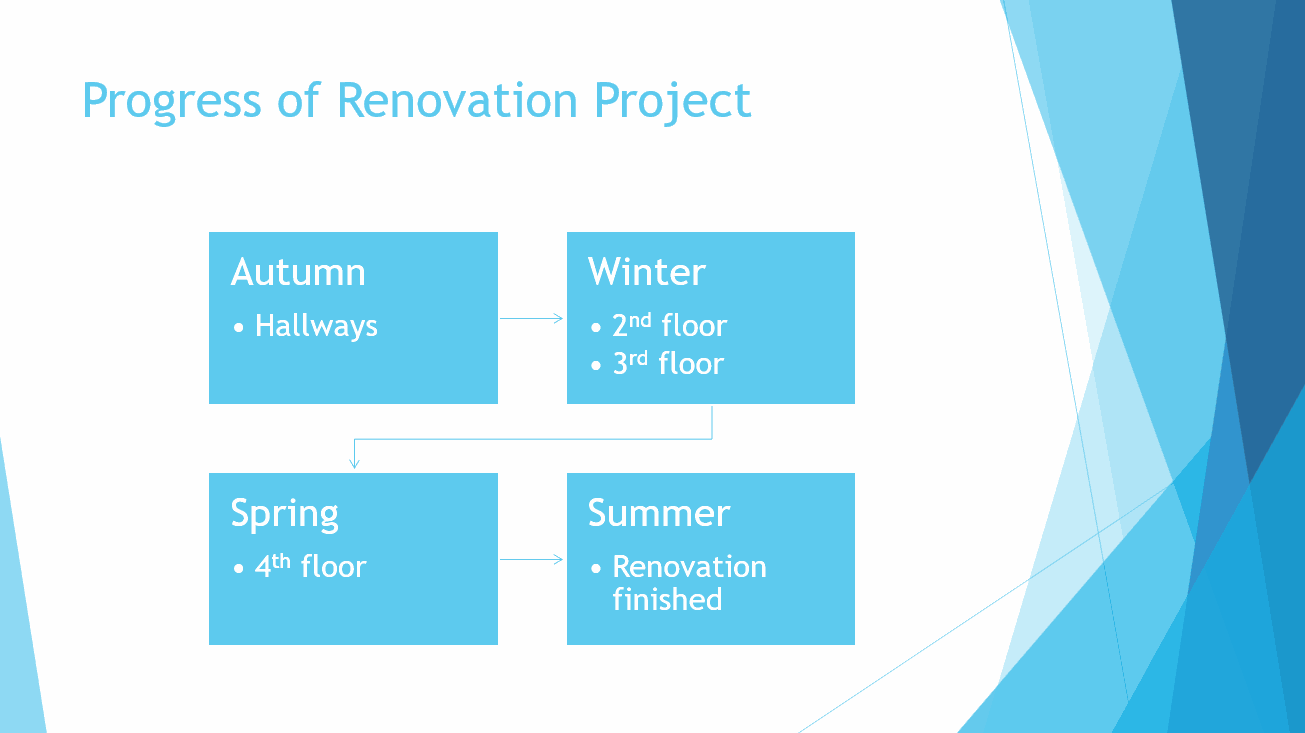
Task: Change the type of SmartArt to “Repeating Bending Process”
Task: Format using pre-made styles
Format your SmartArt object to the desired color scheme and effects from ready-made SmartArt styles. It's worth trying a few effects to get an idea of what they are like.
Task: Modify shapes
You can move the SmartArt graphics around the slide and resize them to your liking.
Navigate to slide 2 and move and resize the boxes the way you want.
Moving a shape
|
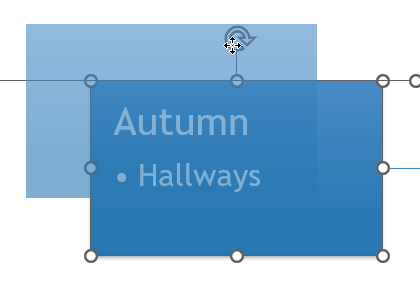
Grab the shape with your mouse and drag it to your chosen place. You can also move your chosen shape with the arrow keys. If you choose multiple shapes at once (using All the elements of a SmartArt object (lines, shapes, texts) can be chosen in one go using the keyboard shortcut |
 |
Resizing a shape
|
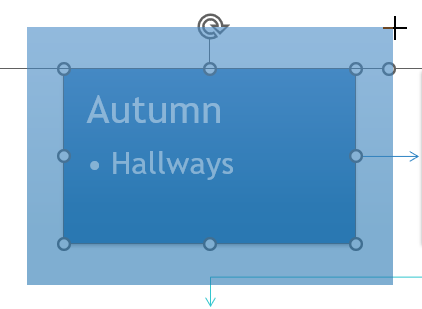
Grab the handle of the shape with the mouse, and drag it to resize.
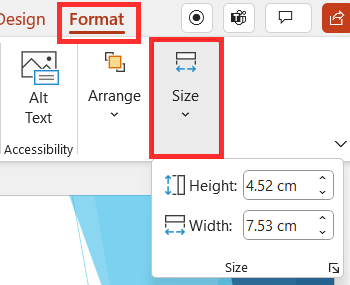
If you choose multiple shapes at once, you can resize them simultaneously and by the same amount. You can also set the size by navigating to the Format tab and choosing Size. |
 |
Task: Change shapes
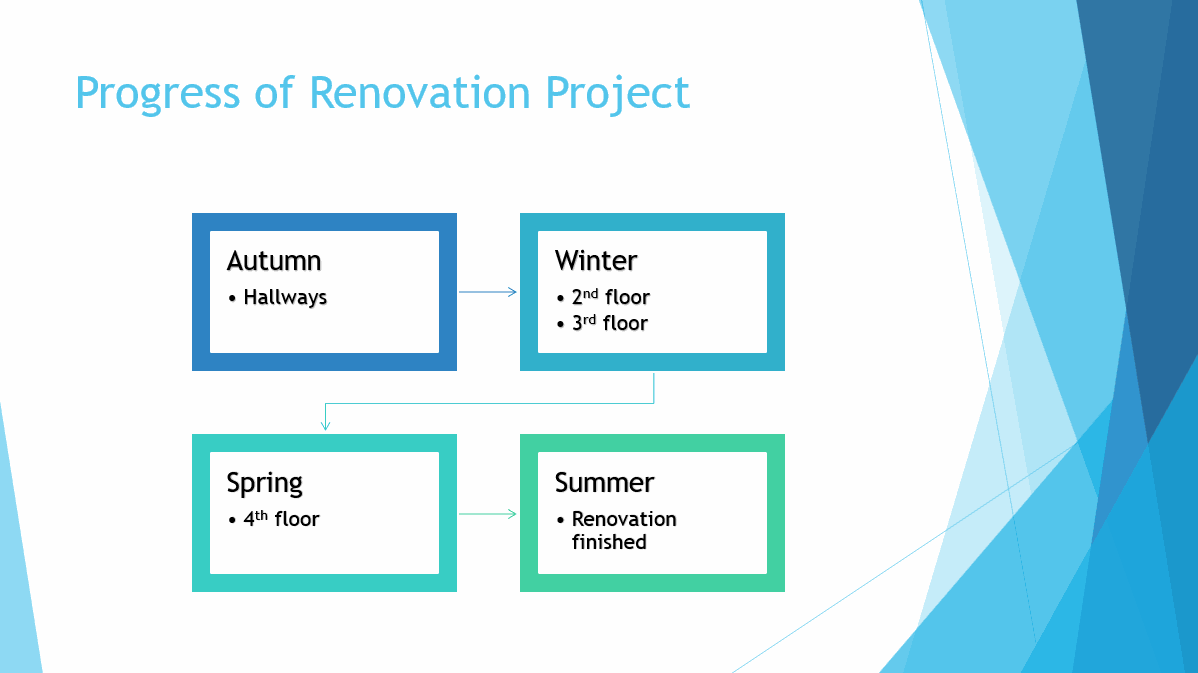
Change the shapes in the SmartArt object to your liking.
The result might look like this, for example:
Task: Add an action button and embed a hyperlink into it
By changing the shape to an action button, a hyperlink can be embedded into it. This means that clicking on the button causes moving to the specified URL address.
Note that hyperlink works normally only in presentation modes Reading View and Slide Show (instructions in the task). If you want to test its function outside them, you need to hold down Ctrl while clicking the link.
Navigate to slide 2, add an action to a SmartArt graphic object of your choosing, and embed a hyperlink to a website you wish.
In the model, we have added a hyperlink to this course’s website.
Info: Removing edits and formatting
This is only additional information, and you are not required to use it in the task.
However, if you want to try the function, undo the function so that the formatting and editing you have done are preserved.

 |
You can remove all the formatting and edits you have made to a SmartArt object by navigating to the **SmartArt Design** tab, and choosing **Reset Graphic** in the **Reset** group.
This function does not remove hyperlinks, only the original style and shape of the SmartArt object. |
Next, we will learn how to change a regular text slide into a SmartArt slide. The feature makes the use of PowerPoint significantly more efficient in capable hands.
Should we move on?