Preview — Office Skills Accelerator course materials (EN). Not production.
Page 4 / 10
Converting Text to SmartArt
Power users of PowerPoint are known to act as follows: First, they focus on the content of the slide show, and finally, they shape the visual appearance of the presentation. In practice, they first write the entire presentation as text slides and only at the end change the slides to the way they want them to look.
PowerPoint supports this working method: Text slides can easily be turned into SmartArt. Next, let's try the conversion functionality.
The Objective
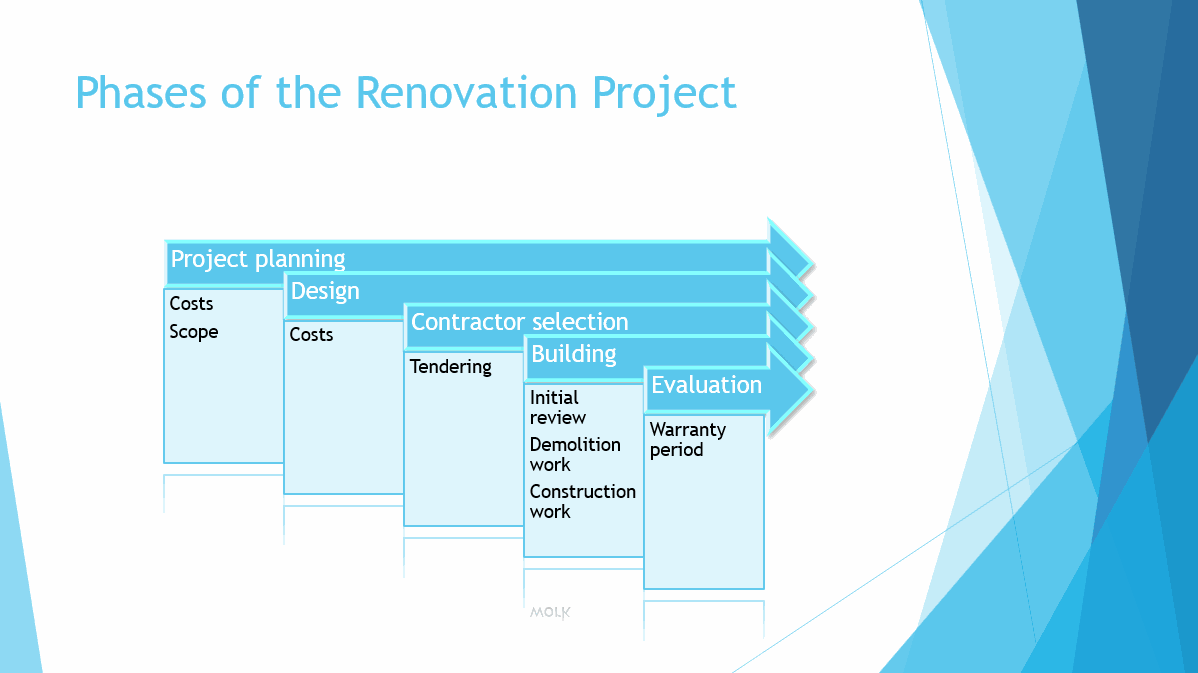
Continue working through the SmartArts_videos_and_presentation_view.pptx presentation by moving on to the slide 3. The finished slide might look, for example, like this - but you're free to edit the visuals however you like:
Vapaasti muotoiltu SmartArt-kaavio
In addition, we will be changing SmartArt objects both to normal shapes and to text.
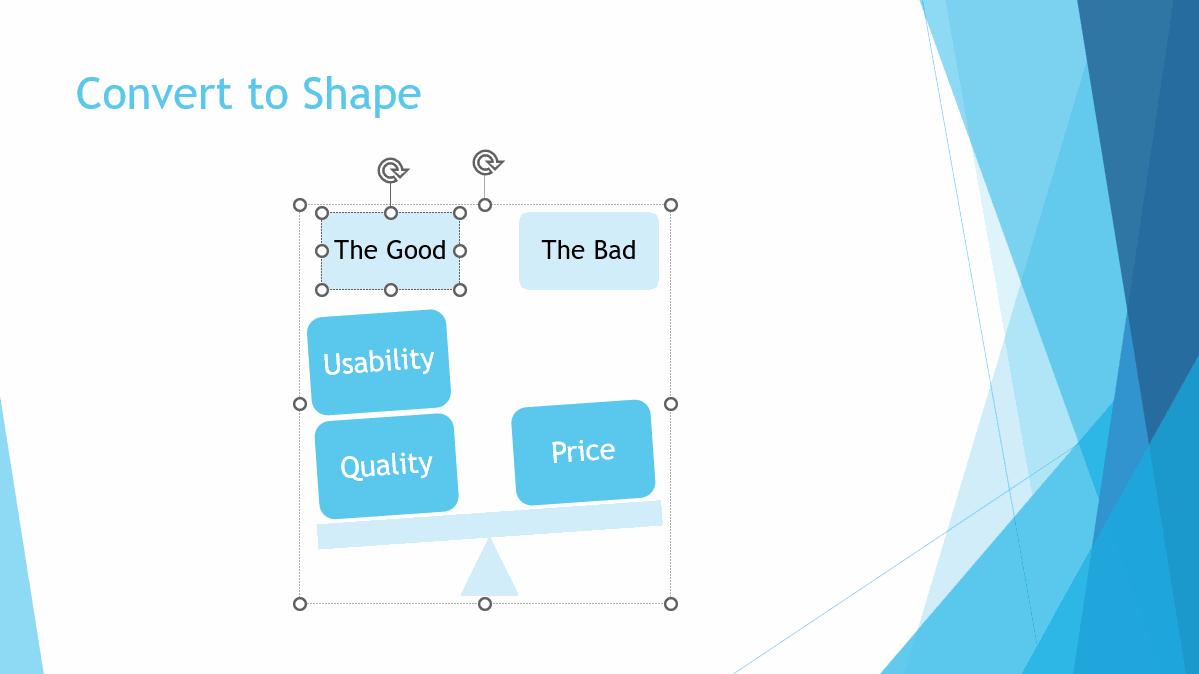
The slide **4** will be changed into shapes.
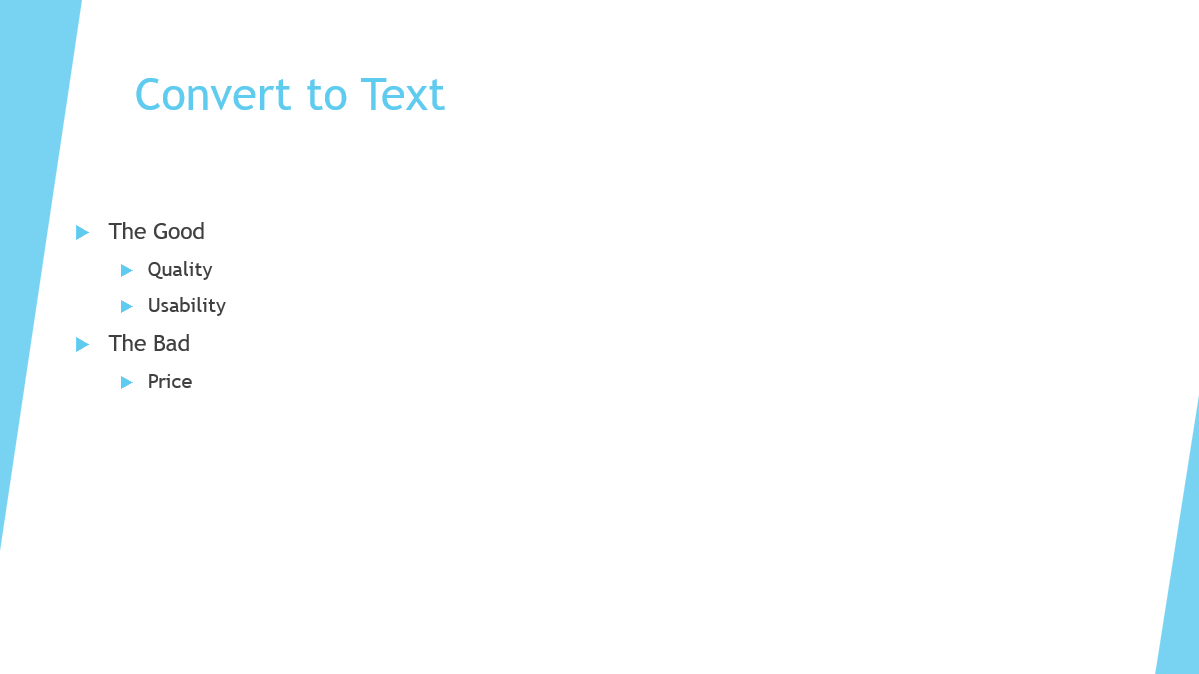
The slide **5** will be changed into text.
Task: Turn text into a SmartArt object
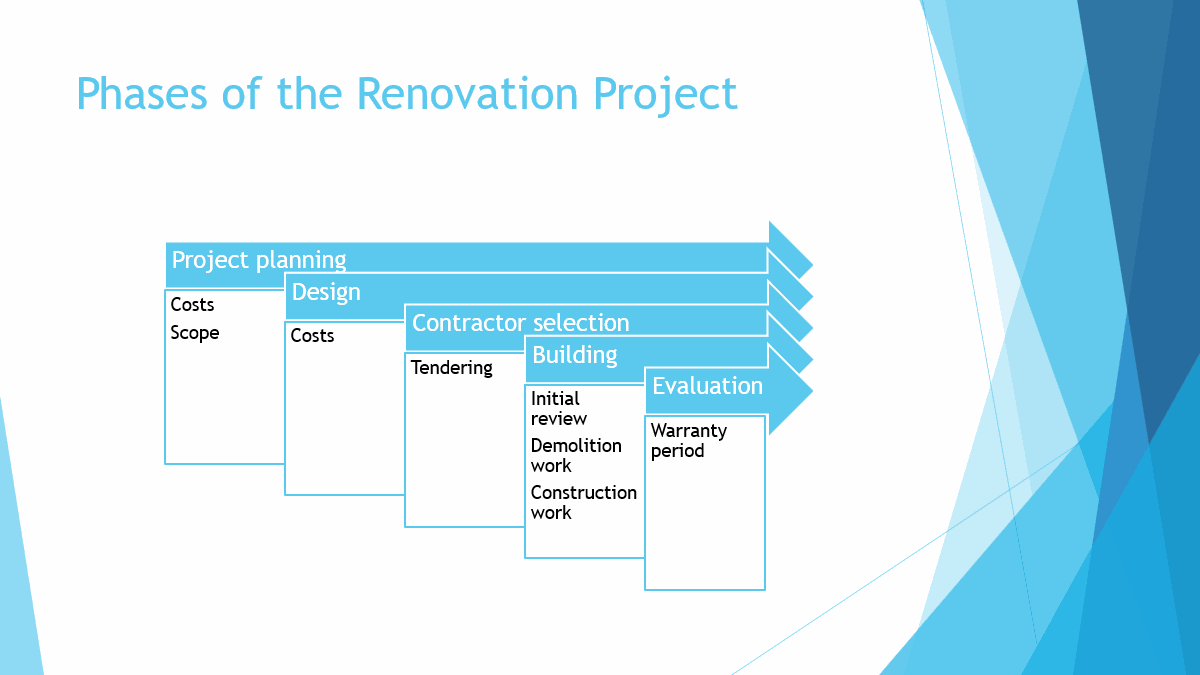
Turn the text of slide 3 into a descriptive SmartArt object. When it's done, it might look like this. In the model slide we have used SmartArt called Increasing Arrows Process.
Valmis malli diasta
Task: Format the shapes of a SmartArt object
You can format the boxes of your SmartArt object using the Format tab.
Task: Turn SmartArt into a shape
Turn the SmartArt object on slide 4 into a regular shape. The slide should look like this:
Task: Turn SmartArt into text
Turn the SmartArt graphic object on slide 5 into text. The slide should look like this afterwards:
There are a lot of SmartArt graphics, and there is no way we can go through them all within the scope of the course. However, SmartArt graphics that you can add images to are very handy.