Relative and Absolute References
This page discusses the terms “relative references” and ”absolute references”. You may remember that the terms have already appeared in connection with previous exercises. In practice, it's about how the formula behaves when copied. Let's familiarize ourselves with the topic with exercises and examples.
Video
The Objective
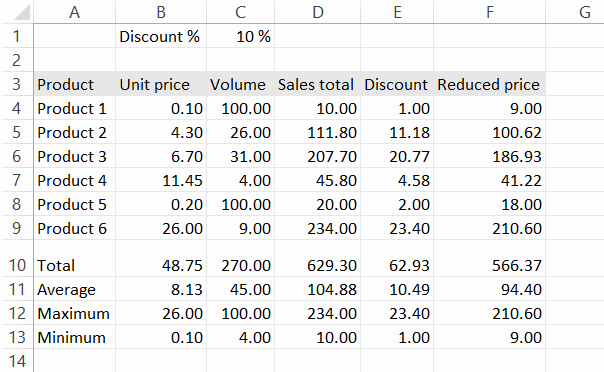
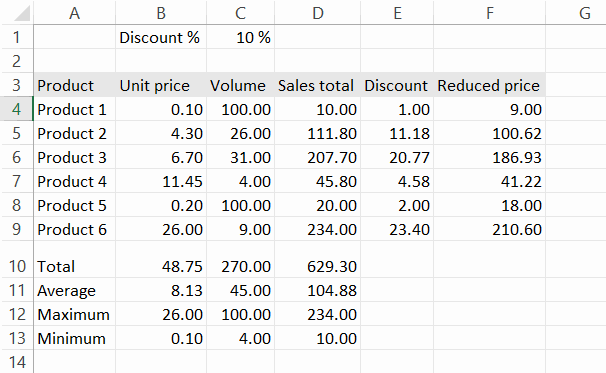
We continue working on the same sheet as on the previous page. After this page, it should look like this. The workbook uses relative references to, for example, the number of sales and absolute reference to the discount percentage.
Info: Relative Reference
When you create a calculation formula, the references are relative references by default.
A relative reference means that when you copy a formula, the reference moves relative to the original formula. For example, when the formula =B2*C2 in cell D2 in the model below is copied downwards to the next cell D3, the references in the formula are updated accordingly downwards, so the formula becomes =B3*C3.
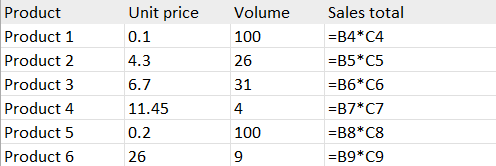
The formulas update in the same way when copying them horizontally.

Info: Absolute reference
There are situations where, when copying a formula, some data in the formula should remain the same, and it should not start to “slide”.
In this case, an absolute reference is needed.
An absolute reference can be recognized from the $ symbol in front of a column letter or a line number, e.g., $C$1. Such a reference is fixed to that cell.
An absolute reference is also sometimes called a fixed or direct reference.
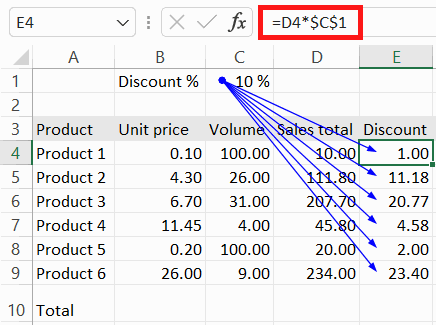
The total (D4) has been multiplied by the discount percentage (C1). We can see the product in the column “Discount”.
Because the discount percentage needs to be taken from the cell C1 in all formulas, i.e. it must not slide when copied, the cell C1 is referenced using an absolute reference ($C$1). In this case, for example, in the cell E5, the formula is =D5*$C$1.
Info: Writing an absolute reference
The symbol for an absolute reference ($) can be made with the help of the F4 key. When the cursor is in a formula at a cell address, pressing F4 automatically corrects the relative reference to an Absolute one (e.g., C1 becomes $C$1).
F4 or fn+F4, or what to do when the F4 key seems to be not working
If you cannot get the F4 key to work on your computer, inspect if your keyboard has an fn key. You may have to use the keyboard shortcut fn+F4. fn key is usually found beside the left Ctrl key.
Writing an absolute Reference by hand
If necessary, you can also write absolute references by hand by adding the $ symbol to the right places.
Task: Calculate the discount
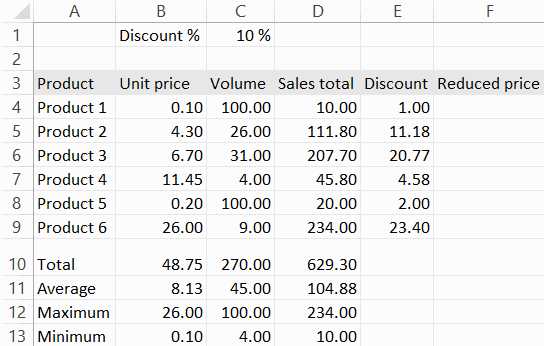
Continue doing the exercises in the Excel exercise workbook you downloaded. Calculate the discount for each product (1-6) in the “Discount” column.
The total discount is sales * discount%.
Task: Calculate the discounted price
Based on the sheet in the Excel exercise workbook and the data entered into it, find out what the reduced prices of products 1-6 are after the discount.
Reduced price = sales - discount (sales minus discount).
Task: Formatting the decimals and copying formulas
Copy the formulas for “total”, “average”, “maximum”, and “minimum”formulas below the columns “Discount” and “Reduced price” columns in the Calculation sheer of your exercise workbook.
Format all numbers to have two decimal places.
Extra task: Named cell
Instead of an absolute reference, it is possible to use named cells. A cell is named by typing the name in the Name Box field.
Let's practice this by naming cell C1.

Select cell C1, type discount_prct in the Name Box field, and press Enter.
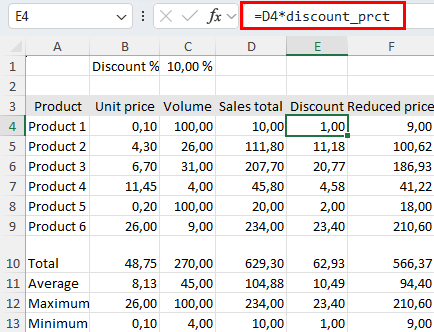
After this, select cell E4 and replace the absolute reference $C$1 in the formula with the named cell reference to cell discount_prct and press Enter.
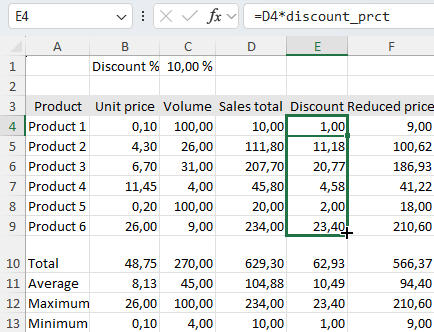
Now you can copy the formula to the other cells in the Discount column.
Great! You can now use Excel's slightly more complex features when using relative and absolute references. Becoming comfortable with them will speed up your work significantly.
If you have worked through the chapter in one sitting, now would be the time to stand up for a moment and stretch a little.
Finished with the chapter and ready to move on?