Preview — Office Skills Accelerator course materials (EN). Not production.
Page 4 / 7
` category
Building Blocks
Word offers extensive possibilities to create and use semifinished parts of documents, called building blocks. Next, we will create and use some of these. They are saved on your computer and you can easily use them in any document.
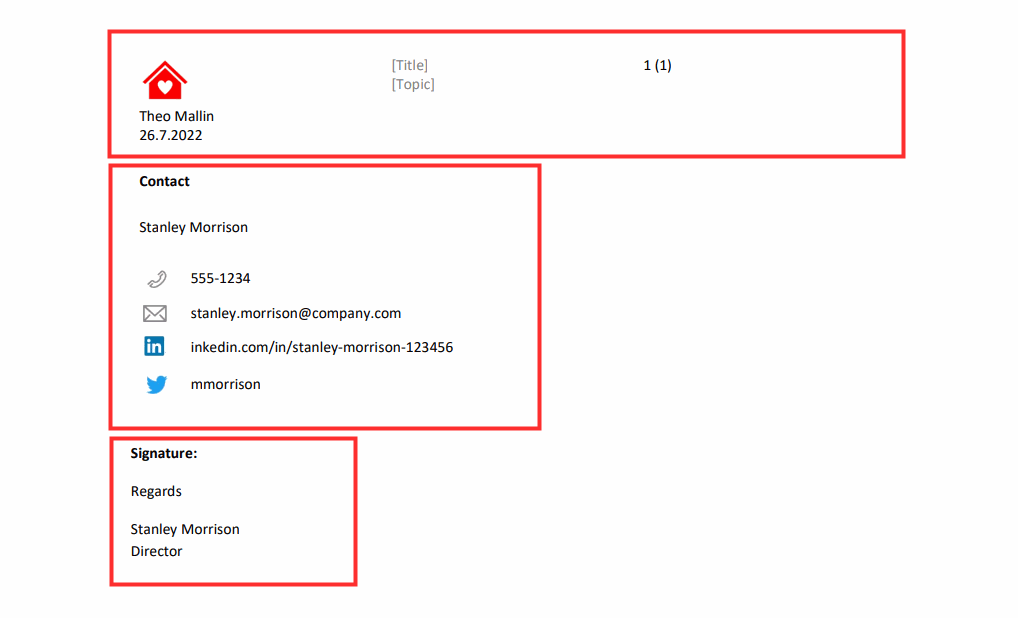
In the model below, we have gone through all the building blocks that we will create on this page.
Download the template file
Download here the Building_Blocks.docx base file. It contains ready-made blanks from which you can build building blocks.
On this page, we will continue editing the document Advanced_Word.docx and add another page. Here is a model of the finished page:
A ready-made header has been added to the document after we have added a new ready-made header to the Header menu on the Insert tab.
There is a commonly used piece of the document, which in this case is the contact details table. The table has been added using the Quick Parts menu in the Text group on the Insert tab, after we have added a new ready-made quick part to the menu.
The document also contains a signature, created using the AutoText functionality in Word. Once you have completed the task, you have added a text block to your Word, so that you can add it to any document by simply typing the name of the automatic text.
Mac: Automatic text
The Mac version has different automatic text functions than the Windows version. Let's go through them here.
Task: Save text as automatic text
Automatic text is text that is automatically added to a document when you enter a specific piece of information.
The most common automatic texts are closing greetings and contact details. Characters and images can also be saved as automatic text.
Automatic texts are also building blocks.
Edit the document Building_Blocks.docx. It has a signature at the end. Fill in your details and edit them as you wish. Save the text as automatic text.
Task: Add automatic text to another document
Go to Advanced_Word.docx and add the automatic text you just created.
Extra task: Create a header in an empty document
We will create a header as a building block. In the next task, you can use the ready-made header in the document Building_Blocks.docx or create your own. By creating a header yourself, you can brush up on the skills you've learned in the past.
Open a blank document and add a table according to the template as a header. (It's easier to lay out the header in a table than using the Tab key.)
Tunnisteessa on kolme ruutua. The first is a picture of the cottage, with the person responsible and the date of publication below. The middle one has the title and the subject. The last box shows the page number and the total number of pages
Mac: Building blocks
Task: Save the header as a building block
In order to use the header in all documents, it is easiest to save it as a building block. Either select the header you just created or open the Building_Blocks.docx document and select its header. Then save it as a building block.
Task: Using a building block
Let's test the use of the building block. Open Advanced_Word.docx and add the building block you just created. Also try to set the fields to the values you want.
Mac: Quick parts
Task: Create a quick part
If you often write the same texts in a document, you can save them as quick parts. Then you don't have to copy and paste texts from another document.
The quick part is a similar building block as the header and footer.
Edit the document Building_Blocks.docx with the contact details table. Fill in your details and edit it to your liking. Save the table as a quick part in the _OWN_category.
Task: Using the quick part
Go back to the Advanced_Word.docx document and add the quick part you just created to it.
Info: Removal and arrangement of building blocks
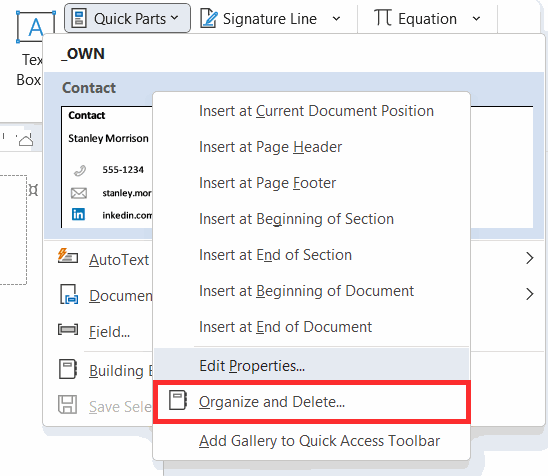
When you right-click on any building block, you can select Organize and Delete.
Järjestä ja poista on valikon kollmantena
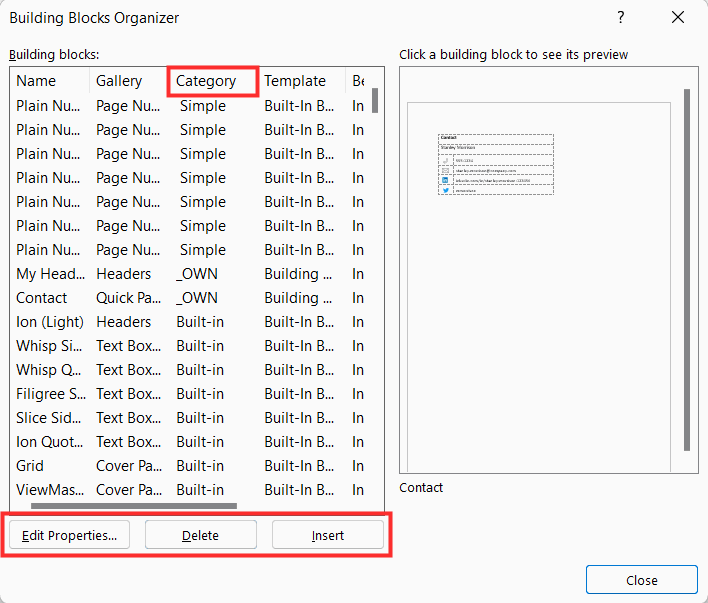
In the window that opens, you can delete the selected quick part or edit its properties, such as its name or location. If you have saved the building blocks in their own categories, you can easily find them by sorting the list by clicking on the header of the Category column.
Info: Saving building blocks on a computer
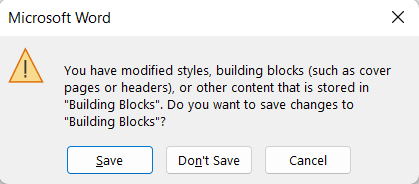
When you close Word, you will receive a notification that you have edited or added information to the Building Blocks file. The notification will also ask if you want to save your changes.
Click on the Save button to have them available whenever you use Word.
Next, let's learn how to create your own document templates, i.e. document bases with the formatting you want stored in them.