Preview — Office Skills Accelerator course materials (EN). Not production.
Page 3 / 7
Comments
In addition to enabling revision marks, you can also add comments to the document.
You can use the comment tool to write comments or questions about different parts of the document. Now the context of your comment will not be forgotten. Commenting does not require that the Track changes mode is enabled; commenting is a completely separate function. On this page, you can practise making and handling comments.
The Objective
Continue editing the Word_advanced_task.docx document. We are going to:
Add comments to the document
Respond to comments added by others
Mark the comments as resolved
Task: Add a comment
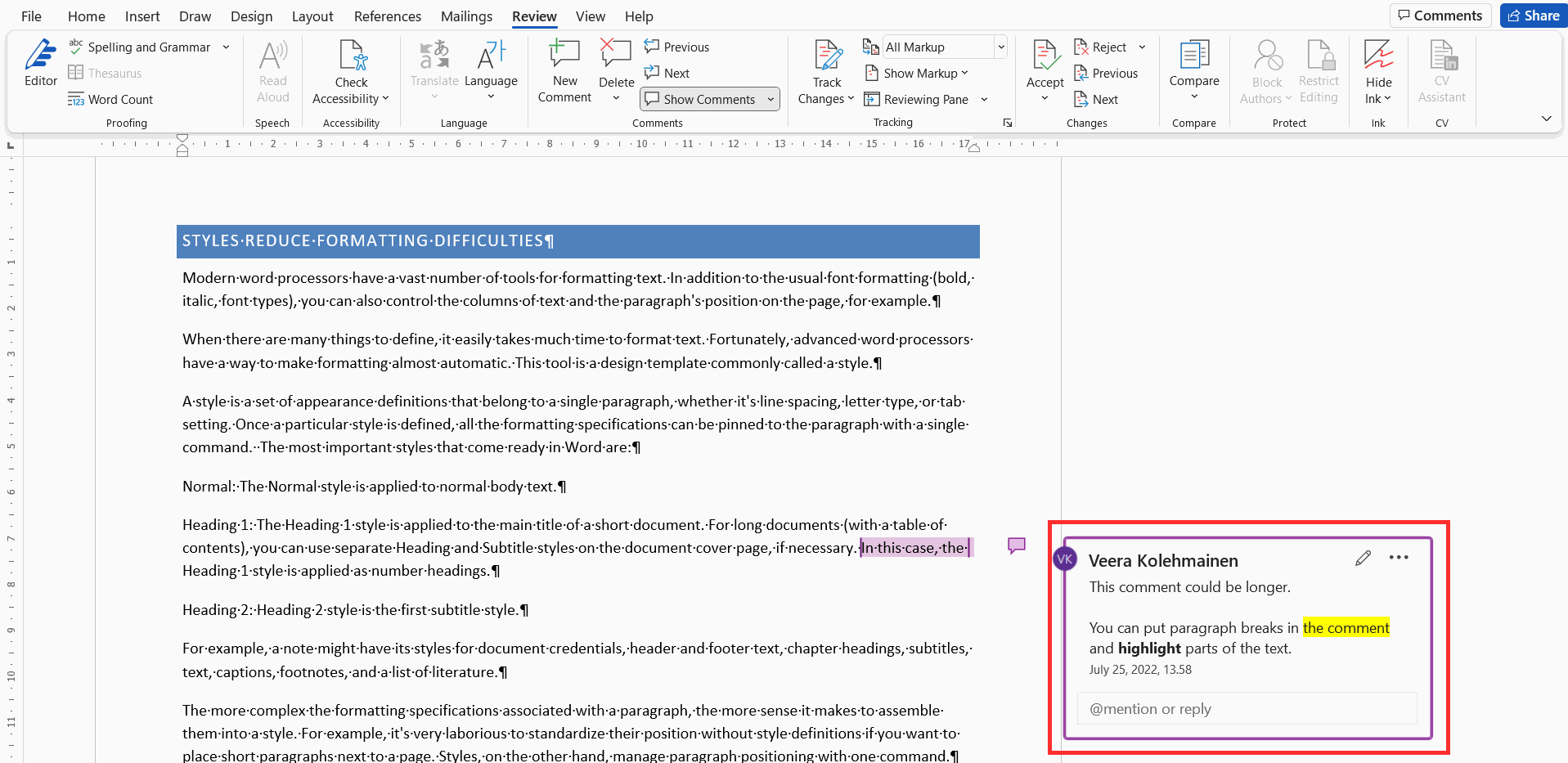
Add a comment to the Advanced_Word.docx document in the desired place. You can write a slightly longer comment if you wish. You will notice that comments can be longer. You can also add, for example, bullet points to a comment if you wish.
Problem: My comment does not appear
Normally, the comments are always displayed in the right-hand side of the document.
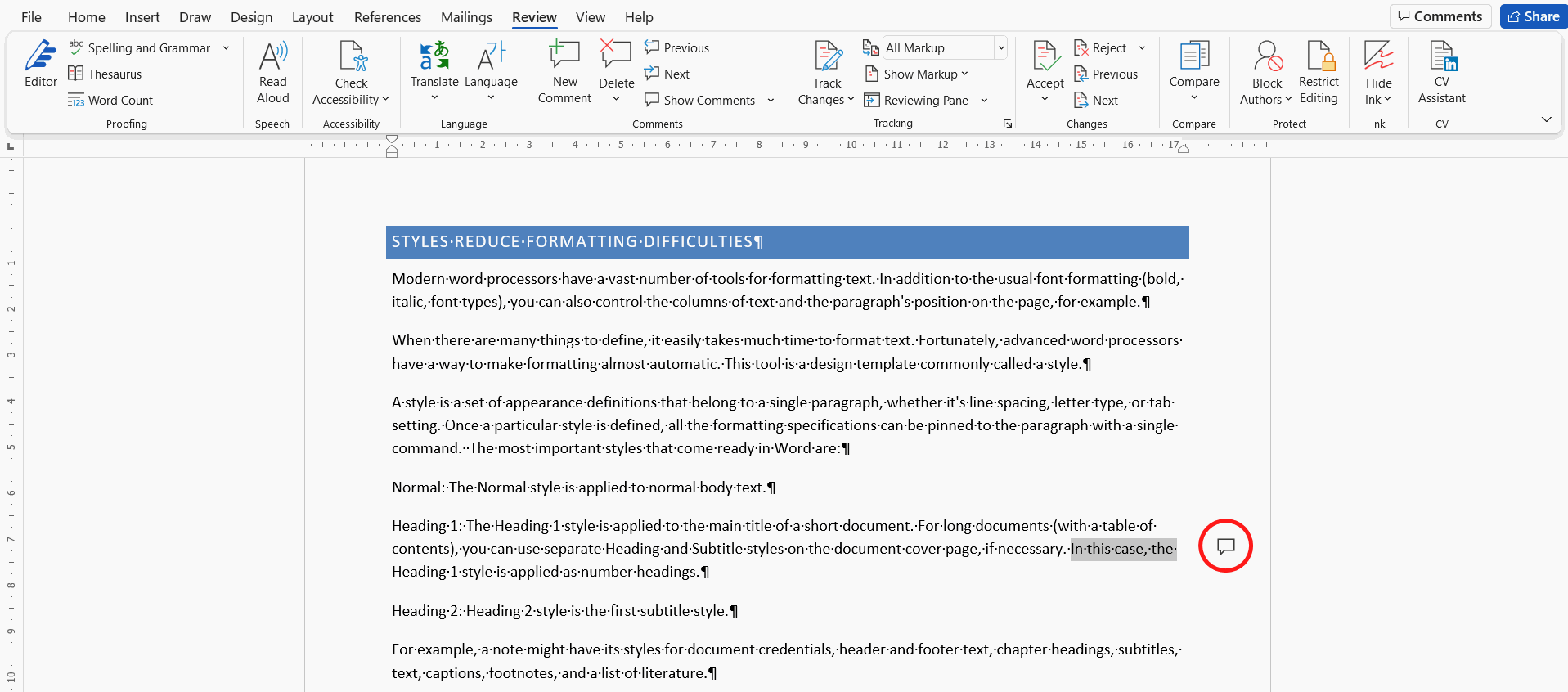
It is also possible that the comment is hidden and only appears as a small icon.
My comment appears as an icon
You can make the comment visible by clicking on its icon. You can also view all comments by clicking on the Show Comments button in the **Comments**group on the Review tab.
My comment is not even shown as an icon
In this case, comments are completely hidden in your Word interface. To see them, use the second option mentioned in the previous paragraph: the Show Comments button in the **Comments**group on the Review tab.
Info: Handling of comments
Handling comments
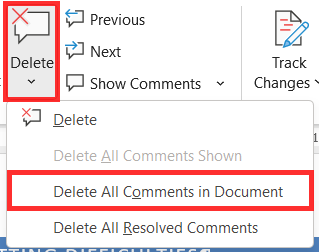
Comments in a document can be browsed and deleted using buttons in the Comments group.
Do not delete comments in the task document!
Clicking on the lower part of the **Delete** button opens a menu, which includes the option **Delete All Comments in Document**.
Poista kaikki asiakirjan muutokset -painike on Poista-painikkeen alin vaihtoehto
Task: Make all comments visible
A speech bubble appears in the right margin of the document to indicate a comment when Simple Markup is enabled. View all comments and make observations about the comments. How many comments can you find? What are the comments about? Who has written the comments?
Task: Reply to comments and mark them as resolved
Examine the document Advanced_Word.docx.
Reply something to every comment you find.
The section on handling comments is now complete, great! You can now not only propose, review, approve and reject changes to documents, but also submit, review and resolve comments. With these skills, collaborative working on documents is already starting to become quite handy. Comments and revision marks are also a great support for working alone when preparing longer documents.
Let's familiarize ourselves with the building blocks of a document: what they are and how they are made and saved.
Have you completed all the tasks on the page and are you ready to move on?