User Interfaces
Let's quickly look at the user interface's main parts: the keyboard and the mouse. Also, let's check the main features of the Word window.
Info: Keyboard and special keys
Important special keys are marked in the following picture, and to the right of each key are buttons to open for a short description of the key. Read the descriptions, and return to this guide later if necessary.
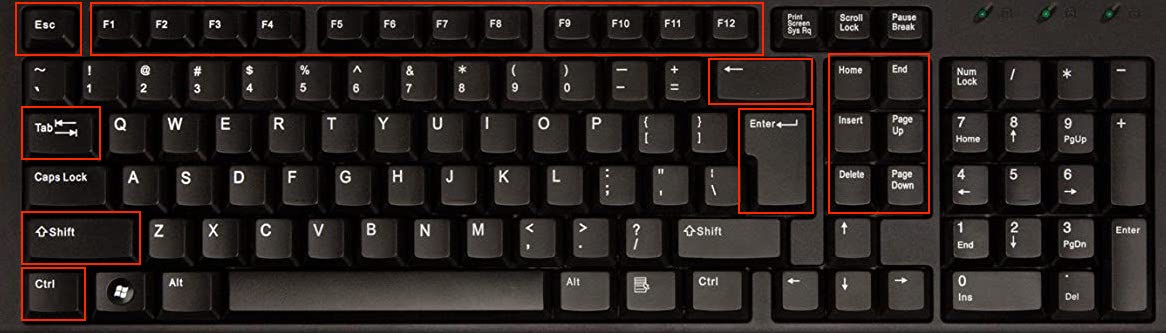 Function keysThe function keys are F1, F2, ..., F12. For example, if the text refers to the key **F4**, it can be found here. If the function keys don't work, the keyboard often has the **Fn** key. Try pressing the function key while holding **Fn** down. Some older keyboards also have the F-lock key, which you can press to enable the function keys.TabThe tabulator moves the selection to the right. In Word, it increases the indentation of the text. In tables (Excel spreadsheets or, for example, tables in Word), the tab moves the cursor to the next cell on the right.ShiftThis key is called Shift. Maybe you are familiar what it does but did not know its name. Below you'll find out more about how to use Shift.
You will need the Shift button constantly. With it you can write all the capital letters. For example, by pressing `Shift+A` (that is, you hold down the `Shift` key while pressing the key `A`), you can capitalize the letter A.
There are also several special characters on the back of the Shift button. For example, `Shift+1` writes an exclamation mark. If the key has two icons, e.g., the exclamation mark (!) above the number one (1), upper character is typed with `Shift`.Ctrl/Control`Ctrl` can be used to enter multiple keyboard shortcuts. It works a bit the same as the `Shift` key. For example, `Ctrl+A` means pressing the key A while holding down the Control key. Here are a few standard commands you may need:
- Copy (`Ctrl+C`): Copy the selected area to the clipboard.
- Cut (`Ctrl+X`): Same as copy, but the original information will be deleted after pasting.
- Paste (`Ctrl+V`): Paste the area copied to the clipboard into the text.
- Undo (`Ctrl+Z`): Undo the previous action. For example, if you have accidentally pressed a button or made a mistake, you can undo it by pressing `Ctrl+Z`.
- Select All (`Ctrl+A`): Selects the entire file.BackspaceThe Backspace button removes the character before the cursor. Backspace can also be used to delete a selected object, such as an entire table.EnterPressing `Enter` starts a new paragraph. When entering text, Word takes care of starting new lines. Historically, enter was used in typewriters to change lines, which is why it is sometimes called a line break.
Enter is also a kind of *I'm done* button. When entering information in the text field, you can confirm the content as complete by pressing enter.Esc`Esc` stands for *escape*. For example, some tools or actions might temporarily change the behavior of the mouse pointer so that it involves action, such as copying formatting. In this case, pressing `Esc` will return the program to its normal state.Navigation keysThe `Home`, `End`, `Page up`, and `Page down` buttons move the cursor over longer distances.
Their effects vary from program to program. You can think of them as arrow keys on steroids:
- `Home` is like the left arrow, but further
- `End` is like the right arrow but further
- `Page up` is like the up arrow but further
- `Page down` Is like the down arrow but further
Function keysThe function keys are F1, F2, ..., F12. For example, if the text refers to the key **F4**, it can be found here. If the function keys don't work, the keyboard often has the **Fn** key. Try pressing the function key while holding **Fn** down. Some older keyboards also have the F-lock key, which you can press to enable the function keys.TabThe tabulator moves the selection to the right. In Word, it increases the indentation of the text. In tables (Excel spreadsheets or, for example, tables in Word), the tab moves the cursor to the next cell on the right.ShiftThis key is called Shift. Maybe you are familiar what it does but did not know its name. Below you'll find out more about how to use Shift.
You will need the Shift button constantly. With it you can write all the capital letters. For example, by pressing `Shift+A` (that is, you hold down the `Shift` key while pressing the key `A`), you can capitalize the letter A.
There are also several special characters on the back of the Shift button. For example, `Shift+1` writes an exclamation mark. If the key has two icons, e.g., the exclamation mark (!) above the number one (1), upper character is typed with `Shift`.Ctrl/Control`Ctrl` can be used to enter multiple keyboard shortcuts. It works a bit the same as the `Shift` key. For example, `Ctrl+A` means pressing the key A while holding down the Control key. Here are a few standard commands you may need:
- Copy (`Ctrl+C`): Copy the selected area to the clipboard.
- Cut (`Ctrl+X`): Same as copy, but the original information will be deleted after pasting.
- Paste (`Ctrl+V`): Paste the area copied to the clipboard into the text.
- Undo (`Ctrl+Z`): Undo the previous action. For example, if you have accidentally pressed a button or made a mistake, you can undo it by pressing `Ctrl+Z`.
- Select All (`Ctrl+A`): Selects the entire file.BackspaceThe Backspace button removes the character before the cursor. Backspace can also be used to delete a selected object, such as an entire table.EnterPressing `Enter` starts a new paragraph. When entering text, Word takes care of starting new lines. Historically, enter was used in typewriters to change lines, which is why it is sometimes called a line break.
Enter is also a kind of *I'm done* button. When entering information in the text field, you can confirm the content as complete by pressing enter.Esc`Esc` stands for *escape*. For example, some tools or actions might temporarily change the behavior of the mouse pointer so that it involves action, such as copying formatting. In this case, pressing `Esc` will return the program to its normal state.Navigation keysThe `Home`, `End`, `Page up`, and `Page down` buttons move the cursor over longer distances.
Their effects vary from program to program. You can think of them as arrow keys on steroids:
- `Home` is like the left arrow, but further
- `End` is like the right arrow but further
- `Page up` is like the up arrow but further
- `Page down` Is like the down arrow but furtherTask: Download the cheat sheet for keyboard shortcuts
The special keys on the keyboard are used for a several keyboard shortcuts, where a specific functionality or operation is achieved by pressing the special keys. These key commands will be discussed later. To help you remember them, we have put together a printable summary.
Colored guide
Keyboard_shortcuts.pdfBlack and white guide
Keyboard_shortcuts_bw.pdfInfo: Key elements of the Word user interface
The image below highlights the essential parts of the Word interface, such as the ribbon with the Home tab open; the left pane, which may, for example, contain a search function; the main area, which displays the document being processed; and the bottom bar. Explore these sections by clicking on the buttons in the image to bring up the explanatory text.
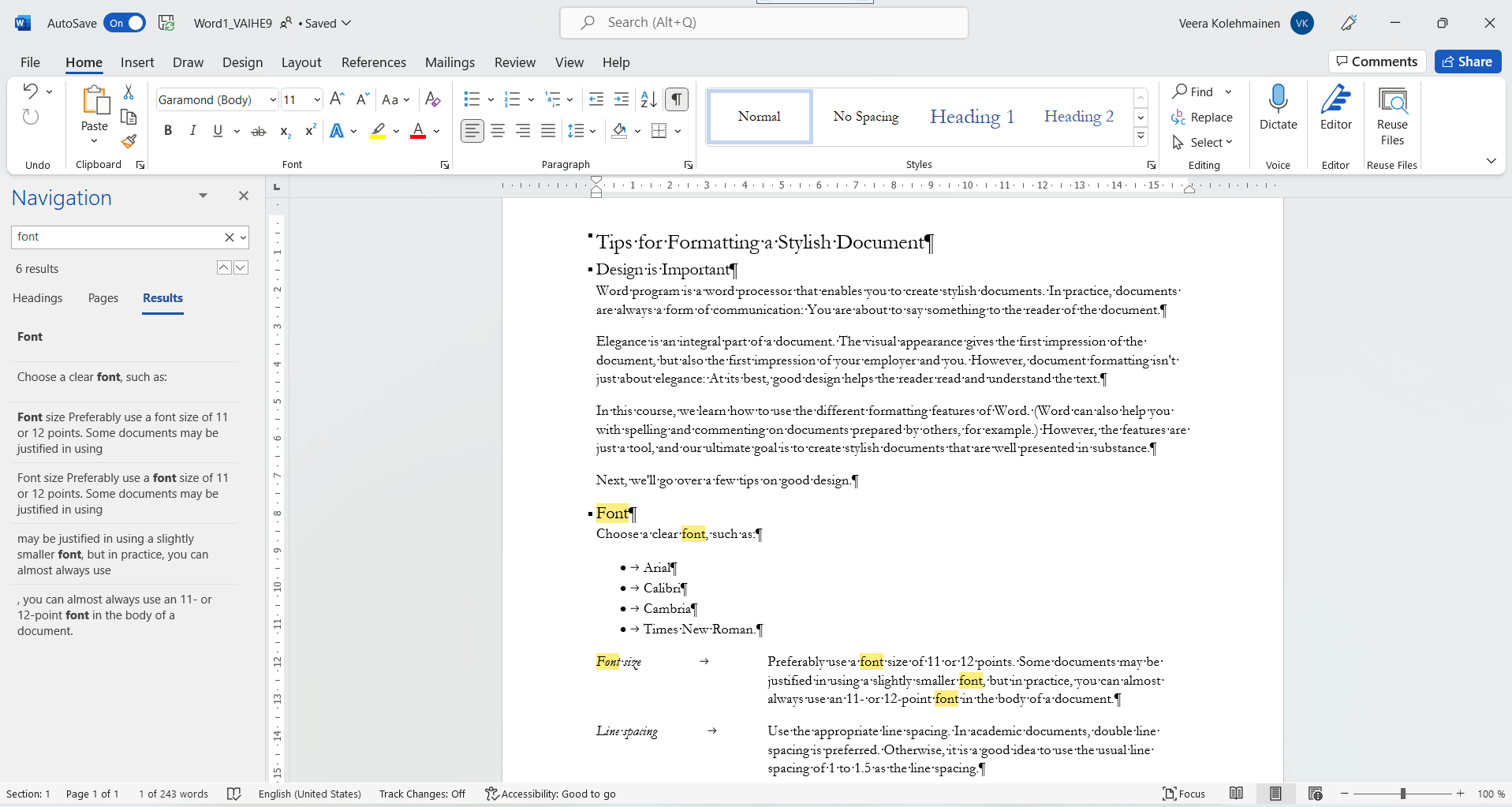 The RibbonThe row below the top of the window is called the ribbon. It includes buttons for all functions in Word. The controls are divided into separate tabs. The image currently has the **Home** tab selected, with the most common tools necessary for word processing.
Other tabs include:
- **Insert**: Add an image, table, comment, and more
- **Structure**: Modify the appearance and structure of the entire document
- **Review**: For example, check the word count or have Word read your file aloud.Left windowA separate **Navigation** box is currently open on the left.
The user has searched for the word "font," and the words found are highlighted in the text. The Navigation window is open because the Search button on the banner at the top right has been pressed.
Another window may replace the Navigation window or be completely closed.TextThe actual text to be written is located here. In the text, you can also see highlighted words that have appeared when using the search function.Bottom barIn the bar at the bottom, you will find the number of pages, word count, text language, zoom slider, and other such functionalities.
The RibbonThe row below the top of the window is called the ribbon. It includes buttons for all functions in Word. The controls are divided into separate tabs. The image currently has the **Home** tab selected, with the most common tools necessary for word processing.
Other tabs include:
- **Insert**: Add an image, table, comment, and more
- **Structure**: Modify the appearance and structure of the entire document
- **Review**: For example, check the word count or have Word read your file aloud.Left windowA separate **Navigation** box is currently open on the left.
The user has searched for the word "font," and the words found are highlighted in the text. The Navigation window is open because the Search button on the banner at the top right has been pressed.
Another window may replace the Navigation window or be completely closed.TextThe actual text to be written is located here. In the text, you can also see highlighted words that have appeared when using the search function.Bottom barIn the bar at the bottom, you will find the number of pages, word count, text language, zoom slider, and other such functionalities.Info: The selection ribbon has decreased
When you resize the windows of Office programs or split the screen, the interfaces of the programs adjust to fit the screen size.
This can affect the appearance and usability of the menus and toolbars.

Let's take a look at the Formulas tab in Excel. Above is an image showing how it appears when the window is very wide. For example, in this view, the menus under Function Library tab are each separate buttons.
The appearance of buttons may change or they may be repositioned

In this image, the window is slightly narrower.
Notice how the buttons in the Function Library group change their shape.
The button labels may be removed

When we narrow the window further, some of the Function Library menus lose their text and become small buttons.
An entire group may change into a single button
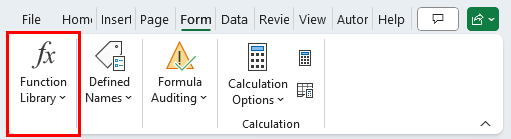
Eventually, when the window is reduced further, the entire group changes into a single button.
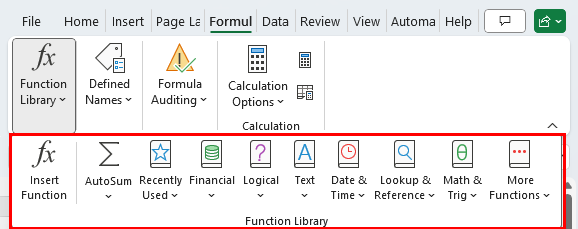
You can open the Function Library group by clicking its button, which will display the group as it appears in the widest window view.
What can be done?
If resizing the window is not enough, you can simplify the Ribbon by removing unnecessary buttons or adjusting display settings to create more space for the Ribbon.
Video: Pointer and cursor
Info: Mouse pointer and cursor
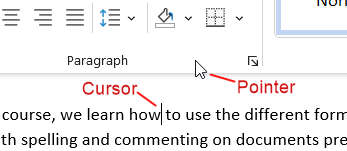
Are you familiar enough with the keyboard and the Word interface? Hopefully, you also know the difference between a pointer and a cursor. We use these terms repeatedly in the course.
You also learned about special keys that are used for keyboard shortcuts. On the next page, you will learn to use the most essential keyboard shortcuts: Ctrl+C and Ctrl+V.
Shall we move forward?