Participating in a Teams Meeting
Anyone can join Teams meetings, but to install the software and use all its features, you need an Microsoft 365 account, often obtained through your school or workplace. Two or more people may attend the meeting.
Can you tell if you already have an Microsoft 365 account, or maybe you've already used Teams in some context?
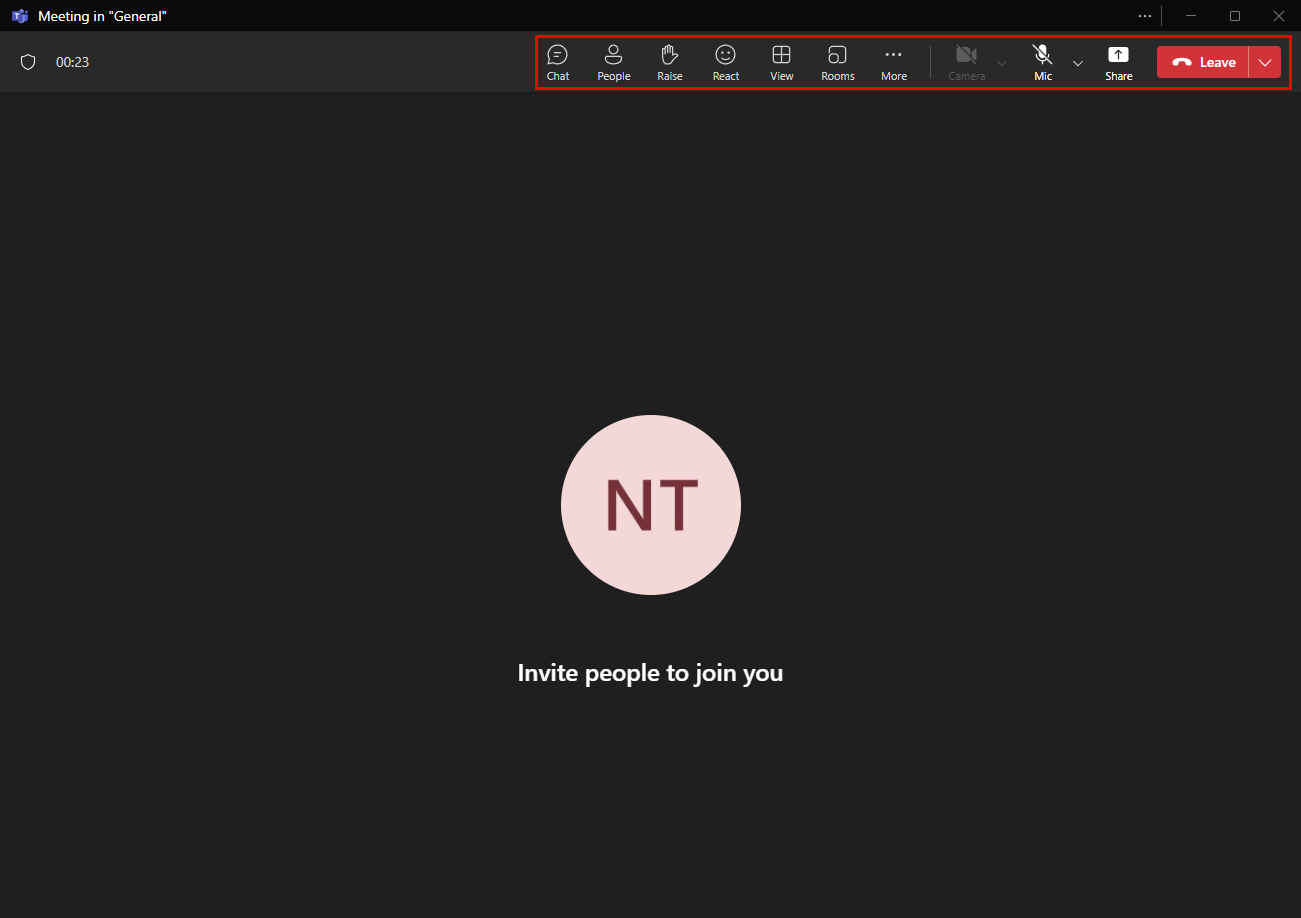
We will go through how to join a meeting, good practices for attending a meeting and basic functionality during a meeting.
Info: Seven good practices
-
Visit the meeting as soon as you receive the invitation link and make sure that the microphone and camera tools are working.
-
A good way to make sure that the microphone and speakers are working is to make a test call. A test call can only be made in the desktop version.
-
Before joining the meeting, check that there are no distractions around you at home or at work that can be heard or seen by the other members of the meeting and that would hinder the smooth running of the meeting. When you are ready to join, turn the microphone off and click on the button Join now.
-
It's always polite to join the meeting itself a little early, so that you have time to fix any video or audio problems and don't delay others.
-
It is usually a good idea to turn the microphone off and leave if off right after the opening greetings, especially if there are a lot of participants. If there are a lot of people around, and everyone's microphones are on, there will be all kinds of noise and distractions. The noise is surprisingly well transmitted to other participants in the meeting and can drown out the conversation of the meeting itself. You can turn on the microphone when you want to speak.
-
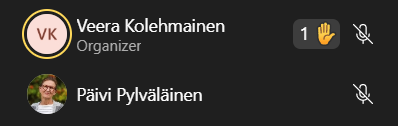
You can ask permission to speak using a separate function, called raising your hand.
-
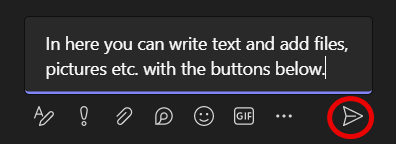
For example, you can write questions in the meeting chat, where the meeting organiser will usually go through them. However, it is always a good idea to agree on meeting procedures at the beginning of the meeting.
Task: Testing functions
Info: Participants

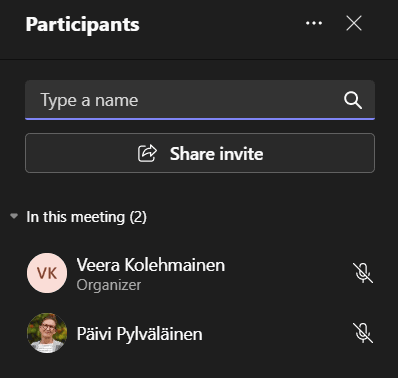
A list of participants will appear on the right-hand side of the meeting window. You can see, for example, who is organizing the meeting and whether the participants' microphones are open or closed.
Info: Discussion

Info: Asking to speak

In the Participants box you can see who has asked to speak.
Info: Camera and audio

You can mute or unmute the Camera and Microphone, by clicking their icons.
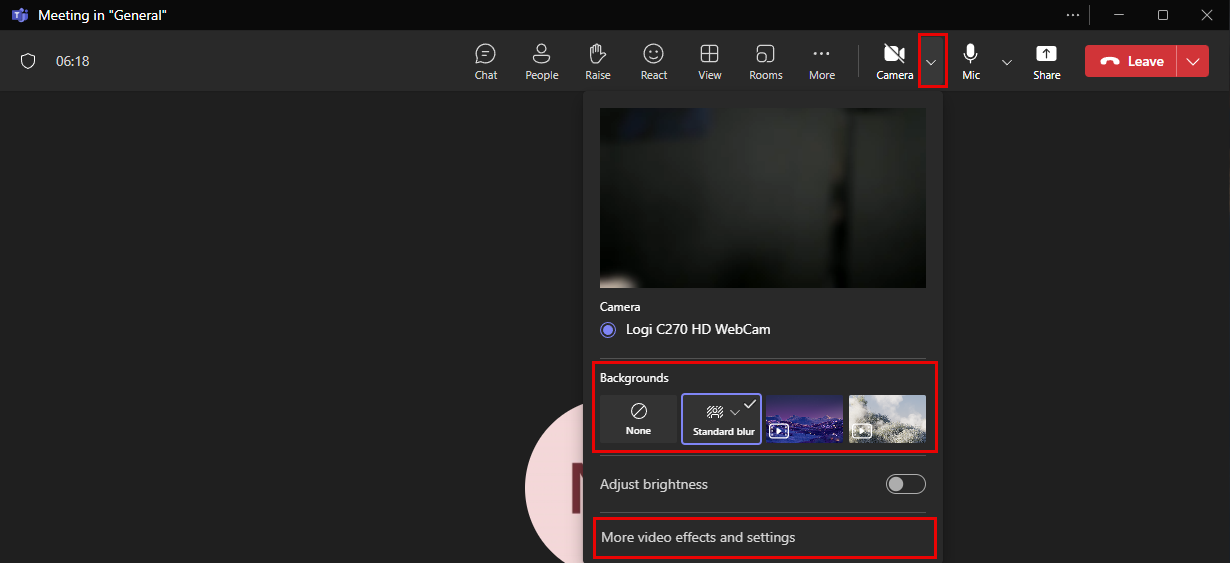
You can adjust the camera settings and backgrounds during the meeting as well. You can open this menu by clicking the arrow next to the camera icon. Under Background, only a few automatically selected backgrounds are shown. More backgrounds and effects can be selected through the More video effects and settings menu.
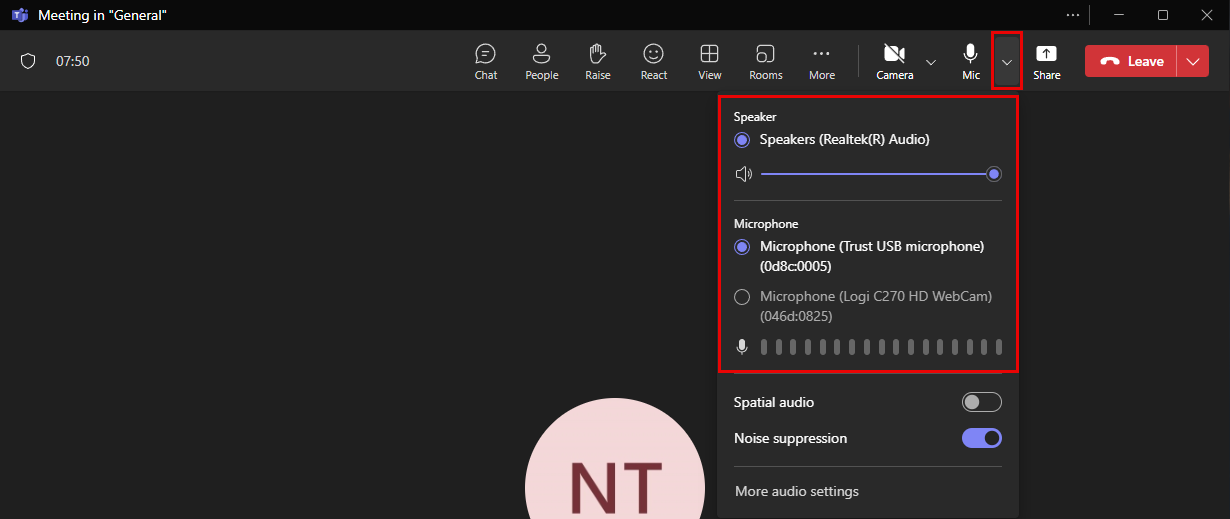
You can also adjust the microphone and audio settings during the meeting. You can open the menu by clicking the arrow next to the microphone icon. In the menu, you can adjust the volume and select microphone and audio sources.
Info: Recording
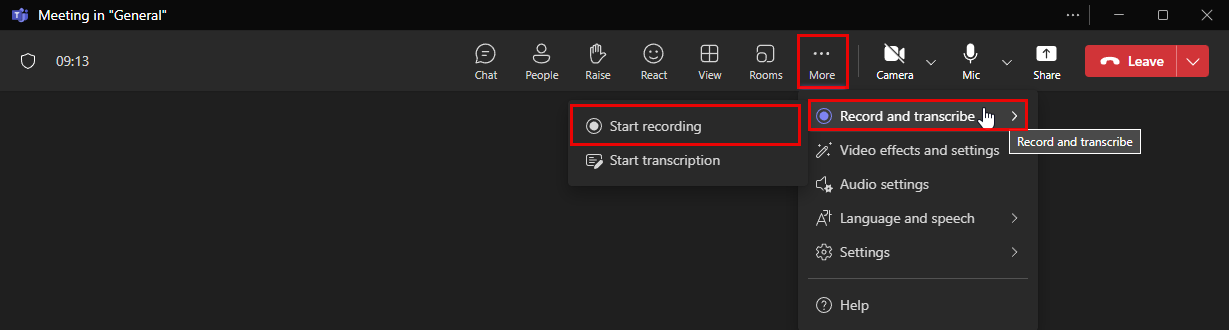
By selecting More actions → Record and transcribe → Start recording, you can start the meeting recording and you can also stop the recording from the same place. The More actions menu also allows you to change the window settings.
Info: Screen sharing
You can also share your screen with meeting participants.

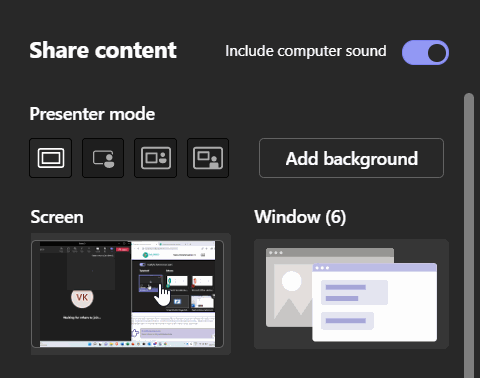
At the right-hand side of the screen, you will be given the choice of whether to share a single open window or the whole screen.
You should now be able to open the Teams desktop application and join the meeting via the link you received in the email. You'll also know how to use the microphone and camera functions, as well as the chat in the meeting room. Do you know how to do these things? If you answered yes, you can mark the Participating in Meeting with Teams chapter as completed.