Joining a Teams Meeting
We’ll go through the issues related to joining a meeting. For example, you'll learn how to make sure your microphone and camera work. We’ll also go through the meeting invitations.
Task: Making a test call
It's a good idea to check in advance – for example, the day before the meeting – that the microphone and speakers are working.
The easiest way to make sure is to make a test call.
The test call can only be made in the desktop version.
Info: Joining a meeting by invitation
When your colleague creates a Teams online meeting, he can invite you to join. The invitation will arrive in your inbox.
If you didn't manage to get an invitation from someone, you can still do the tasks without an invitation. Go to Info: Start a quick meeting
| In the invitation that arrives in your email, there is a link with a text that tells you that clicking on it will join the meeting. Click on it. |
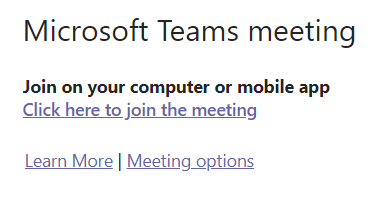 |
If you get a window with a button Open Teams, you have the desktop version of Teams installed.
Info: Start a quick meeting
You can start a new meeting directly in Teams, without making it a scheduled meeting in your calendar.
Such a meeting is also known as a “quick meeting”.
Participants may be invited directly from the meeting.
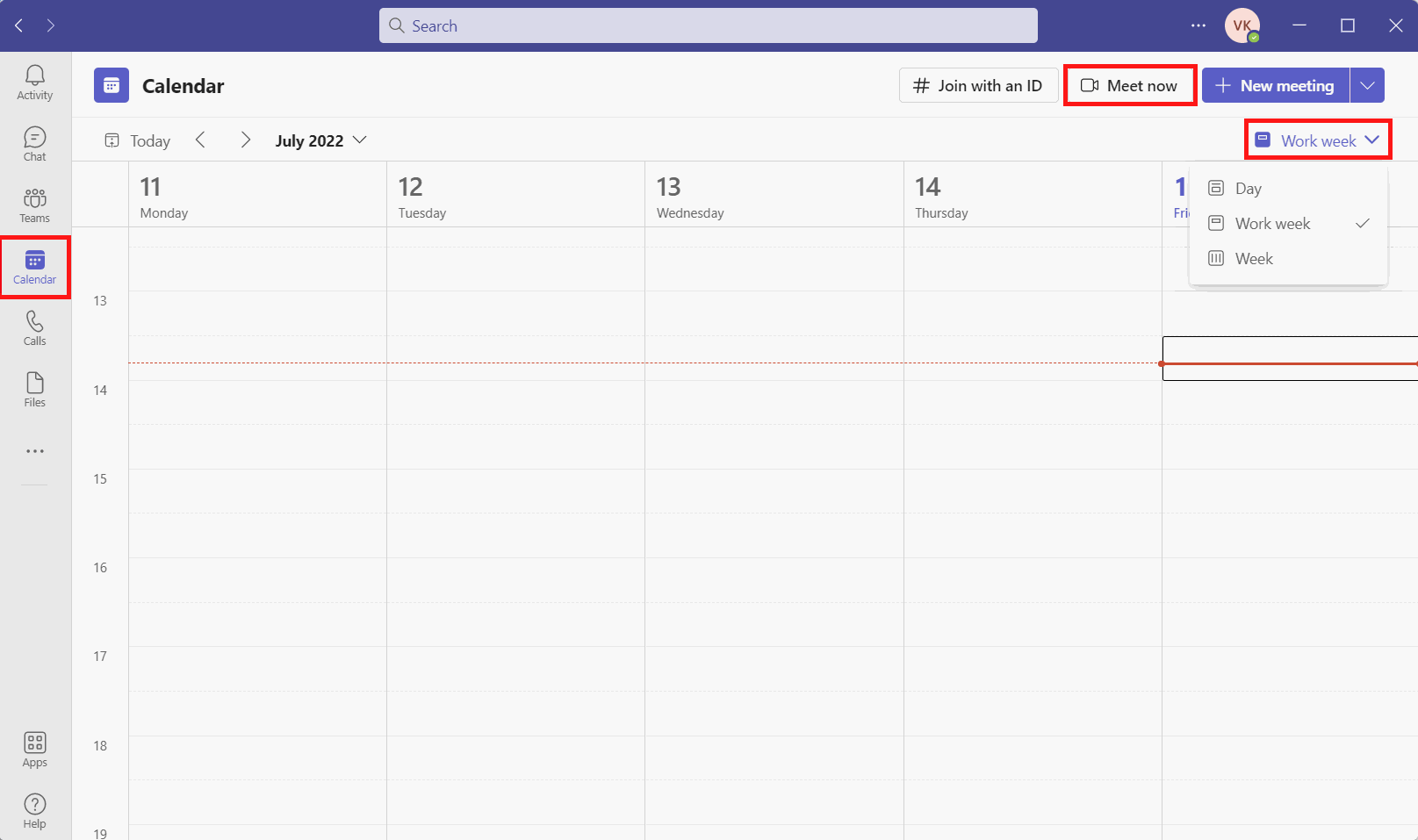
Launch the desktop version of Teams and click on the Calendar button on the left side of the screen.
Start the meeting by clicking on Meet now button.
Task: Join the meeting
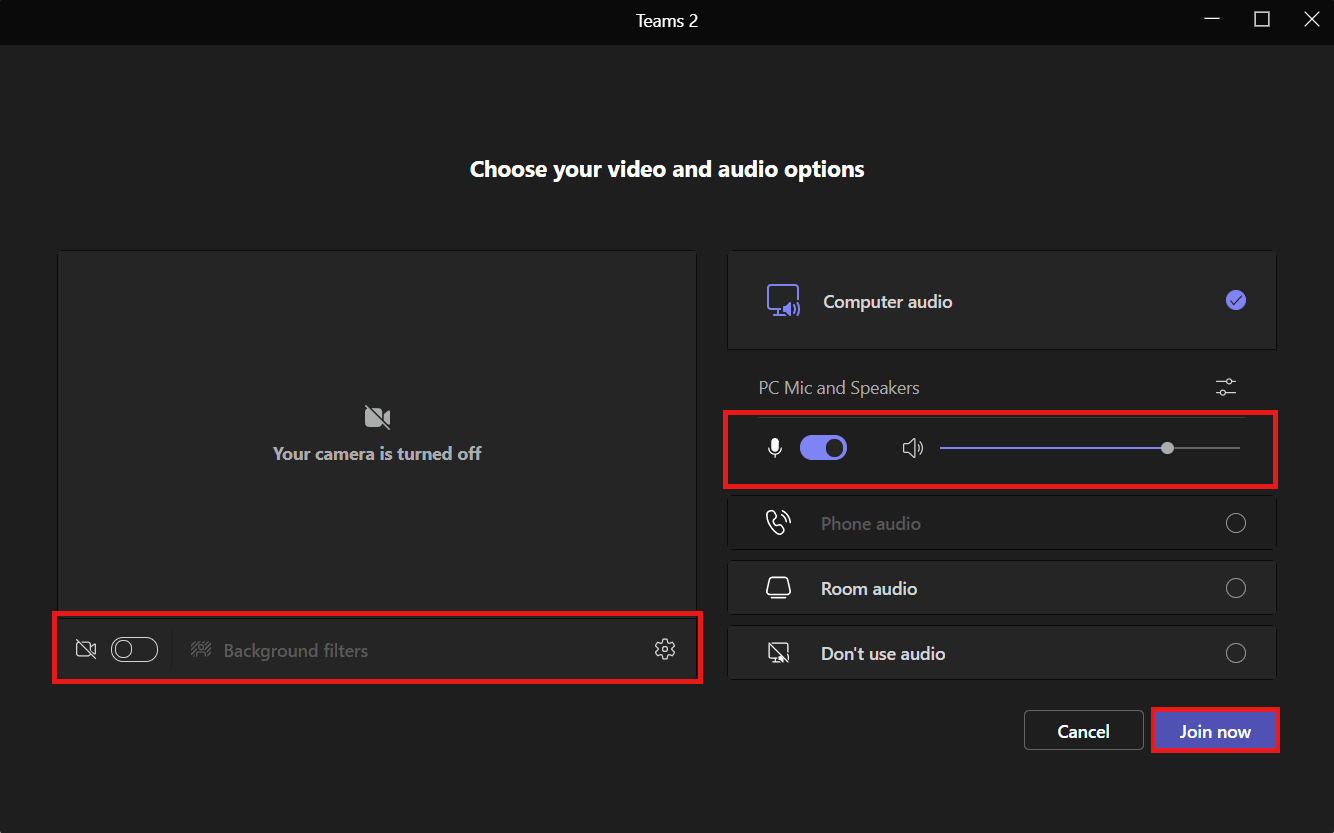
Before you join a meeting, you can specify, for example, whether you want to share a video of yourself or whether your microphone is open.
All of these can still be changed at the meeting.
Camera
You can share your own image as a video with other participants. If the network connection is weak, it is not worth sharing the image.
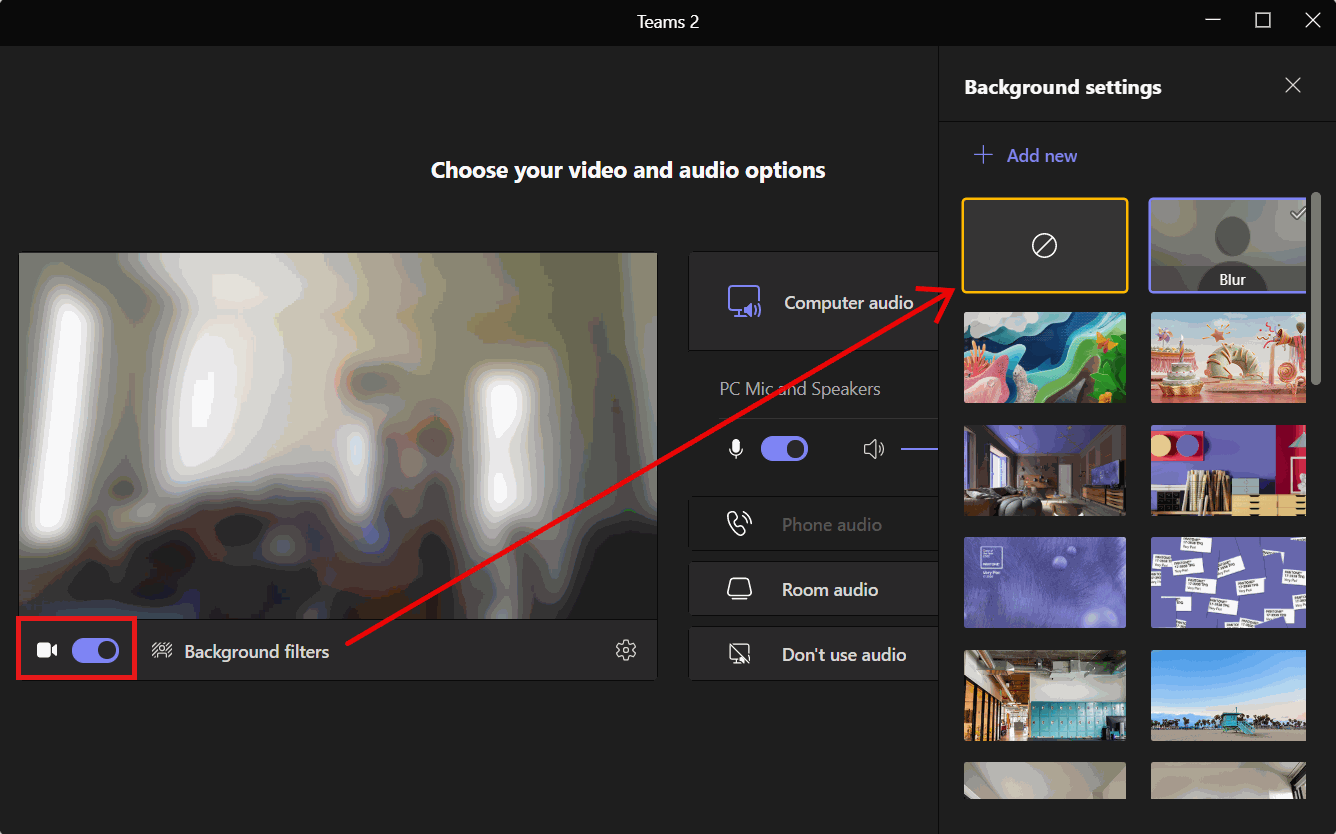
Click on the Camera button to turn the camera on or off. If the camera is turned on, you can use a variety of predefined backgrounds by clicking on the button Background filters.
Microphones
You can also specify whether your microphone is on or off by clicking the Microphone button.
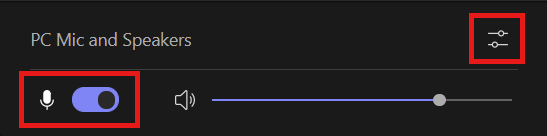
It is often recommended that the microphone is kept closed and only opened when you want to speak, to avoid unnecessary background noise.
Above the microphone button, the devices name you are using is displayed. By clicking the "controls" button next to it, you can change the device settings if you need to.
You should now be able to open the Teams desktop application and join a meeting. Finally, let's take a look at the functions offered by Teams during the meeting. Are you ready?